360 Feedback helps you gather feedback about an individual from multiple stakeholders, giving them, and their organization, a broader view of their strengths and development opportunities.
Instead of relying on feedback from only one person, a 360 feedback program can include feedback from the individual themselves, their manager, peers, and direct reports. This makes it a useful tool for professional development, leadership development, coaching, and performance conversations.
Note: This feature is still in development, but if you would like to join our early testers and get a first-hand look, reach out to us at support@credspark.com.
This article explains how to create, launch, manage, and report on a 360 Feedback program in CredSpark.
Create a 360 Feedback program
To create a new 360 Feedback program:
- Click New.
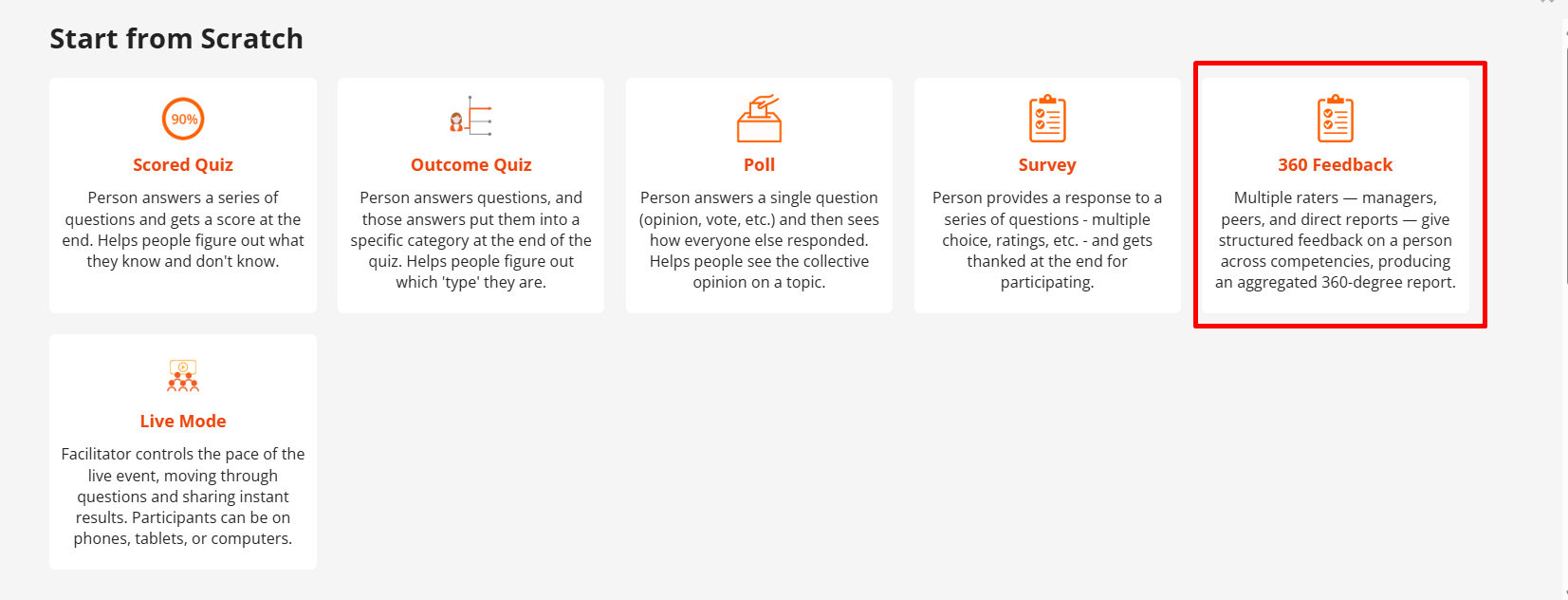
- Select 360 Feedback.
- Click Create New.
Once your 360 Feedback program is created, you can begin adding competencies and questions.
Create competencies and questions
360 Feedback programs are typically structured around competencies. A competency represents an area you want participants to evaluate, such as Leadership, Communication, or Teamwork.
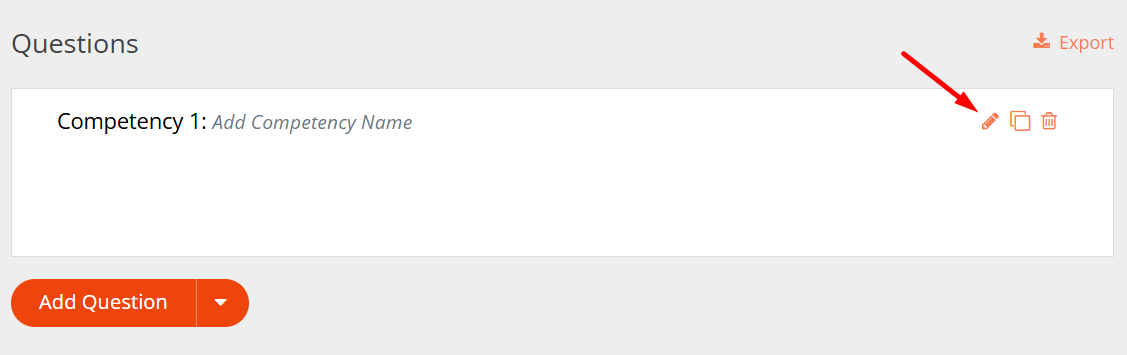
When you first create your 360 Feedback program, you will see a default competency section.
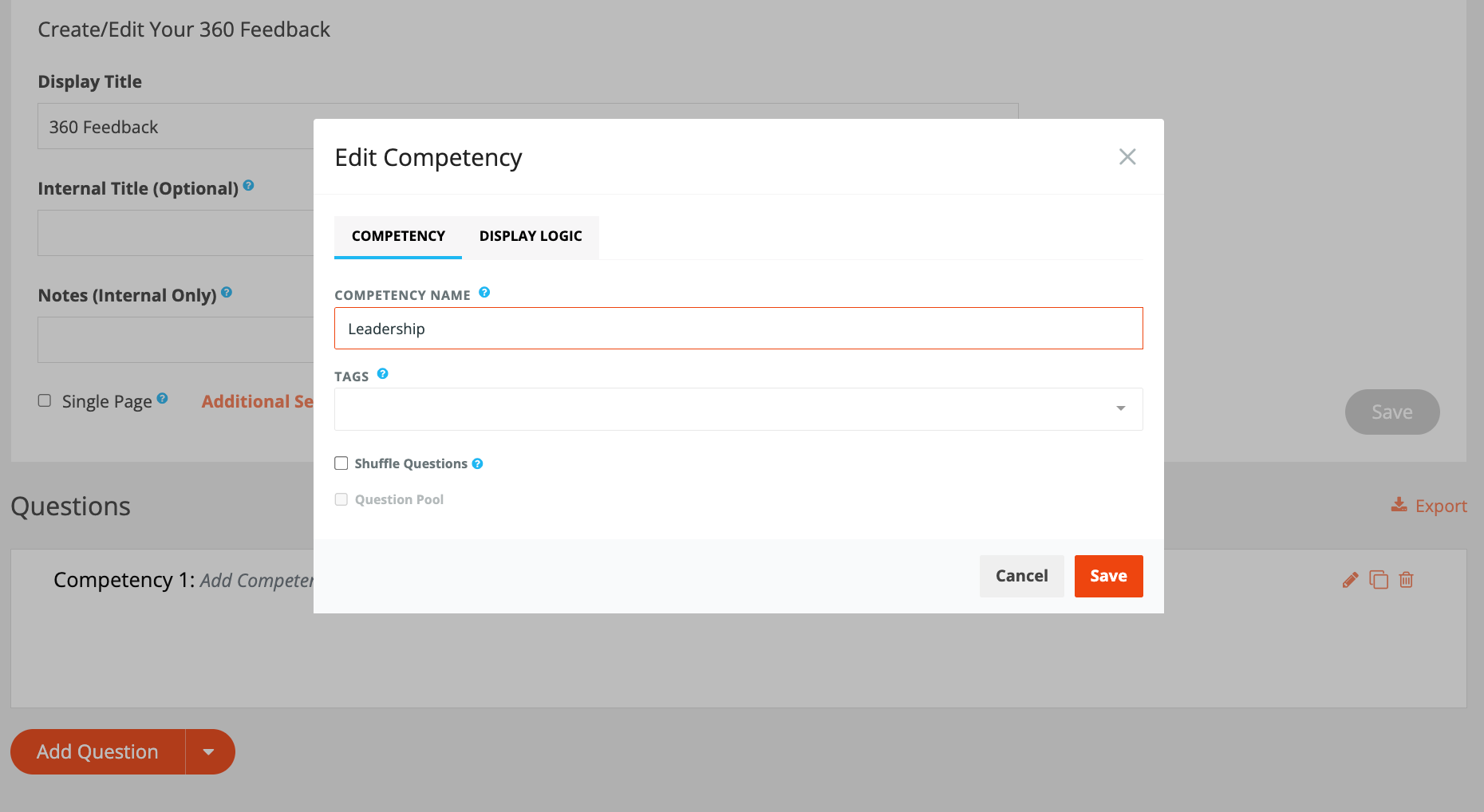
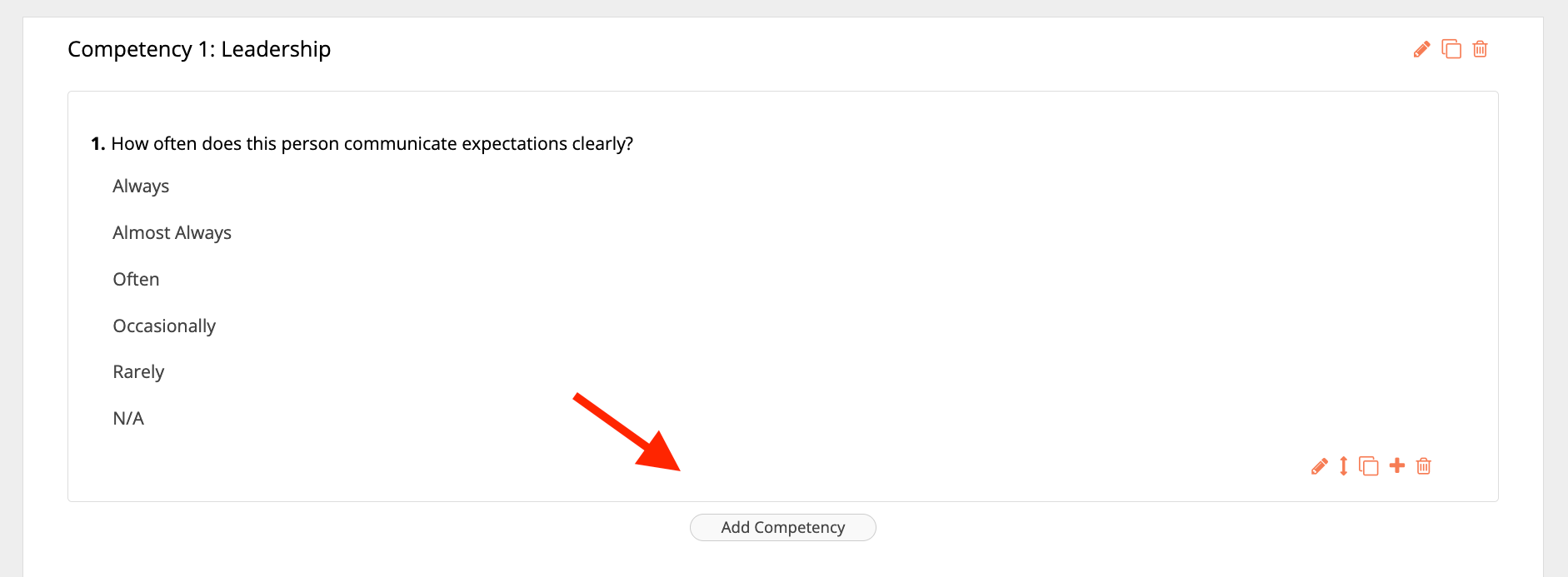
Click Edit to rename the competency. For example, you could name it Leadership.
You can then add questions related to that competency.
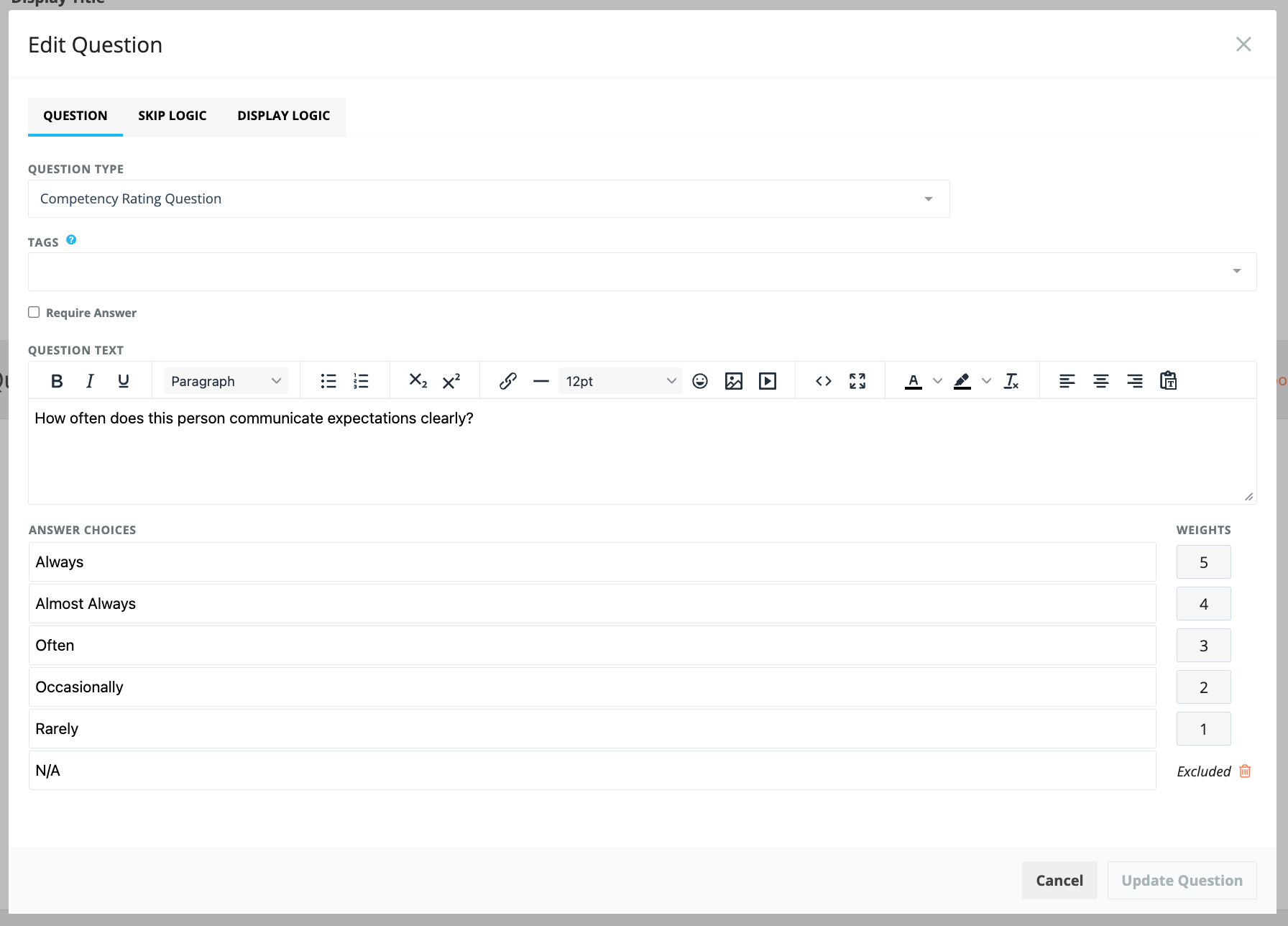
To create another competency, click Add Competency, enter a name such as Teamwork, save it, and add the relevant questions.
Competency Rating questions
The Competency Rating question type is used to calculate competency scores.
By default, the available response options are:
- Always
- Almost Always
- Often
- Occasionally
- Rarely
- Not Applicable
You can customize the answer choice text to better fit your 360 Feedback program, however in the current version the rating scale is set by default and therefore cannot be customized.
The scored response options have predefined weights assigned to them, which are used to calculate the competency score. The weights are not currently customizable. Selecting Not Applicable does not contribute to the competency score. The score is calculated using only the scored responses provided for that competency.
Written feedback
You can also add Short Answer and Long Answer questions to collect qualitative feedback.
For example, within a Leadership competency, you could ask participants to provide additional comments about the person's leadership.
Note: Short Answer and Long Answer questions are not scored. If a competency contains only written feedback questions and no Competency Rating questions, that competency will not have a score in the report. The responses will instead appear as written feedback.
Add participants
Open the Participants tab to add the people who will participate in the 360 Feedback program.
A 360 Feedback program can include four rater groups:
- Self
- Manager
- Direct Report
- Peer
Using multiple rater groups can provide a more complete picture of how the subject is perceived by different people they work with.
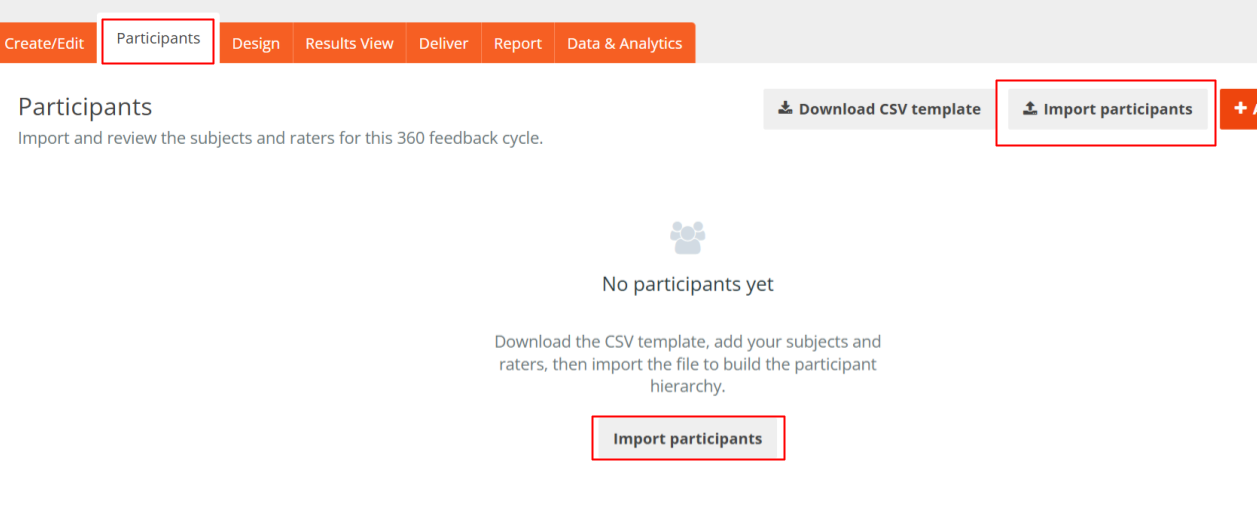
Import participants
You can download the provided CSV template and use it to import subjects and their associated raters.
Once the CSV is uploaded, the Participants table will display the subjects and the rater groups associated with each subject.

Add participants manually
You can also add participants individually.
Click Add Subject to create a subject manually. Once the subject has been created, you can add individual raters and assign them to the appropriate rater group.
Remove participants
The Participants tab is also where participants should be removed from a 360 Feedback program.
If you remove a subject or rater from the Participants tab, they are removed throughout the 360 experience. This includes areas such as email notifications, tracking, and reporting.
Customize the design
Use the Design tab to customize how the 360 Feedback experience looks to participants.
The Design tab works in the same way as other CredSpark interactions, allowing you to customize the appearance of the experience.
You can also configure the Results View, which determines what participants see after they submit their feedback.
Configure emails and launch your 360 Feedback program
Open the Delivery tab to configure communications, launch the program, and track participation.
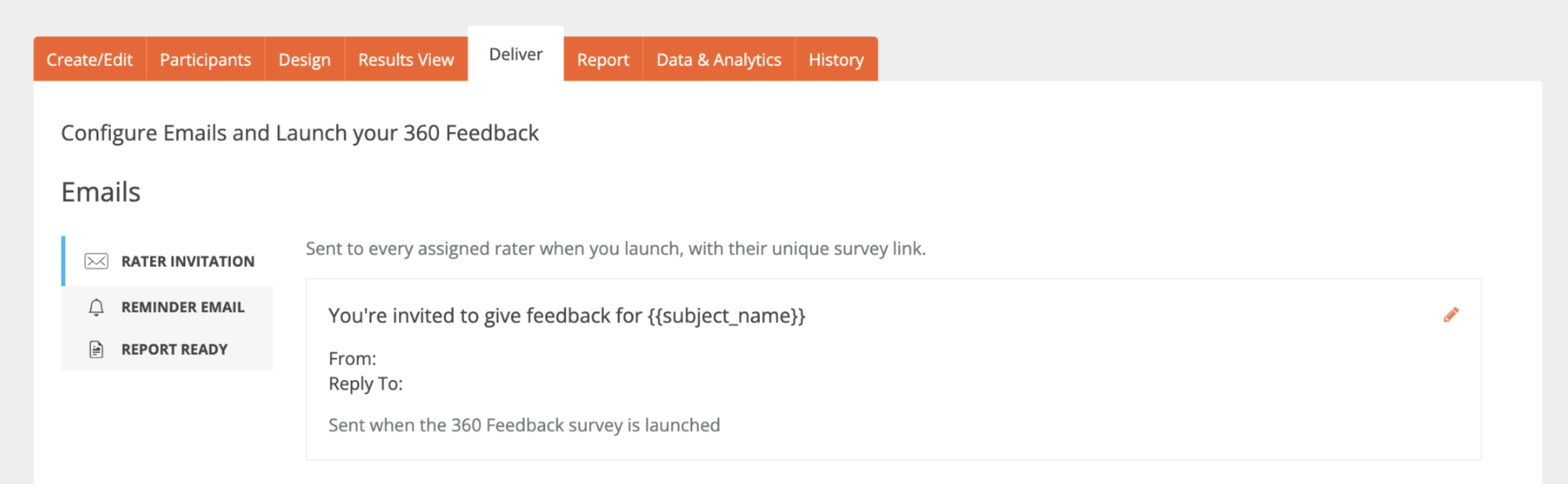
Invitation email
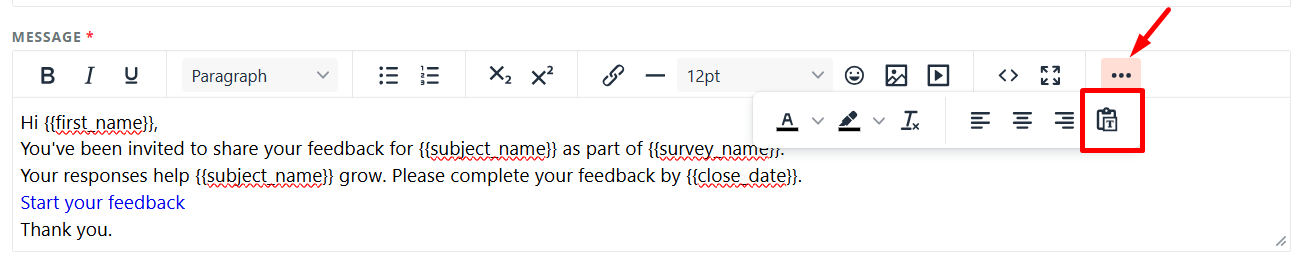
An invitation email template is provided automatically.
You can customize the content of the email before sending it to raters.
Merge variables are available so that information such as the subject name and survey name can automatically be inserted into each email. You can find the available merge variables in the text editor.
Reminder emails
Reminder Emails can be used to follow up with raters after their Invitation Email has been sent. You can add one or more Reminder Emails and choose how many days after the Invitation Email each reminder should be sent.
For example, if a reminder is set to 3 days after the Invitation Email, each rater will receive it 3 days after their own invitation was sent.
You can add multiple reminders with different send times.
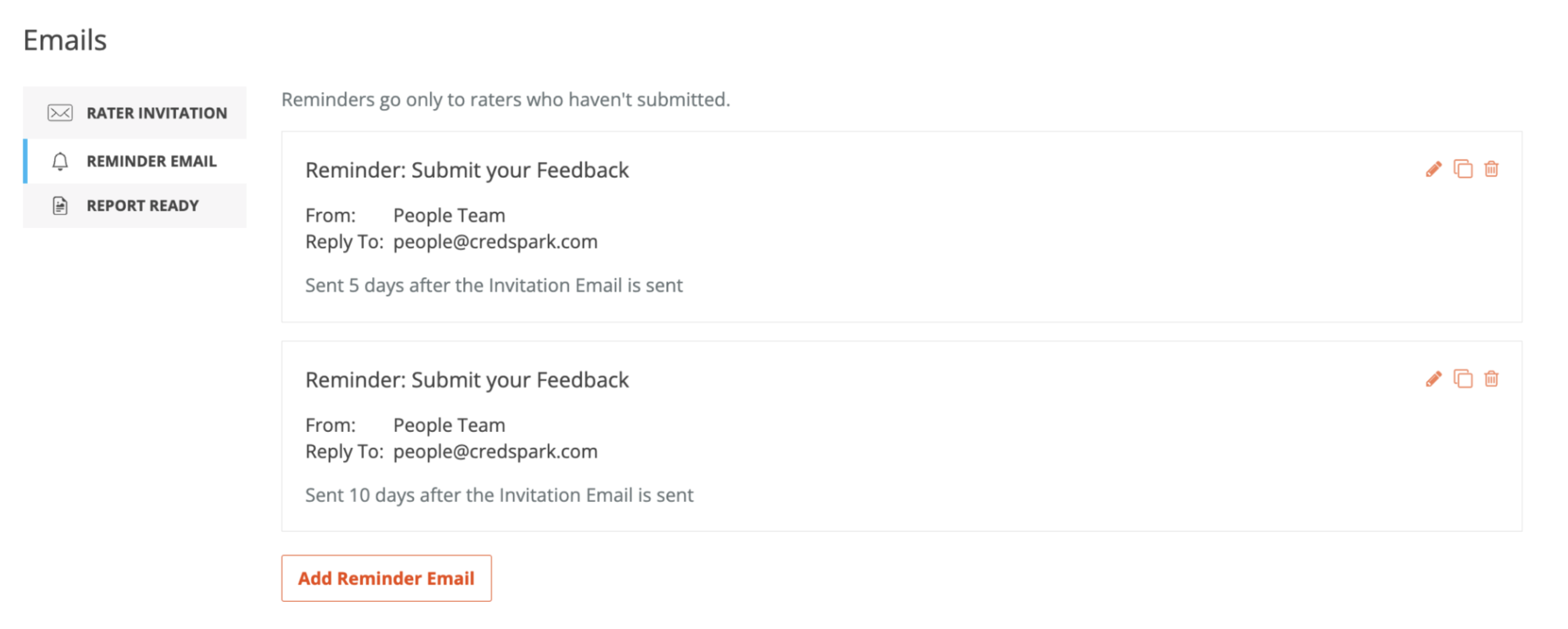
Note: Reminder Emails will stop once a participant submits their response, so they will not receive any remaining scheduled reminders.
Editing a Reminder Email
You can update the subject, message, and other email details at any time.
Once a reminder has started sending, its send schedule cannot be changed. This prevents situations where some participants have already received the reminder based on the original schedule while others would receive it based on the updated schedule.
If you need to change the timing, create a new Reminder Email instead.
Adding a Reminder After the Scheduled Time Has Passed
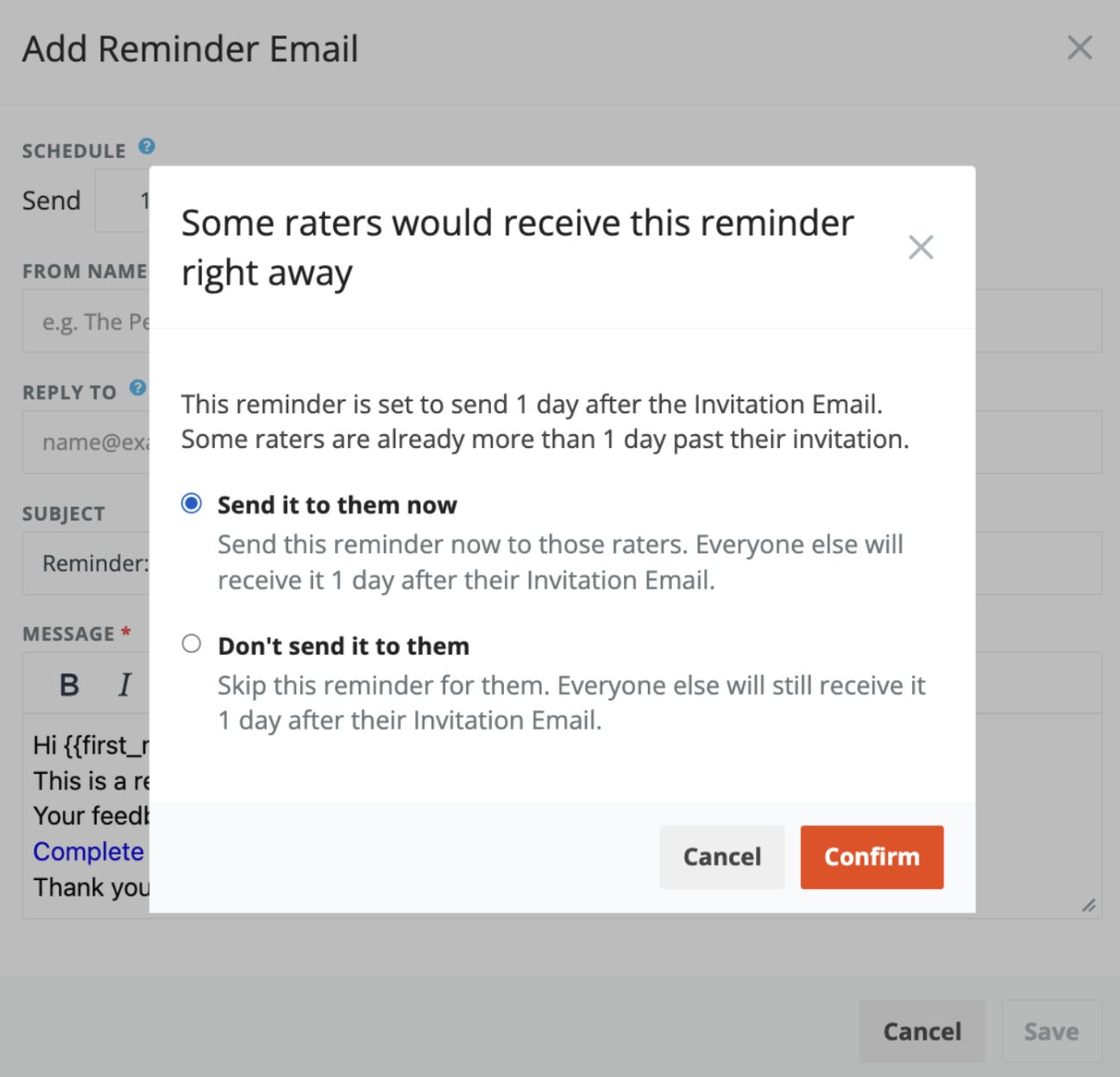
If you add a new reminder and the selected number of days has already passed for some participants, you will be asked what should happen for those participants.
You can choose to:
- Send it to them now - participants who are already past the scheduled time will receive the reminder immediately.
- Don’t send it to them - participants who are already past the scheduled time will be skipped.
Participants whose scheduled reminder time has not yet passed will still receive the reminder according to the selected schedule.
Report Ready email
You can also customize the Report Ready email.
This email is sent to subjects when their individual 360 Feedback report has been released and is available to view.
Launch and tracking
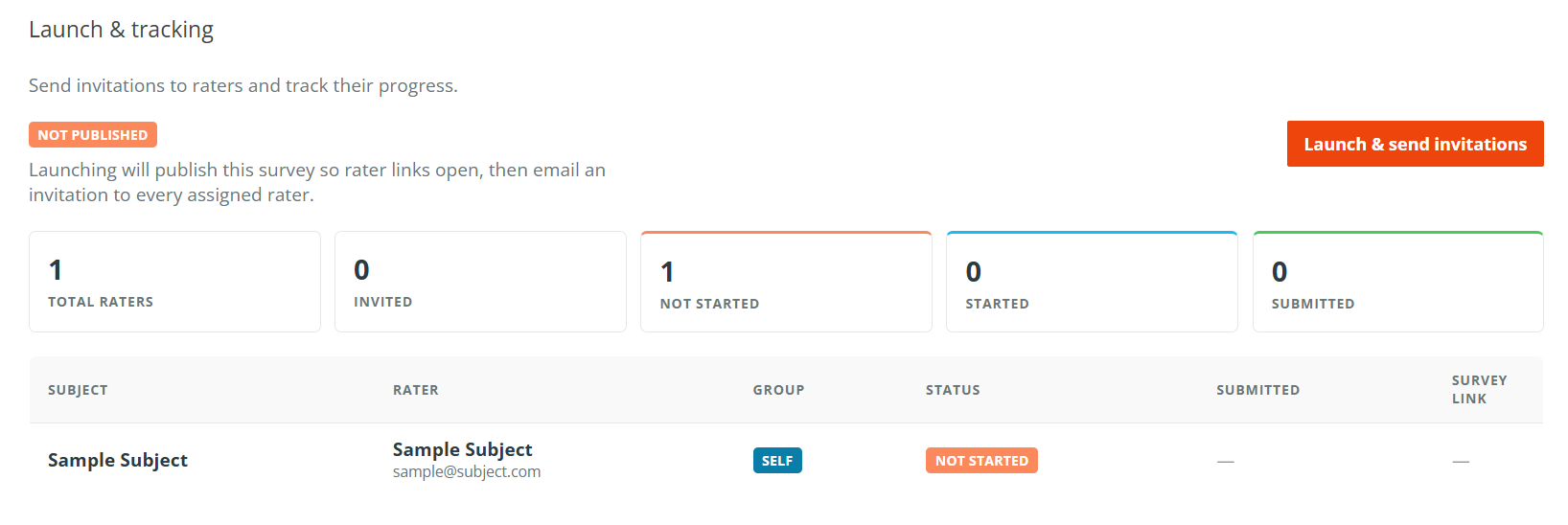
Once your program is ready, click Launch and Send Invitations.
Invitation emails will be sent to the raters included in the program.
After launch, you can use the tracking area to monitor participation and see whether each rater has submitted their feedback.
Each rater also has an individual survey link. If someone does not receive their invitation email or cannot locate it, you can copy their survey link and share it with them directly.
Preview the report
Use the Report tab to preview what subjects will eventually see in their individual 360 Feedback reports.
The preview currently displays sample data so that you can understand the structure and appearance of the report before releasing any participant reports.
The report includes several sections.
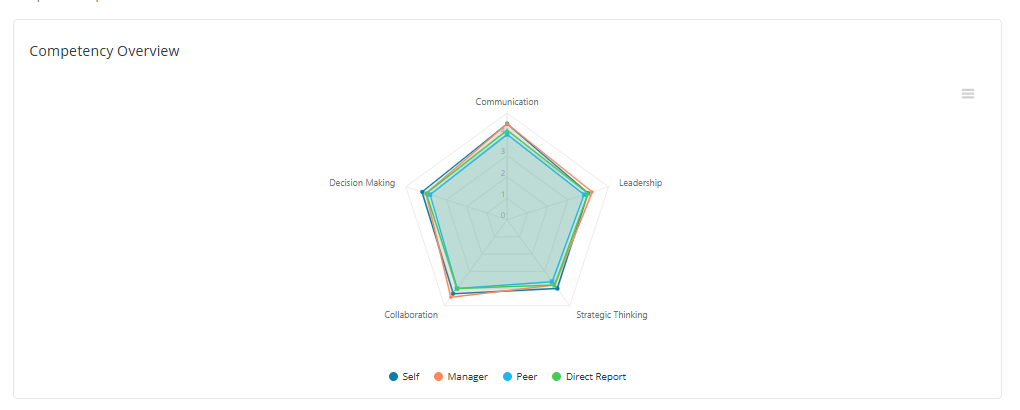
Competency Overview
The Competency Overview provides a visual summary of competency scores by rater group.
This allows the subject to quickly compare their own perception with feedback from other groups.
For example, a subject may rate themselves highly on a particular competency while their peers or direct reports provide a different rating.
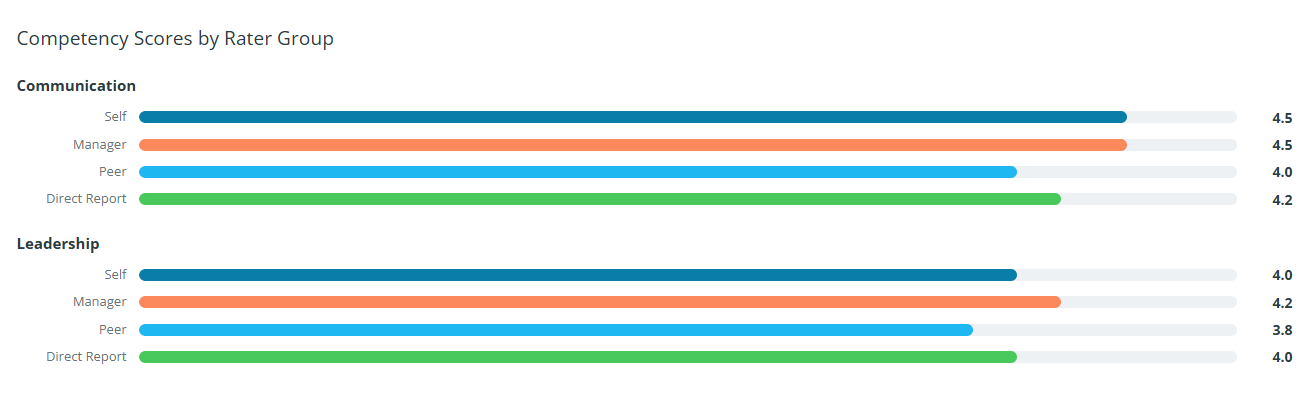
Competency Scores by Rater Group
This section provides more detailed competency scores for each rater group.
It helps subjects understand where perceptions are aligned and where there may be differences between their self evaluation and the feedback provided by others.
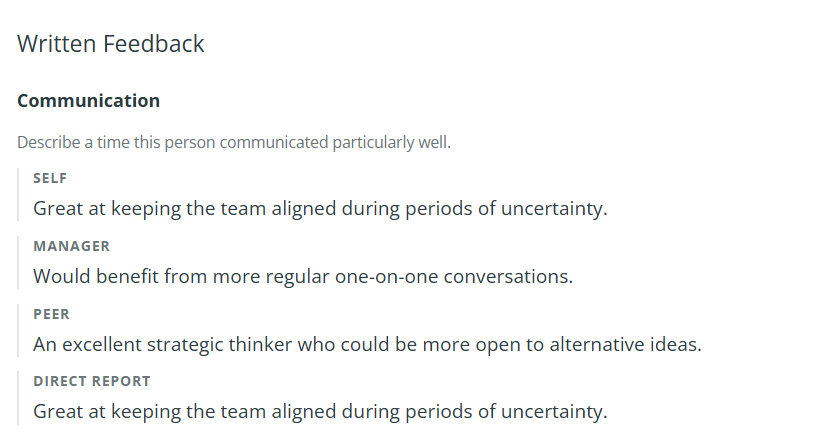
Written Feedback
The Written Feedback section displays responses to Short Answer and Long Answer questions.
This provides additional context behind the competency scores and gives raters an opportunity to provide more detailed feedback.
Anonymity in 360 Feedback reports
CredSpark protects the anonymity of Peer and Direct Report feedback.
For these groups, feedback is included in the report only when at least two people within the group have submitted their evaluations.
For example, if a subject has several peers assigned but only one peer completes the evaluation, the Peer group cannot be displayed in the report. At least two Peer responses are required.
The same rule applies to Direct Reports.
Individual responses are not identified by participant name in the subject's report. Responses are presented anonymously so that the subject cannot determine which individual provided a particular rating or comment.
Self and Manager responses do not use the same anonymity threshold. If a program contains only a Self evaluation and Manager evaluation, both must be completed before the report can be released.
Manage your 360 Feedback program
The Data Analytics tab provides tools for monitoring participation, managing reports, and reviewing program data.
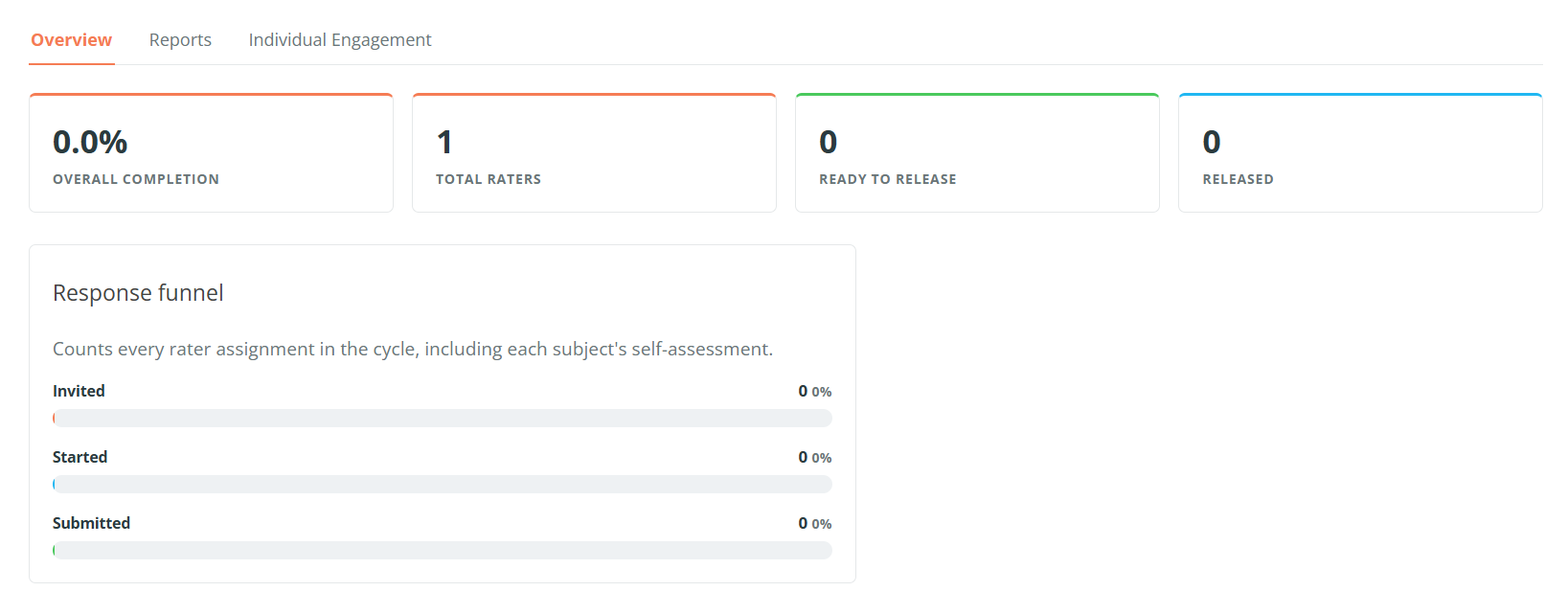
Overview
The Overview section provides a high level view of participation across the entire 360 Feedback program.
You can see metrics such as:
- Number of people invited
- Number of people who started
- Number of people who submitted
- Overall completion
Use this section to quickly understand how the program is progressing.
Reports
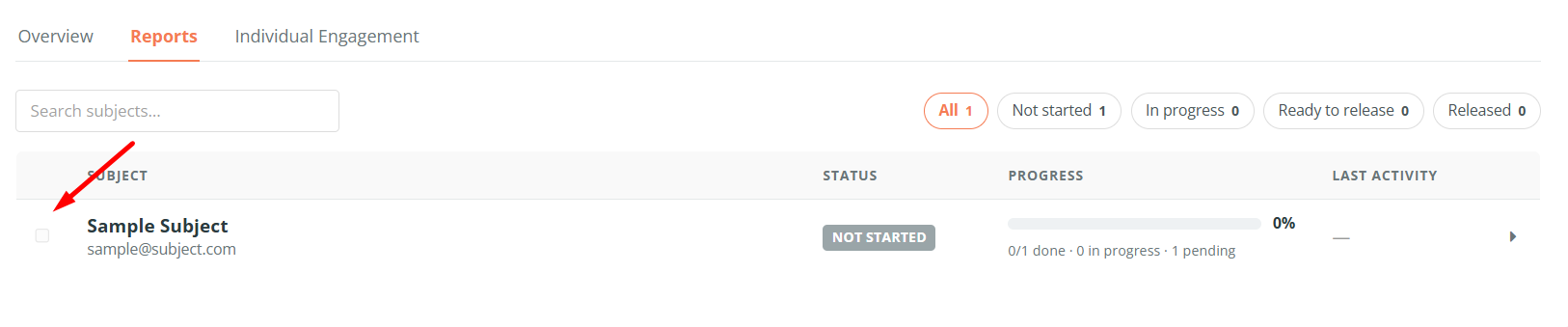
The Reports section displays the subjects included in the program.
For each subject, you can review information such as:
- Subject status
- Progress
- Last activity
Expand a subject to see additional details about the raters associated with that subject and their completion status.
Once the required feedback has been submitted, you can release the subject’s report. Select the checkbox next to the subject, then choose Release Report.
A report can be released once the Self evaluation and at least one other rater evaluation have been completed.
Keep in mind that Peer and Direct Report feedback is only displayed when the anonymity threshold has been met. At least two Peers or two Direct Reports within the same rater group must submit feedback for that group’s scores and written feedback to appear in the report.
When the report is released, the subject can access their individual 360 Feedback results and receive the Report Ready email configured in the Delivery tab.
How Reports Update After Release
Released reports continue to update as participation changes.
If a participant is removed from the 360 Feedback program, their submitted feedback is also removed from the report. If this causes a Peer or Direct Report group to fall below the anonymity threshold of two submitted responses, that group’s scores and written feedback will no longer be displayed.
Similarly, if additional raters submit feedback after the report has been released, their responses are automatically included and the report is updated. If a rater group reaches the required anonymity threshold, that group’s feedback will then become visible in the report.
Individual Engagement
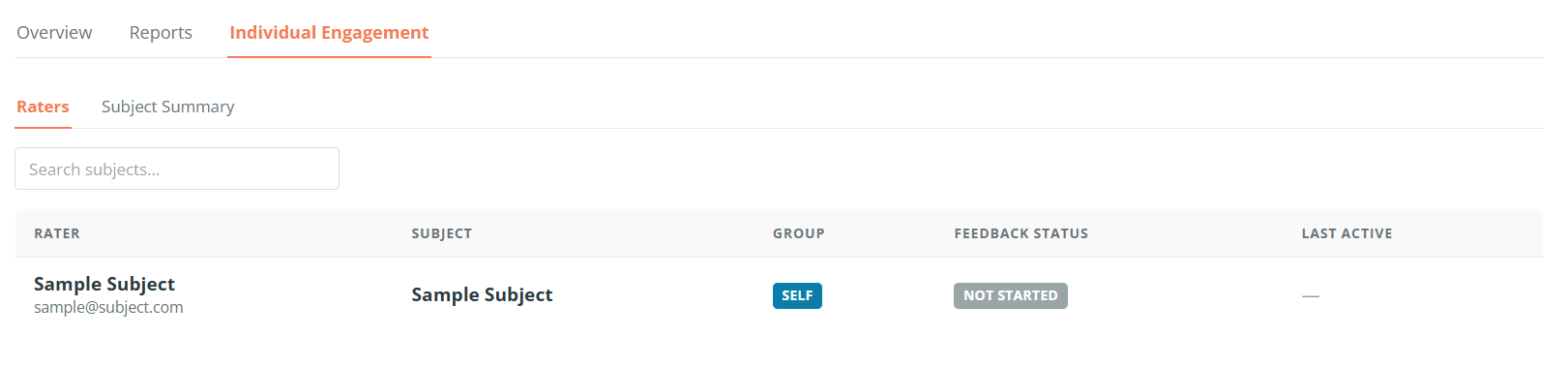
The Individual Engagement section provides a detailed view of all raters and their assigned subjects.
You can review information such as:
- Rater
- Subject
- Rater group
- Feedback status
- Last activity
If one person is providing feedback for multiple subjects, each subject assignment appears as a separate row.
This makes it easier to identify outstanding evaluations and understand exactly which feedback each participant has or has not completed.
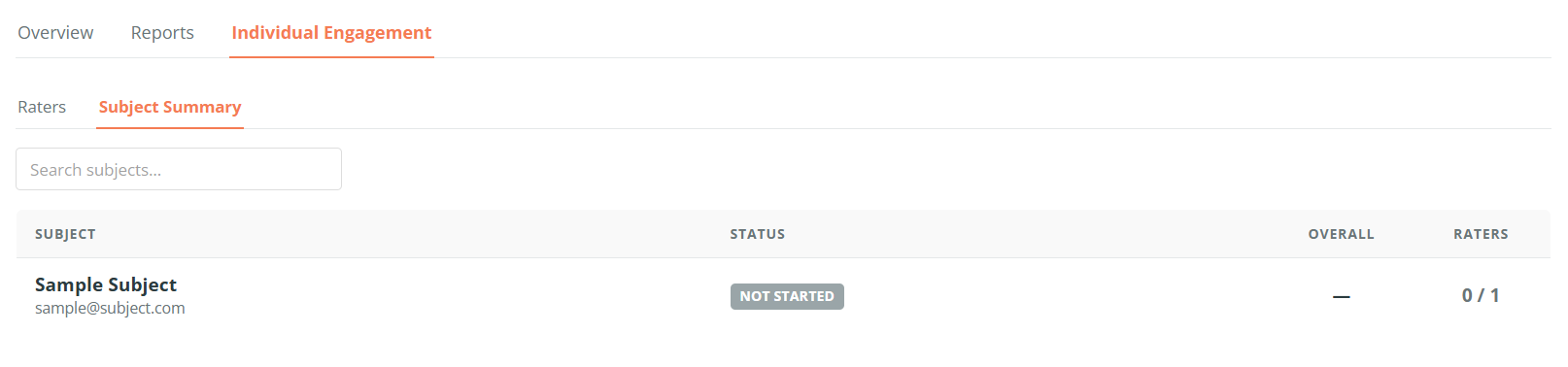
Subject Summary
The Subject Summary provides a high level data view for each subject.
It includes information such as:
- Subject name
- Report status
- Overall score
- Score for each competency
- Number of assigned raters
Use this view to quickly compare progress and results across all subjects in the 360 Feedback program.