

CredSpark allows account administrators to configure automatic session timeout rules that protect against unauthorized access on unattended or long-running sessions. When enabled, these controls automatically sign out users after a period of inactivity or after a defined maximum session length — requiring re-authentication to continue.
Session timeout settings apply organization-wide and affect all user sessions within the account.
CredSpark provides two independent timeout controls, each addressing a different risk. Idle session timeout monitors whether a user is actively engaging with the application and signs them out after a configurable period of no detected interaction — useful for preventing unauthorized access on unattended devices. Maximum session duration sets an absolute limit on how long any session can remain open, regardless of user activity — useful for organizations with compliance requirements or security policies that mandate periodic re-authentication. Both controls can be used together or independently, and each is off by default.
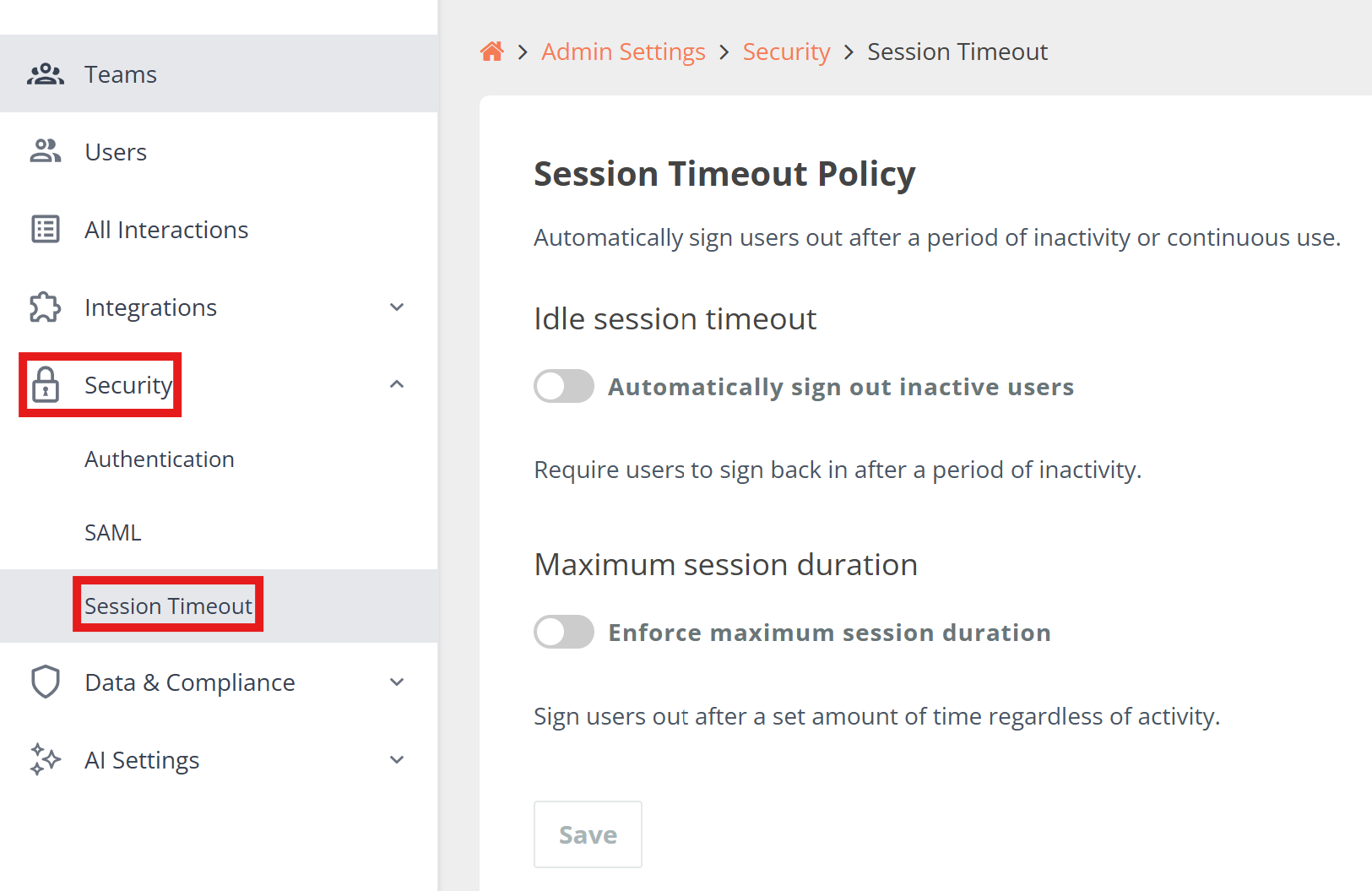
Accessing Session Timeout Settings
To configure your organization's session timeout policy:
- Open Admin Settings
- Navigate to Security
- Select Session Timeout
Idle Session Timeout
The Idle Session Timeout control automatically signs out users who have not interacted with the application for a configurable period of time.
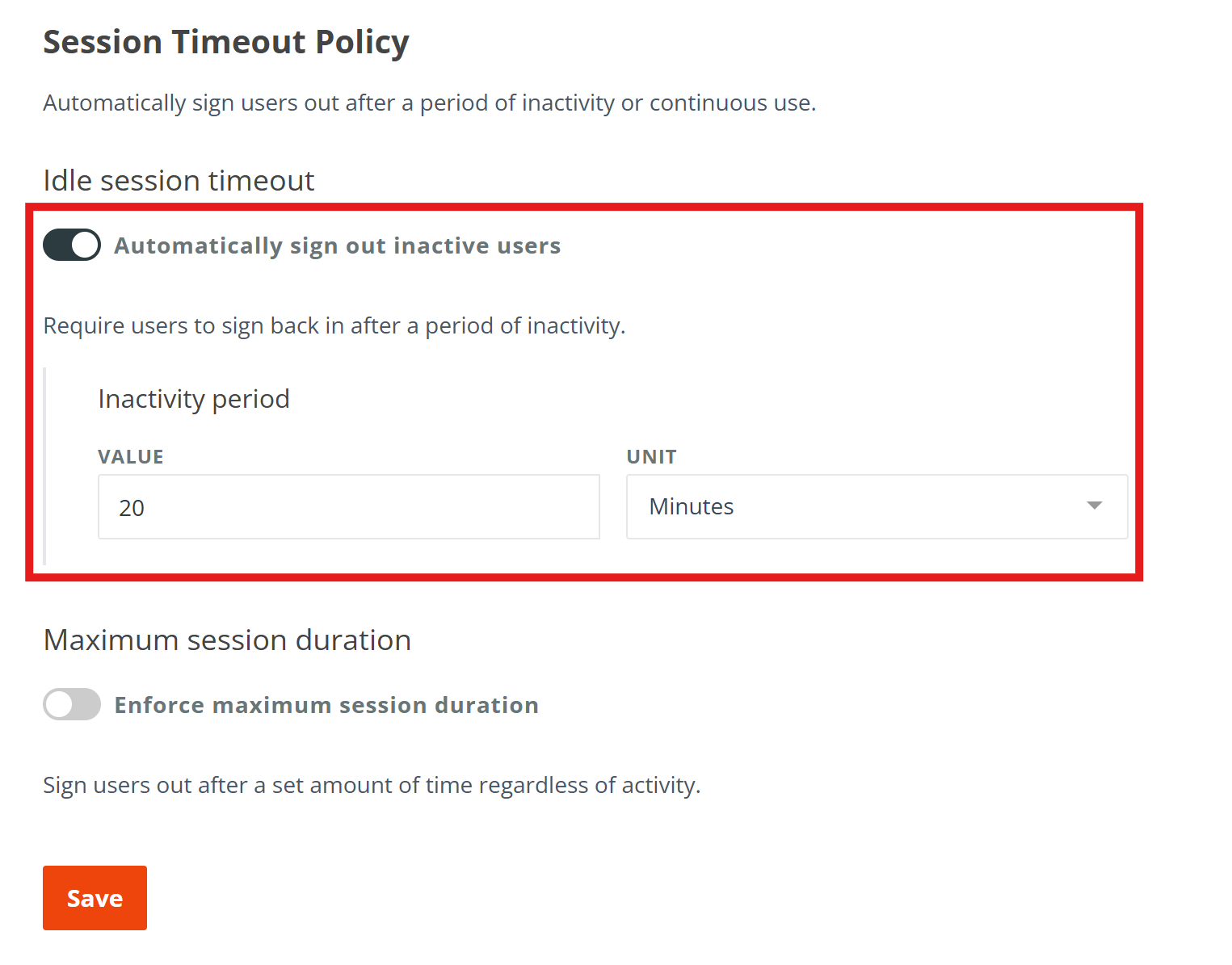
A toggle labeled "Automatically sign out inactive users" is present in this section and is OFF by default.
To enable Idle Session Timeout:
- Switch the "Automatically sign out inactive users" toggle to ON
- An Inactivity Period configuration panel will appear
- Enter the amount of time and select a unit — Minutes, Hours, or Days
- Click “Save” button
When the toggle is switched OFF, the Inactivity Period panel is hidden and no idle session timeout is enforced.
What counts as activity?
A session is considered active when the user provides any mouse, keyboard, or touch input, for example moving the mouse, clicking, pressing a key, or tapping the screen.
If no such input is detected within the configured period, the session is classified as idle and the sign-out flow begins.
What happens when a session goes idle:
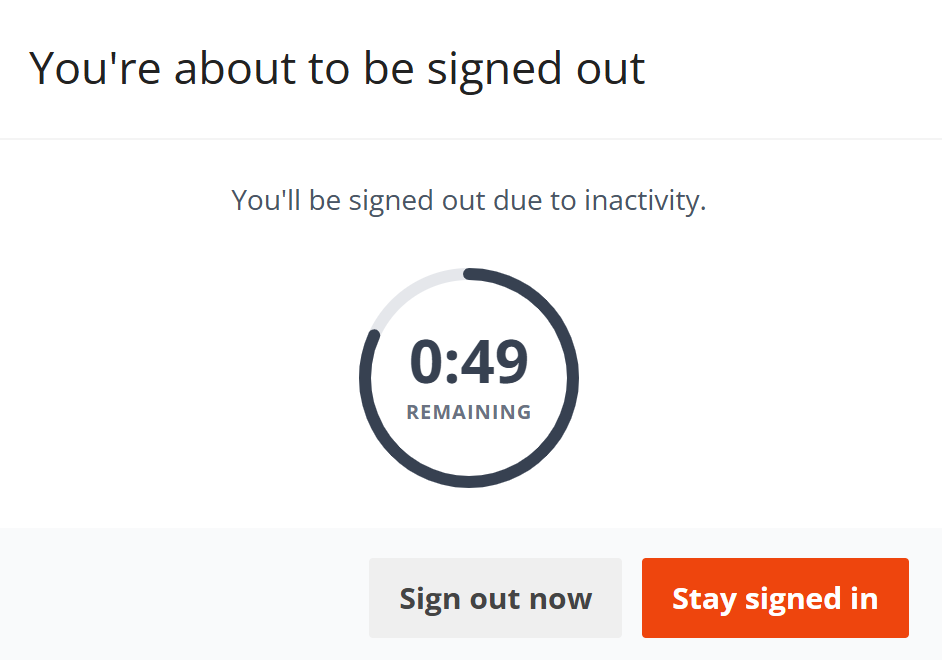
- A warning modal appears 60 seconds before automatic sign-out, including a visible countdown timer showing remaining seconds and the option to continue the session
- The user can click "Stay signed in" in the modal to extend the session, or "Sign out" to end it immediately. Activity outside the modal does not dismiss it, an explicit click is required, so the modal doesn't disappear under a stray mouse movement before the user has a chance to respond
- If no choice is made before the countdown expires, the user is signed out and redirected to the login screen with a message indicating the session expired due to inactivity
When does this setting take effect?
Changes to the Idle Session Timeout setting apply the next time each user reloads the page. The change does not take effect immediately after saving — this is intentional, to avoid unexpectedly signing out users who may have unsaved work in progress at the time the setting is updated.
Maximum Session Duration
The Maximum Session Duration control automatically signs out users after a configurable period of continuous use — regardless of whether the user has been active.
A toggle labeled "Enforce maximum session duration" is present in this section and is OFF by default.
To enable Maximum Session Duration:
- Switch the "Enforce maximum session duration" toggle to ON
- A Maximum Duration configuration panel will appear
- Enter the amount of time and select a unit — Minutes, Hours, or Days
- Click “Save” button
When the toggle is switched OFF, the Maximum Duration panel is hidden and no session duration limit is enforced.
How the session timer works:
- The timer begins at login and runs continuously
- It cannot be reset by user activity — it represents the total time since login
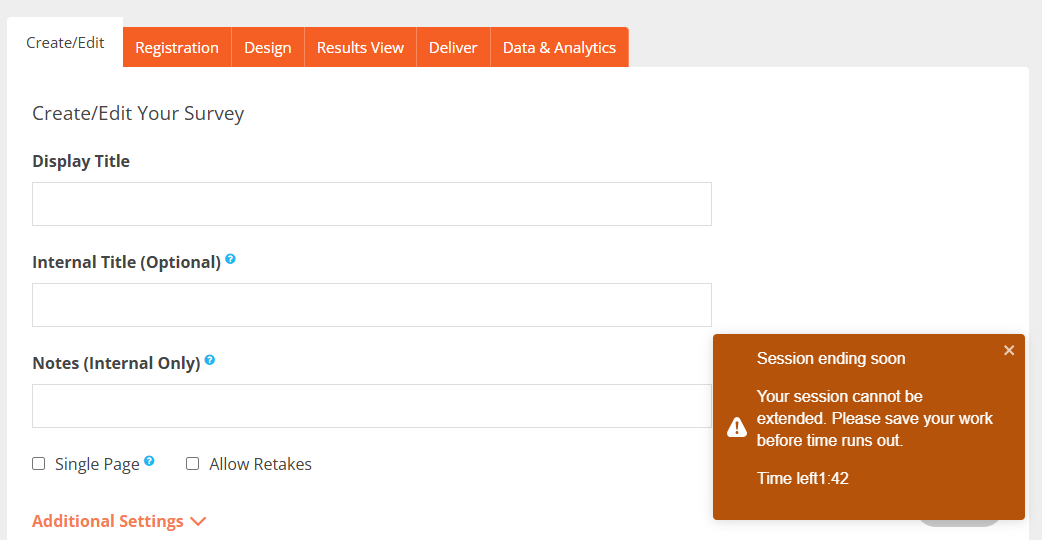
- A non-blocking notification appears on the right side of the screen 5 minutes before the maximum duration expires, informing the user that their session is about to end so they can save any work in progress. The notification escalates 1 minute before expiry to make the imminent sign-out more visible. Neither notification blocks the screen
- When the duration expires, the user is signed out and redirected to the login screen with a message indicating the session has reached its maximum allowed duration
When does this setting take effect?
Changes to the Maximum Session Duration setting apply the next time each user signs out and back in. The change does not take effect immediately after saving — this is intentional, to avoid unexpectedly signing out users who may have unsaved work in progress at the time the setting is updated.
Live Event Facilitator Pages
If your organization uses live events, the application actively detects user activity on the live event facilitator page and will keep facilitators signed in during an active session in most cases. However, if a session does expire during a live event, facilitators will still be able to continue running the event — though certain actions, such as restarting the event, will not be available until they sign back in. We recommend communicating your session timeout policy to facilitators ahead of time, or reviewing your timeout settings before hosting a live event.
Important Notes
- Both controls are independent — you can enable one, both, or neither
- Both default to OFF and must be explicitly enabled by an administrator
- Input validation is enforced on both configuration panels — non-numeric, zero, and negative values will not be accepted. The value must be a positive whole number
- Changes to either setting take effect for all users across the organization but are applied gradually as users reload or re-authenticate, not instantly upon saving