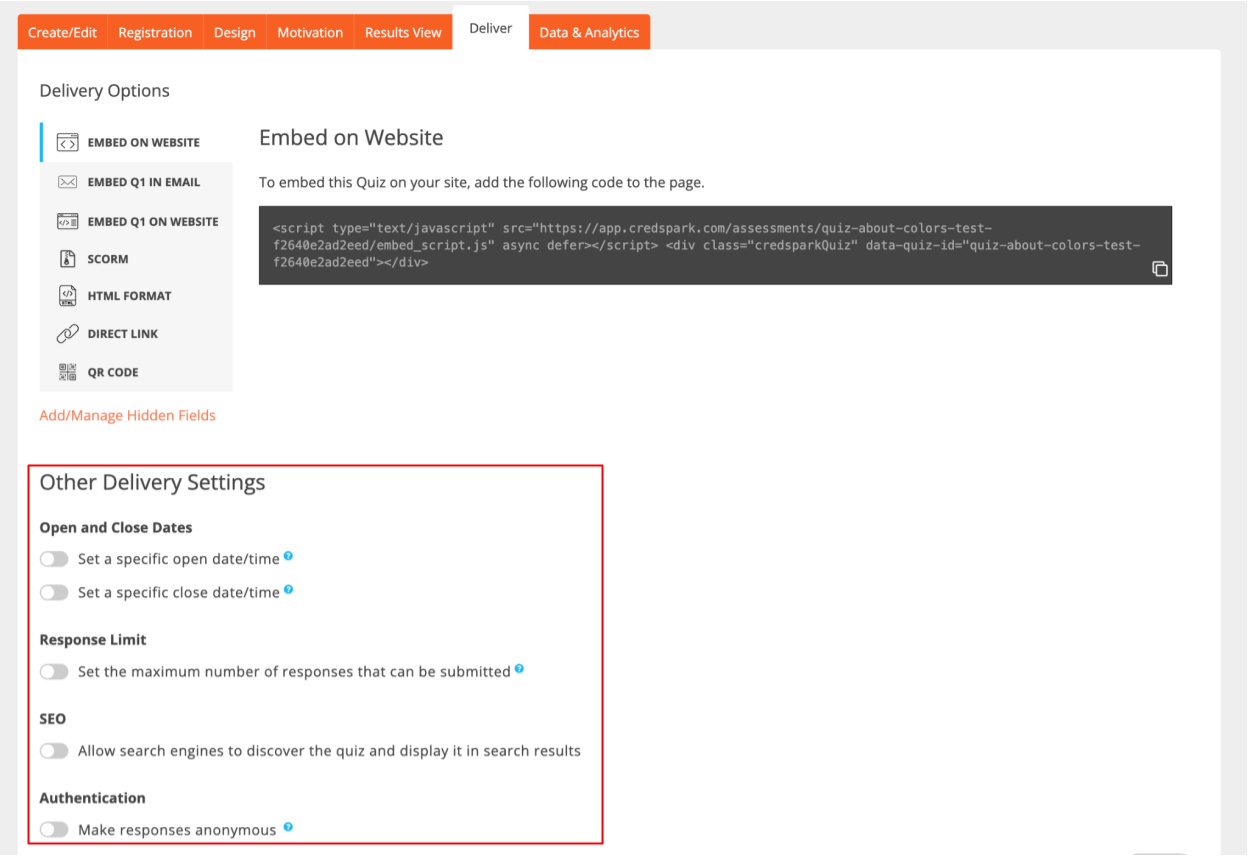
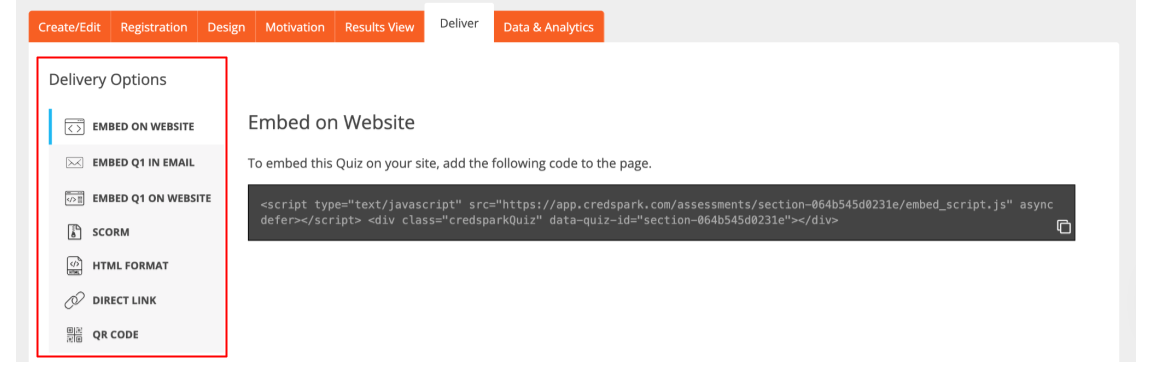
The Delivery tab gives you everything you need to share your interaction with your participants. The Delivery Options section offers multiple ways to distribute your interaction. You can choose from the following delivery options:
- Embed on Website
- Embed Q1 in Email
- Embed Q1 on Website
- SCORM (Available only for Enterprise and CredSpark+ license tiers )
- HTML Format
- Direct Link
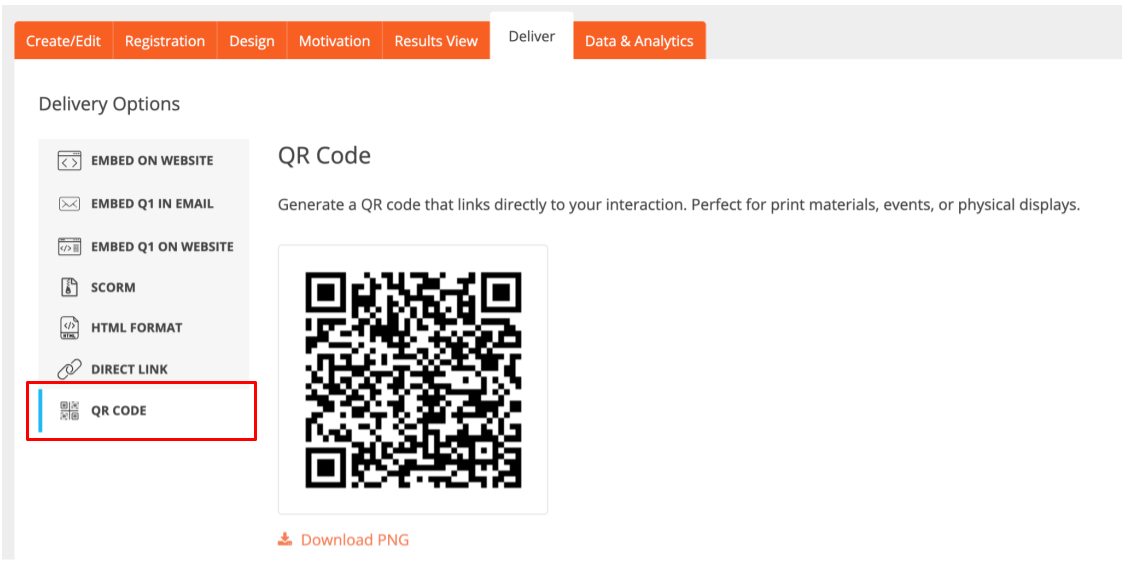
- QR Code
Read more about each option below.
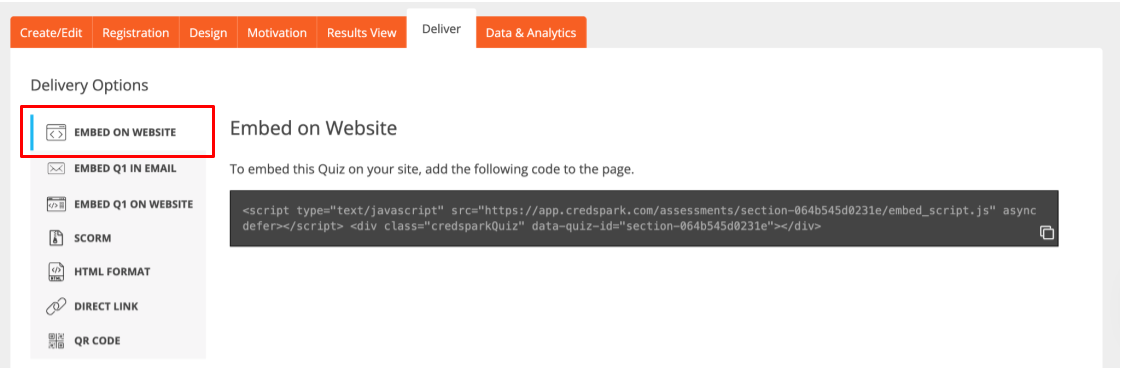
Embed on Website
The Embed on Website option allows you to embed your interaction directly on your website. You will find the embed code in the Delivery tab - simply add it to the HTML of the page where you want your interaction to appear. Before embedding, make sure your interaction is published and the Start Date and Time have already passed, otherwise it won't be visible on your site.
For a full step-by-step walkthrough, read this Knowledge Base article.
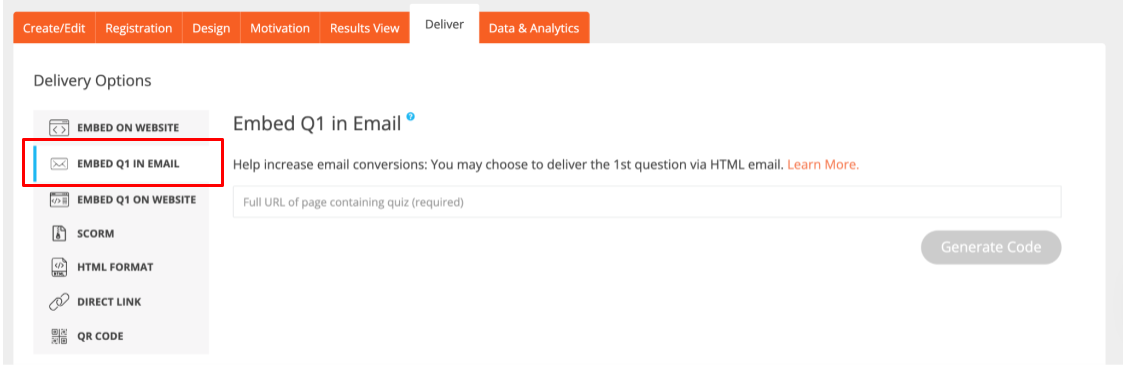
Embed Q1 in Email
The Embed Q1 in Email option lets you embed the first question of your interaction directly in the body of an HTML email, driving higher engagement by letting your audience start interacting right from their email. When a recipient clicks an answer, their response is recorded and they are redirected to the full interaction to continue.
This methodology is great for email engagement, newsletter growth, and re-engagement campaigns.
For best results and to drive traffic to your website, use the URL of the embedded interaction from your website to create the interaction. If you cannot do this, the Direct Link (a CredSpark powered URL) can be used.
Note that this option works with email marketing platforms such as MailChimp or GetResponse. Everyday email services like Gmail, Yahoo, or Outlook do not support this function (or at least not very easily) so it’s best to use this with an email service provider’s platform.
Before embedding, make sure your interaction is published and the Start Date and Time have already passed, otherwise it won't be visible.
For a full step-by-step walkthrough, see this Knowledge Base article.
Embed Q1 on Website
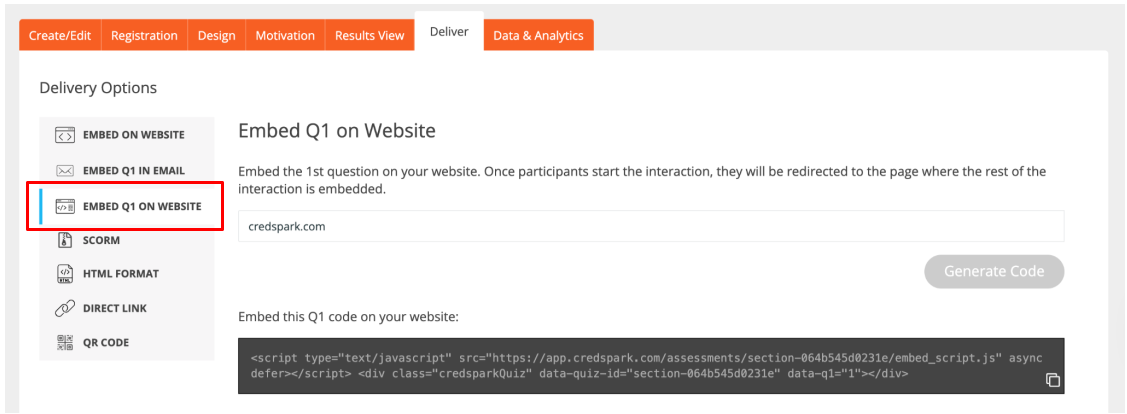
Similar to embedding Q1 in an email, this allows you to embed the first question of an interaction on your website. Note that you will need to embed the full interaction on another page in order for this to work. Once both sets of embed codes have been applied, your end user will see Q1 on one page, answer it, and be redirected to the rest of the questions on another page.
SCORM
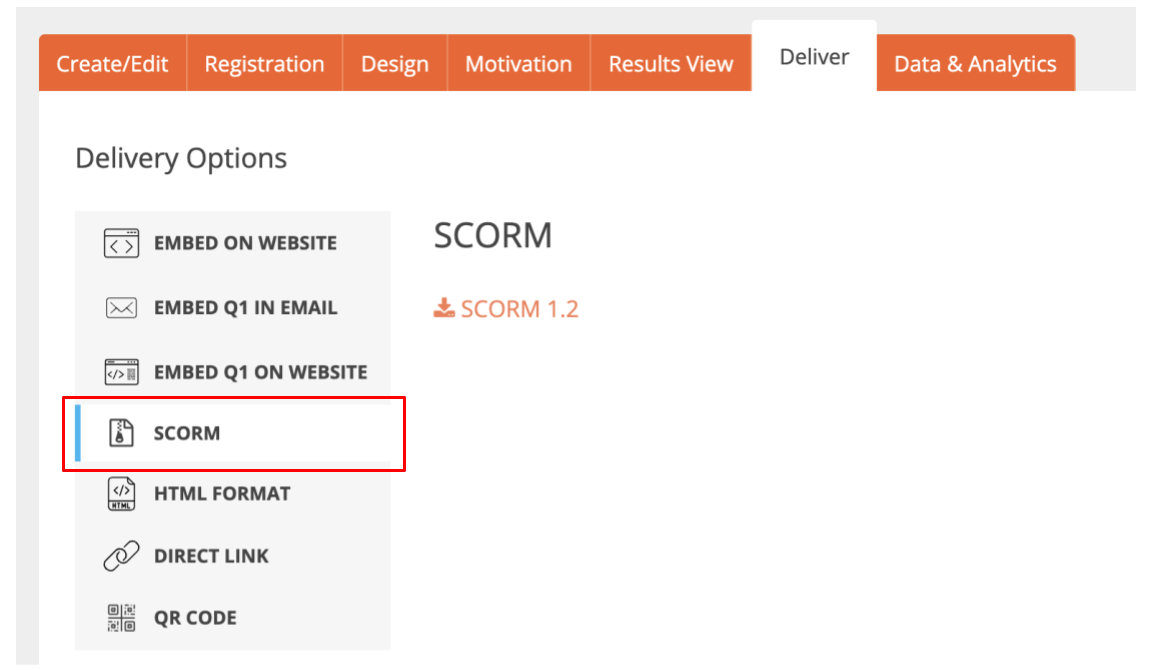
CredSpark supports publishing interactions in SCORM 1.2 format, making them compatible with any LMS that follows SCORM standards. When deploying via SCORM, you can capture key learner data including date taken, time spent, status, and score. All learner data collected through SCORM can be viewed within CredSpark and exported in various formats.
Please note that SCORM is available for Enterprise and CredSpark+ license tiers.
Learn more is this Knowledge Base article.
HTML Format
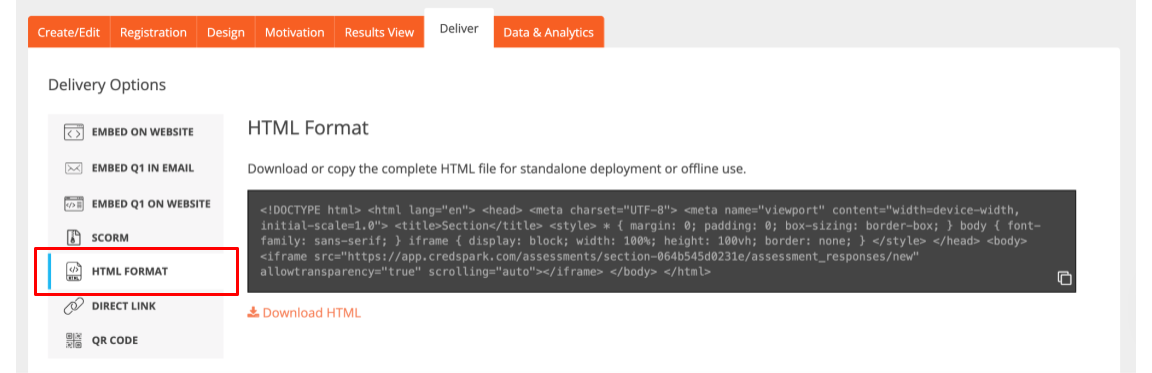
The HTML Format option allows you to download or copy a complete HTML file containing your interaction. This is ideal for environments that only support HTML files and do not accept other formats, such as systems that require raw HTML or do not support embed scripts. You can either copy the HTML code directly or download the file for standalone deployment or offline use.
Direct Link
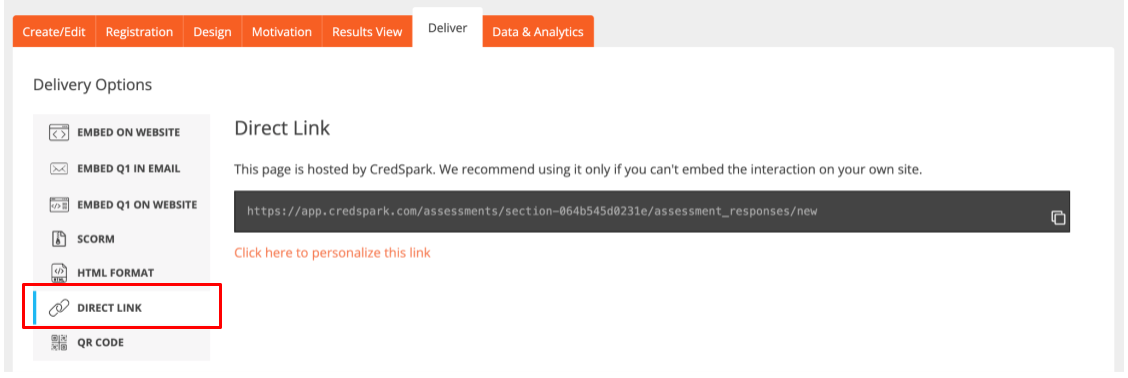
The Direct Link option provides a CredSpark-hosted URL that you can share directly with your audience. We recommend using this option only if you can't embed the interaction on your own site.
You can also customize the direct link URL in the Deliver tab. Note that if your interaction is already embedded, editing the link will break the existing embed and you will need to replace it with the updated embed code. Learn more about customizing your direct link in this Knowledge Base article.
Note: If you are using CredSpark via Degreed, please be aware that the Direct Link does not collect user data. If you need to collect information about your participants, you will need to do so within the interaction itself by adding questions to capture that information.
QR Code
The QR Code option generates a QR code that links directly to your interaction - perfect for print materials, events, or physical displays. You can download the QR code as a PNG file directly from the Delivery tab.
Other Delivery Settings
In addition to the delivery options above, the Delivery tab also includes other settings to help you manage how and when your interaction is accessed. Click the links below to learn more about each setting: