CredSpark offers a direct integration with Salesforce. This article will walk you through how to set it up.
How to Set Up Salesforce Integration
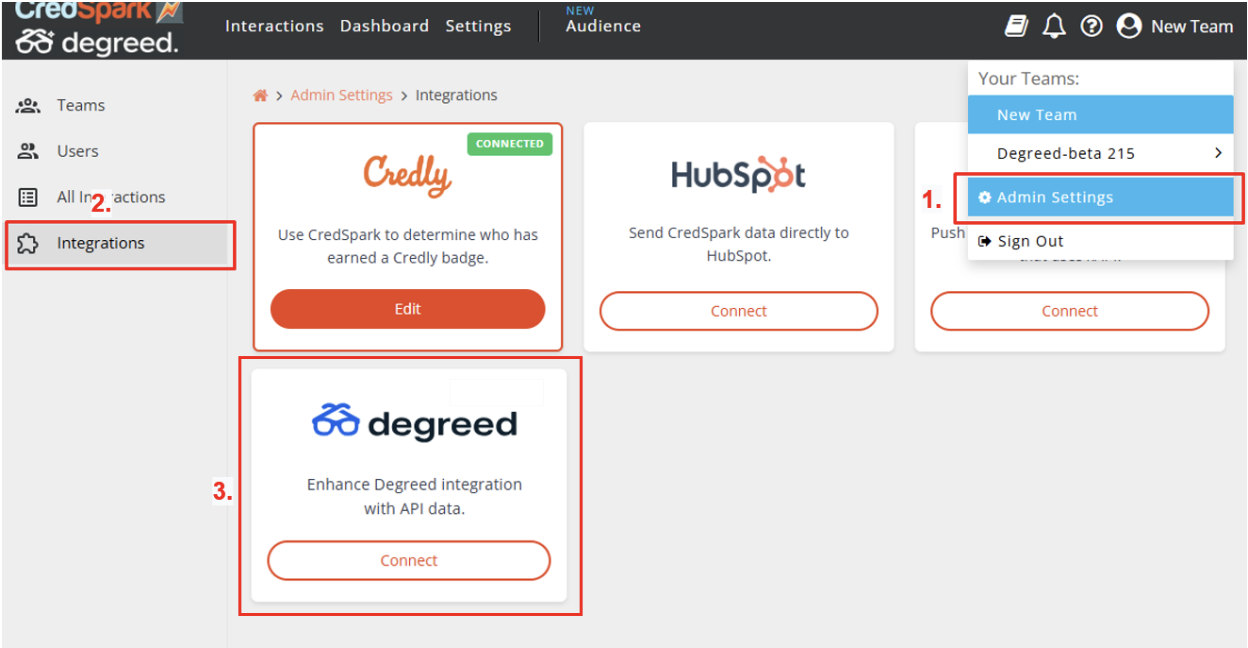
1. Navigate to the "Admin Settings" section in your CredSpark account.
2. Choose the "Integrations" tab and click on the "Connect" button on Salesforce Integration.
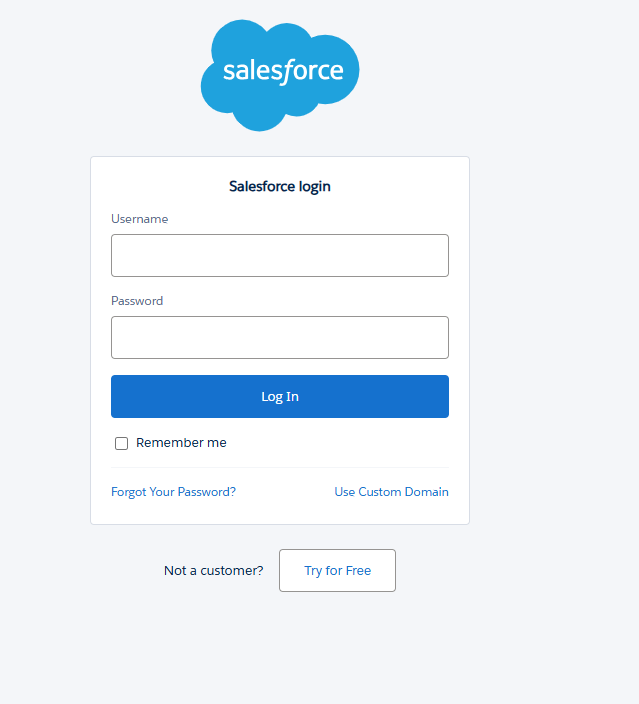
3. You will be redirected to Salesforce to authorize the connection. If you are already logged in to Salesforce, you may be connected automatically. Otherwise, enter your Salesforce credentials and complete the login process.
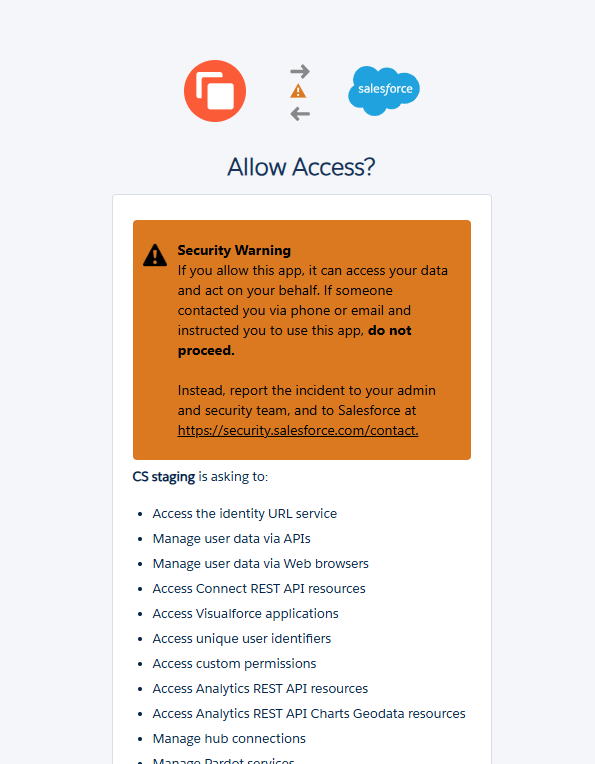
4. Salesforce will display an authorization screen showing the permissions CredSpark is requesting. Review the requested access, then click Allow to continue.
5. Once your integration is set up, you'll see a "Connected" label along with an "Edit" button.
How the Integration Works
Once your integration is set up, go to the Data tab for the interaction which you want to sync with Salesforce and click on the “Integrations” button.
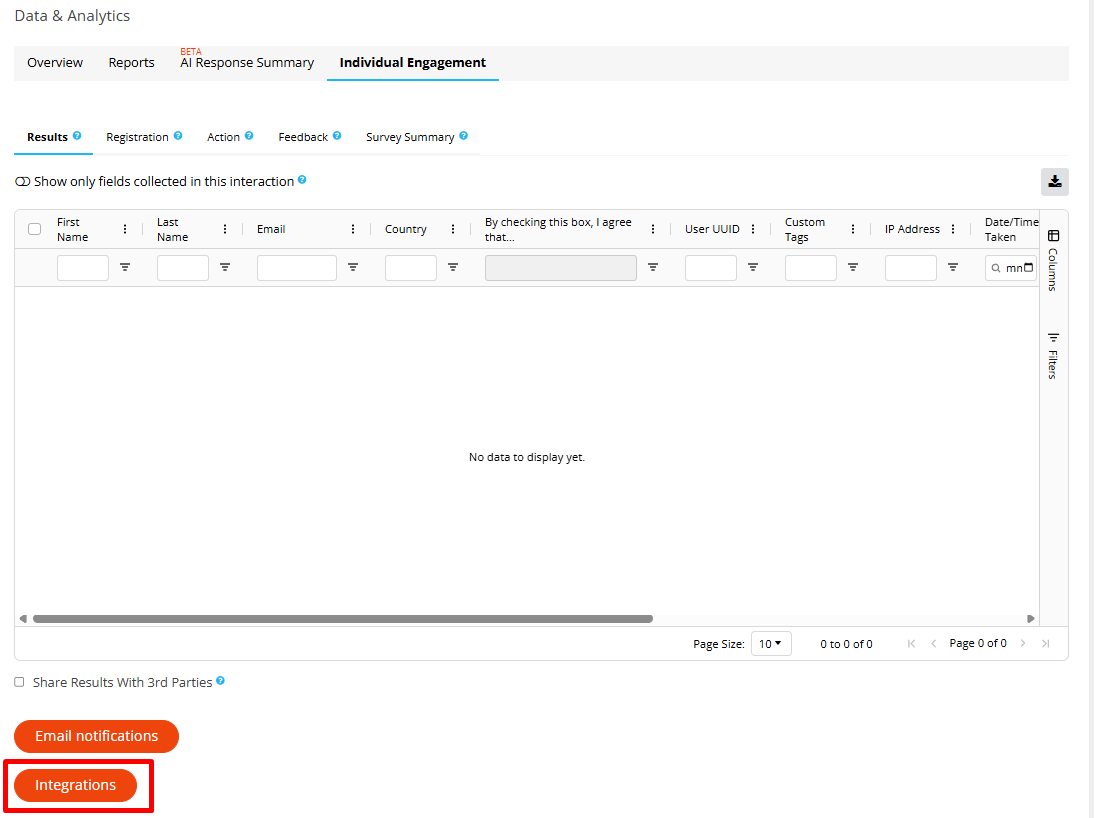
A new modal will appear where you can configure field mapping for this interaction:
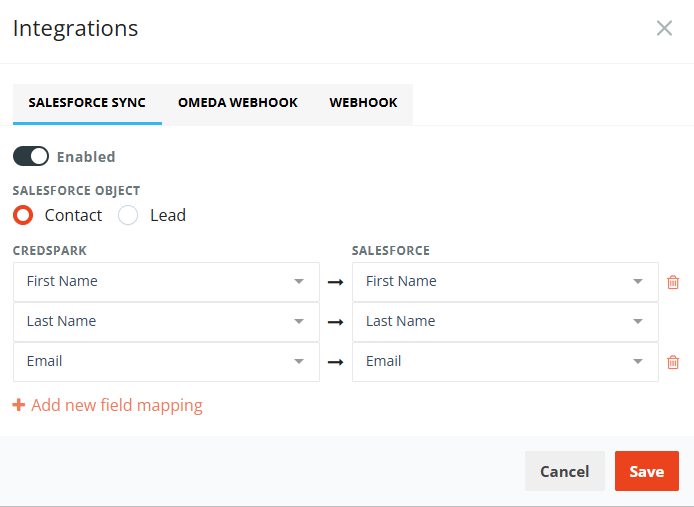
To start syncing data to Salesforce, click the Enabled toggle. This turns on Salesforce sync for this specific interaction.
Next, select the Salesforce object you want to send response data to: Contact or Lead.
By default, CredSpark maps the First Name, Last Name, and Email question types. You can remove any default mapping by clicking the trash icon.
To map additional fields, click Add new field mapping, then select the appropriate CredSpark field and the matching Salesforce field.
Keep in mind that Salesforce requires certain fields when creating records:
- For Contacts, Last Name is required.
- For Leads, both Last Name and Company are required.
If these required fields are not mapped, response data will not sync successfully to Salesforce.
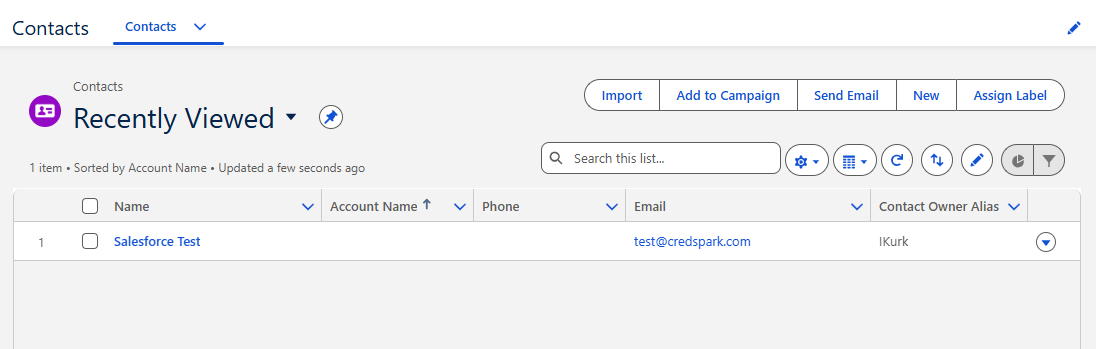
Once setup is complete, new records will be created in Salesforce after a respondent completes the interaction. Depending on the Salesforce object selected during setup, response data will appear as either Contacts or Leads:
Other things to note:
- If a contact does not exist, CredSpark will create a new contact in Salesforce
- We do not sync retroactively (this means that once the sync is on we will only send new responses)
- CredSpark can update existing records for the mapped fields (for example, if you have a contact Jane Doe, jane@gmail.com in Salesforce and this person completes an interaction as Jane Smith, jane@gmail.com, we will update the Last Name field in Salesforce). If the field is not mapped, we won’t update it.
- We never delete a contact (if you delete the response in CredSpark, it will still appear in Salesforce)
Disconnecting Integration
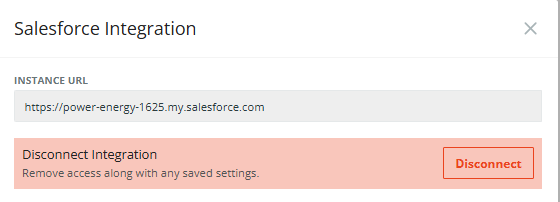
If you ever want to disconnect your integration, simply click the "Edit" button and disconnect the integration. This will stop CredSpark from syncing data with your Salesforce account.