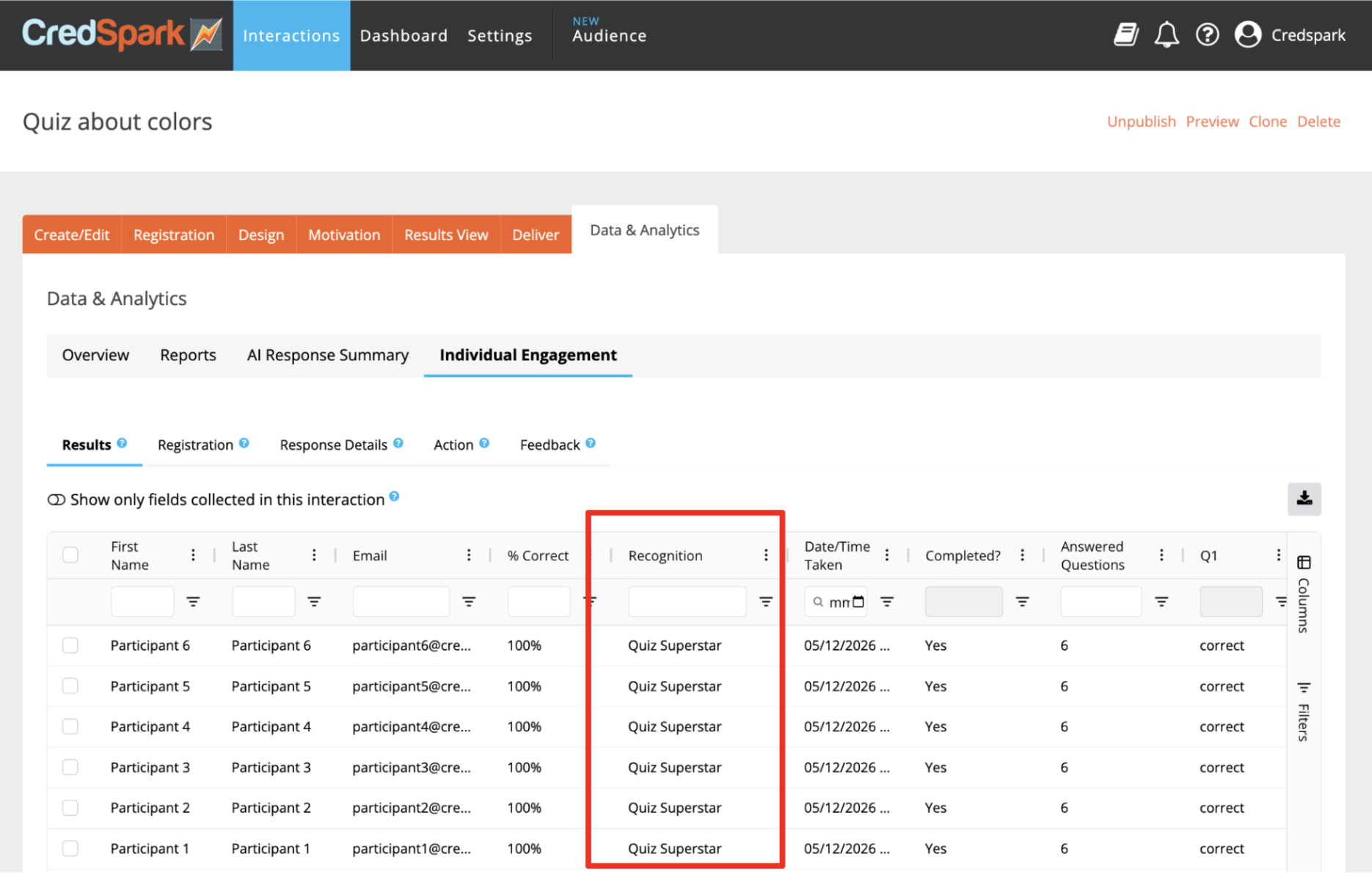
Recognitions allow you to award participants a custom badge designed by you, helping make the experience more engaging, rewarding, and memorable. Recognitions can be used in different ways: from lighthearted awards that make participation more fun, to more meaningful acknowledgements of achievement.
Recognitions can be added to:
- Scored quizzes
- Scored quizzes with score ranges
- Live Mode
- Outcome quizzes
Note: Recognitions still carries a Beta tag as we continue improving the feature. If you run into any issues or have ideas for improvements, please reach out to support@credspark.com.
Before You Start
To get the best experience with Recognitions, we strongly recommend making sure participant information such as First Name, Last Name, and Email is available.
This information is used in several places across the Recognition experience, including:
- the caption in Results View
- the dedicated Recognition page
- the Data tab in Recognitions
If this information is already known to CredSpark, no additional setup is needed. If not, we recommend collecting it in your interaction by adding registration questions such as First Name, Last Name, and Email.
Create, Manage, and Customize Recognitions
To create, manage, and customize Recognitions, navigate to the Recognitions Tab:
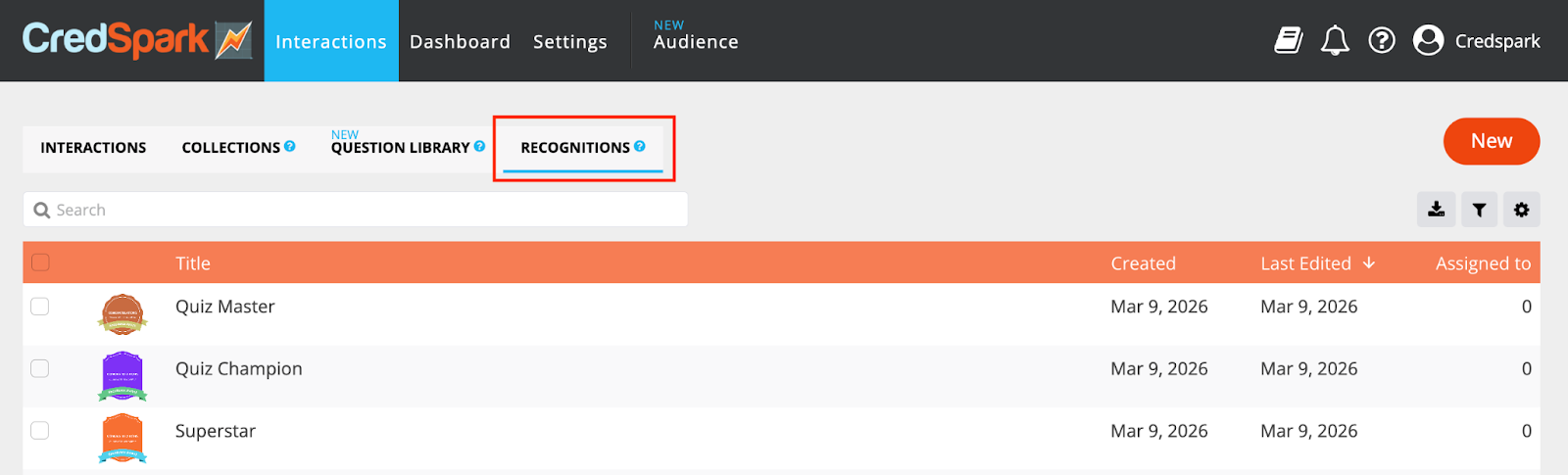
Here, you can view all created Recognitions, the date they were created, when they were last edited, and how many interactions each Recognition has been assigned to.
This page is a starting point to either editing a current Recognition, seeing its data, or creating a new Recognition.
Create Recognition
To create a new Recognition, click the New button in the Recognitions tab. A modal will appear, where you will have two options for creating or adding a Recognition.
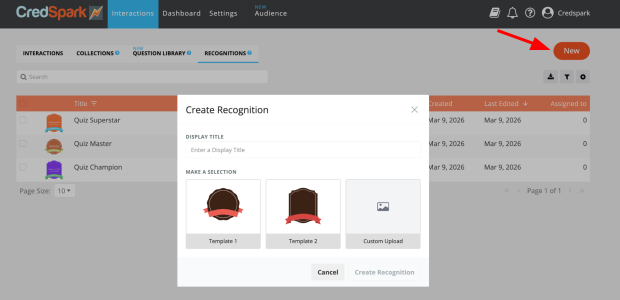
1. You can choose one of the available templates, which you can fully customize by changing colors, text, fonts, adding a logo, and more.
2. If you have already created your Recognition elsewhere, you can upload it as an image.
Creating a Recognition Using a Template
In the modal, enter the title of your Recognition and select one of the two available templates.
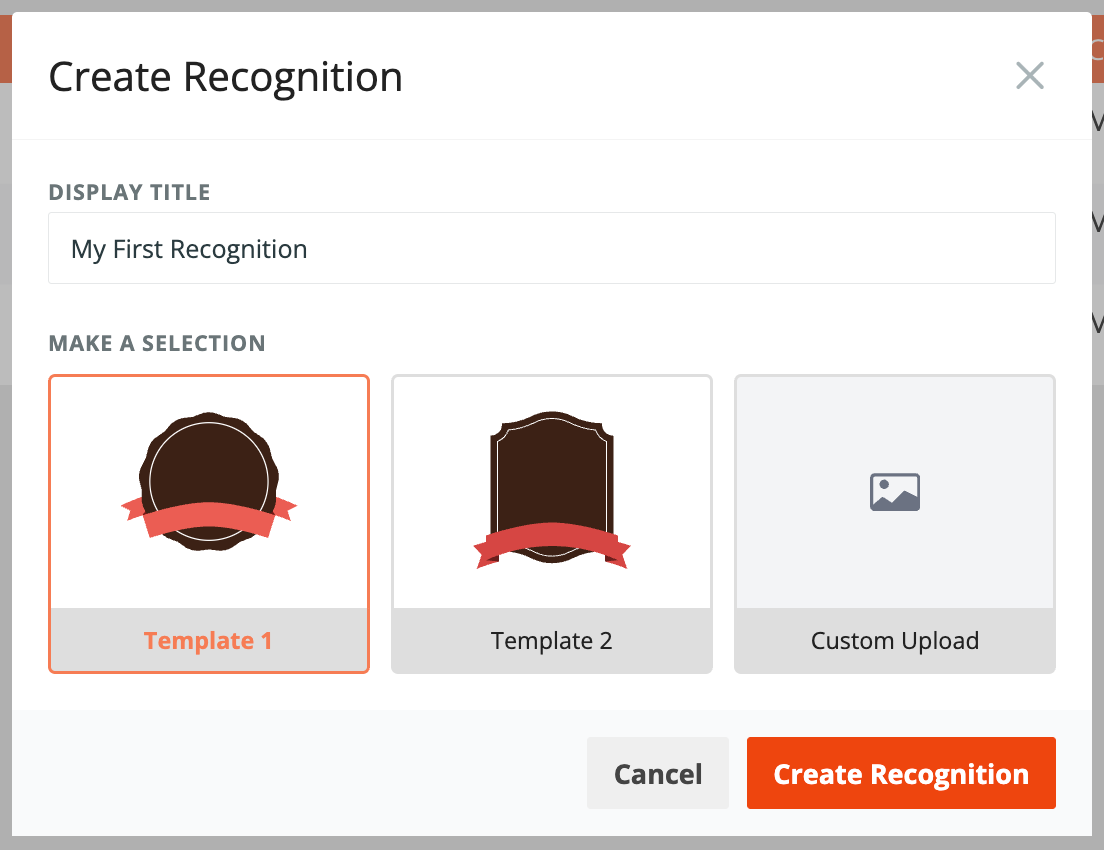
Once you click the Create Recognition button, you will be redirected to the Design tab for your newly created Recognition.
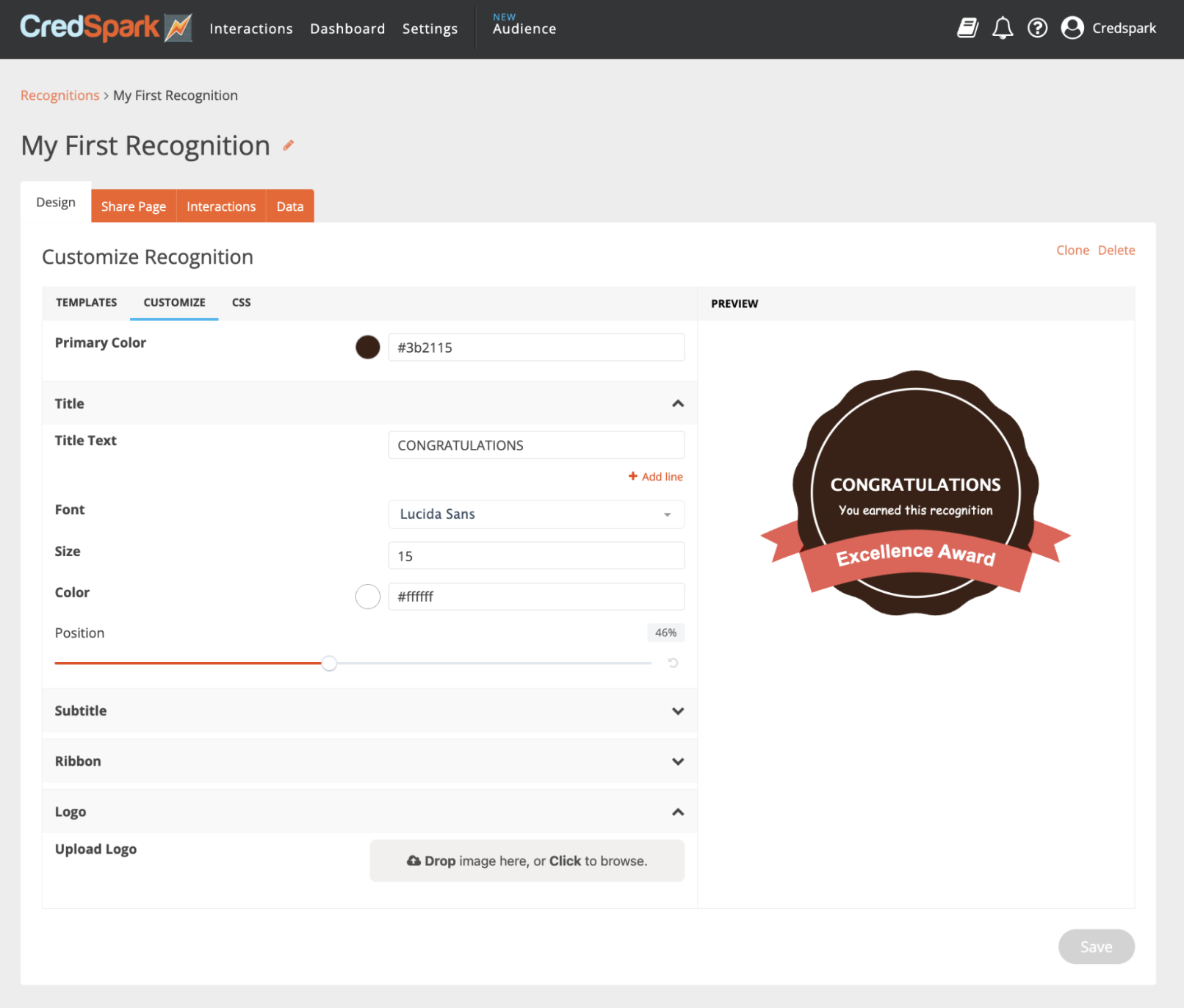
In the Customize subtab, you can make several edits:
- Change the primary color of your Recognition
- Update the title and subtitle, including their color, font style, size, and position
- Choose whether to display the ribbon and make edits to it as well
- Add multiple lines for the title and subtitle, allowing longer text to be displayed across several lines
- Upload a logo for your Recognition and adjust its size and position using the slider settings. We strongly recommend using a transparent logo so it blends well with the background.
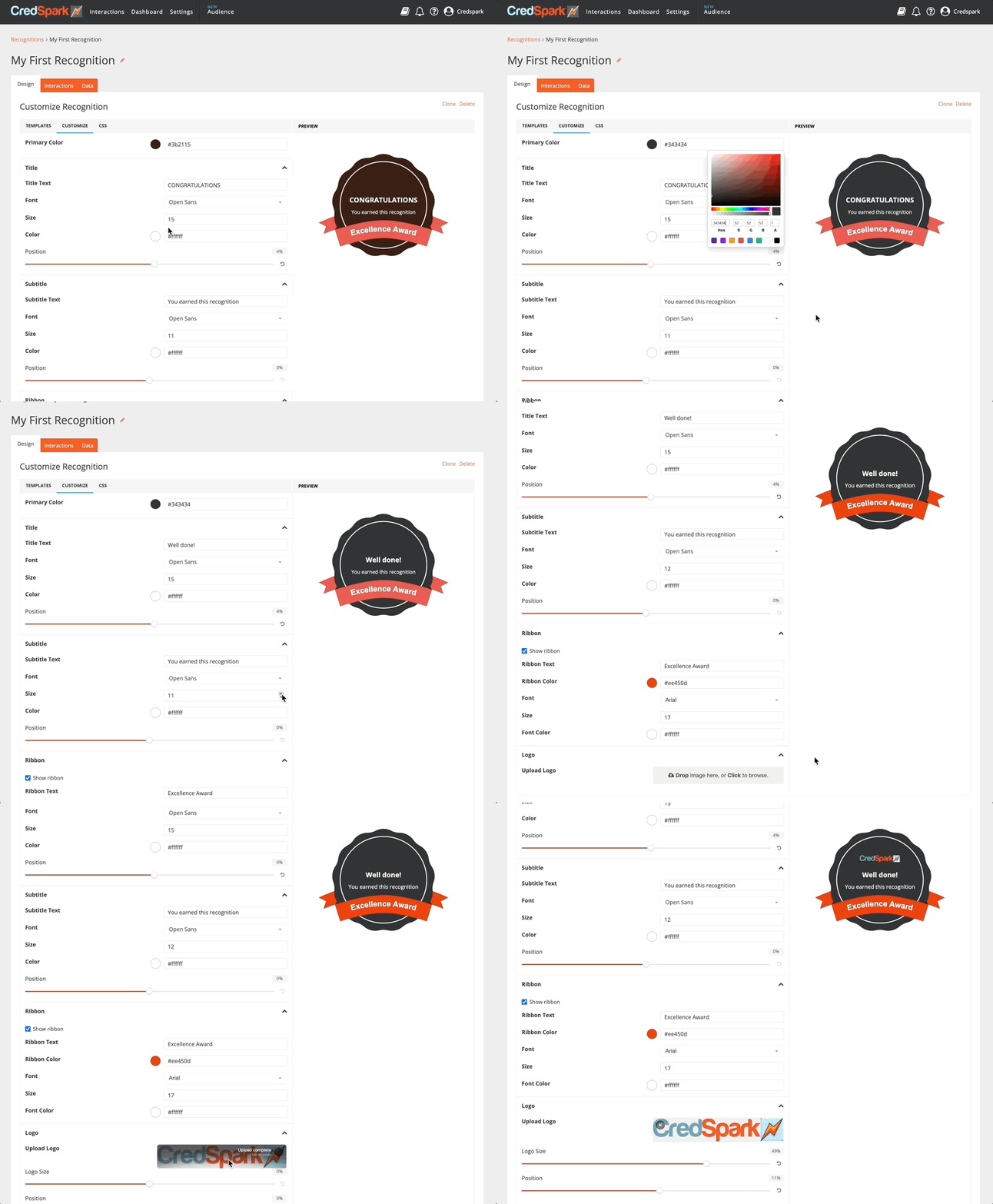
Important: Always remember to save your changes by clicking the Save button at the bottom of the page. If you navigate to a different tab before saving, your changes will not be saved.
General Customization Notes
- For each text element, such as the title, subtitle, and ribbon, you can choose a different font style, size, and color.
- Position sliders help you adjust where each element appears on the Recognition by simply dragging the controls.
- For logos, an additional size slider is available to help you find the right fit for the design.
If you decide you prefer the other template, you can switch to it by navigating to the Templates tab. After changing the template, make sure all elements still look correct and are positioned as expected.
Creating a Recognition Using an Existing Design or Image
This option is intended for cases where you have already created your Recognition in another design tool and have a finished image ready to use. With this approach, you will not be able to make further design changes in the platform, since the Recognition is uploaded as a single image.
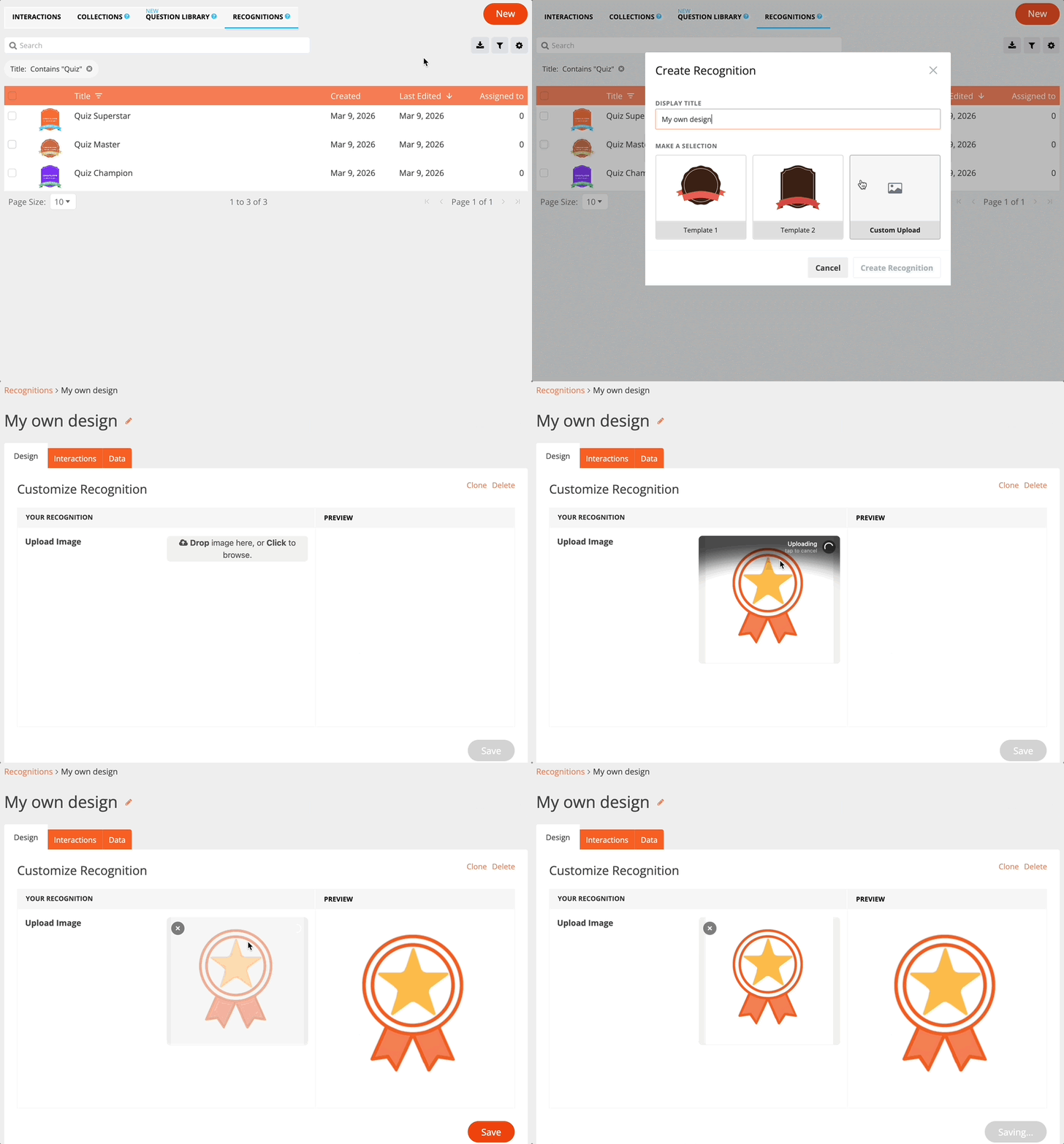
In the modal, enter the name of your Recognition and select Custom Upload.
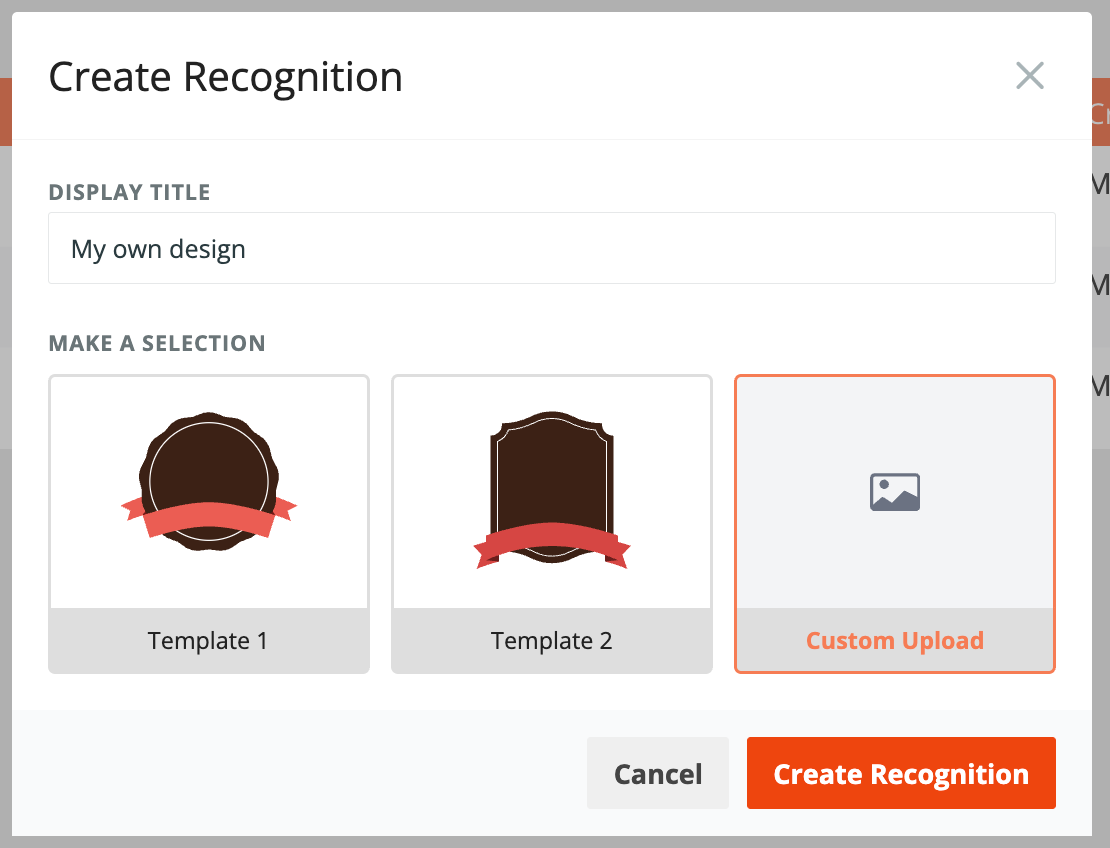
Once you click the Create Recognition button, you will be redirected to the Design tab, where you can upload your design.
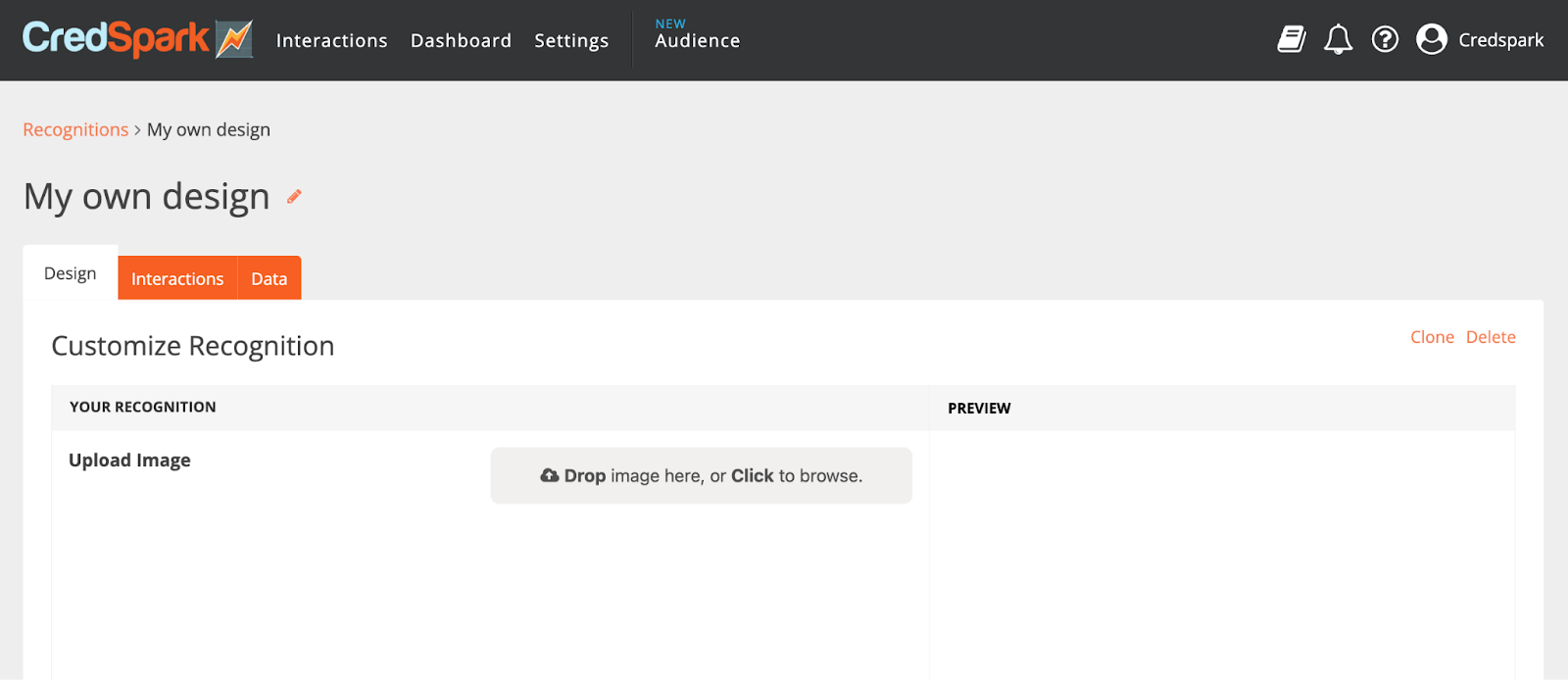
Click to upload your file, or drag and drop it into the upload area, then click Save.
Assigning a Recognition to an Interaction
Once your Recognition is ready, it can be assigned to an interaction. Recognitions can be added to:
- Scored quizzes
- Scored quizzes with score ranges
- Live Mode
- Outcome quizzes
While there are some small differences between interaction types, the general process for assigning a Recognition is the same:
1. Open the interaction where you want the Recognition to be displayed
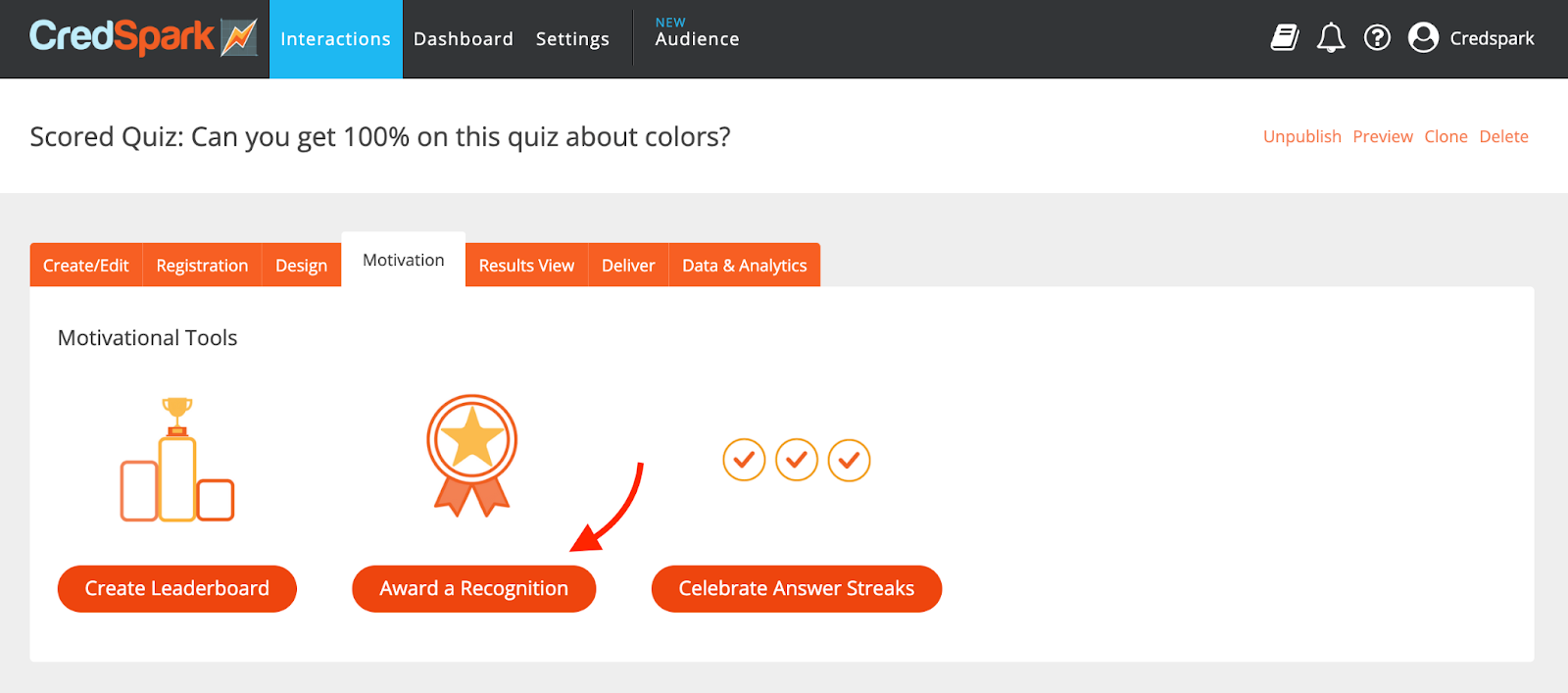
2. Navigate to the Motivation tab and click Award Recognition
3. A new modal will open, where you can select from the list of your available Recognitions
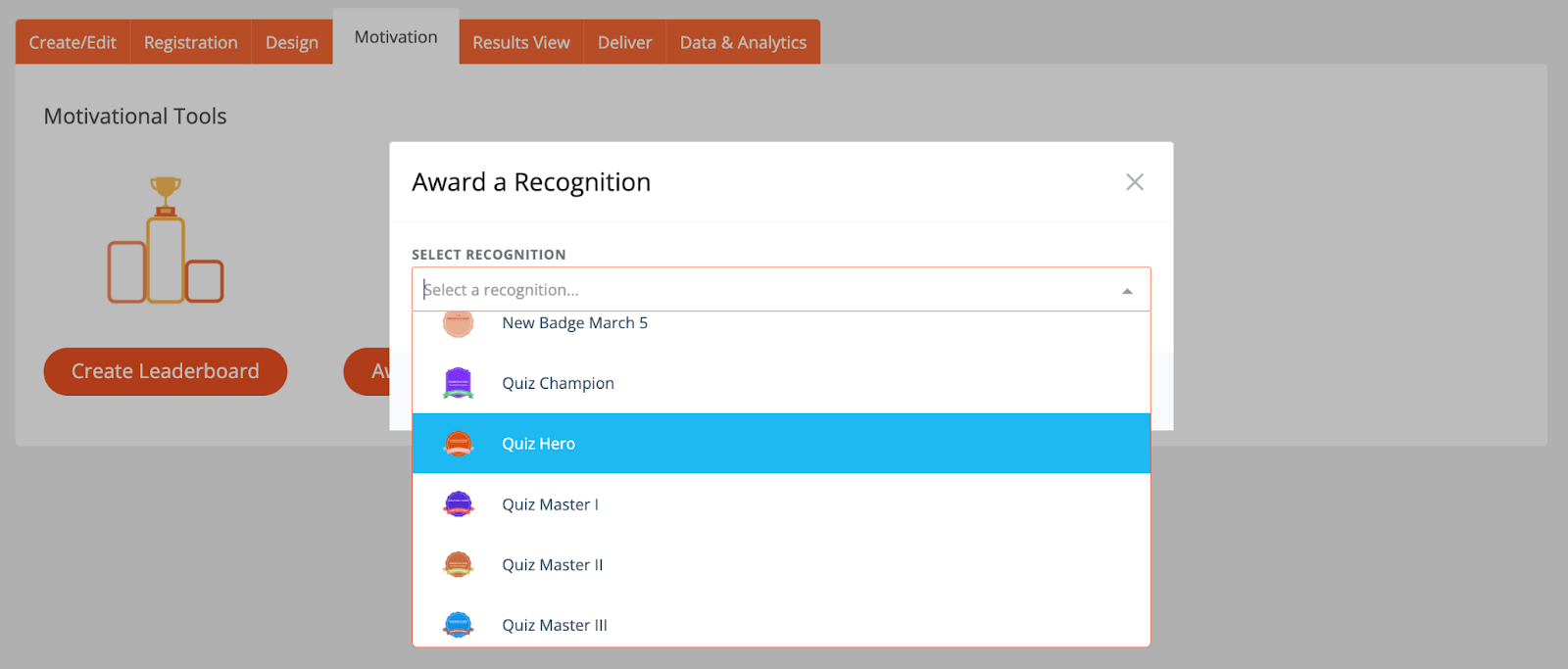
Once a Recognition has been assigned to an interaction, it will be displayed in the Results View for participants who meet the criteria, such as passing the quiz or receiving a specific outcome.
Assigning a Recognition to a Scored Quiz
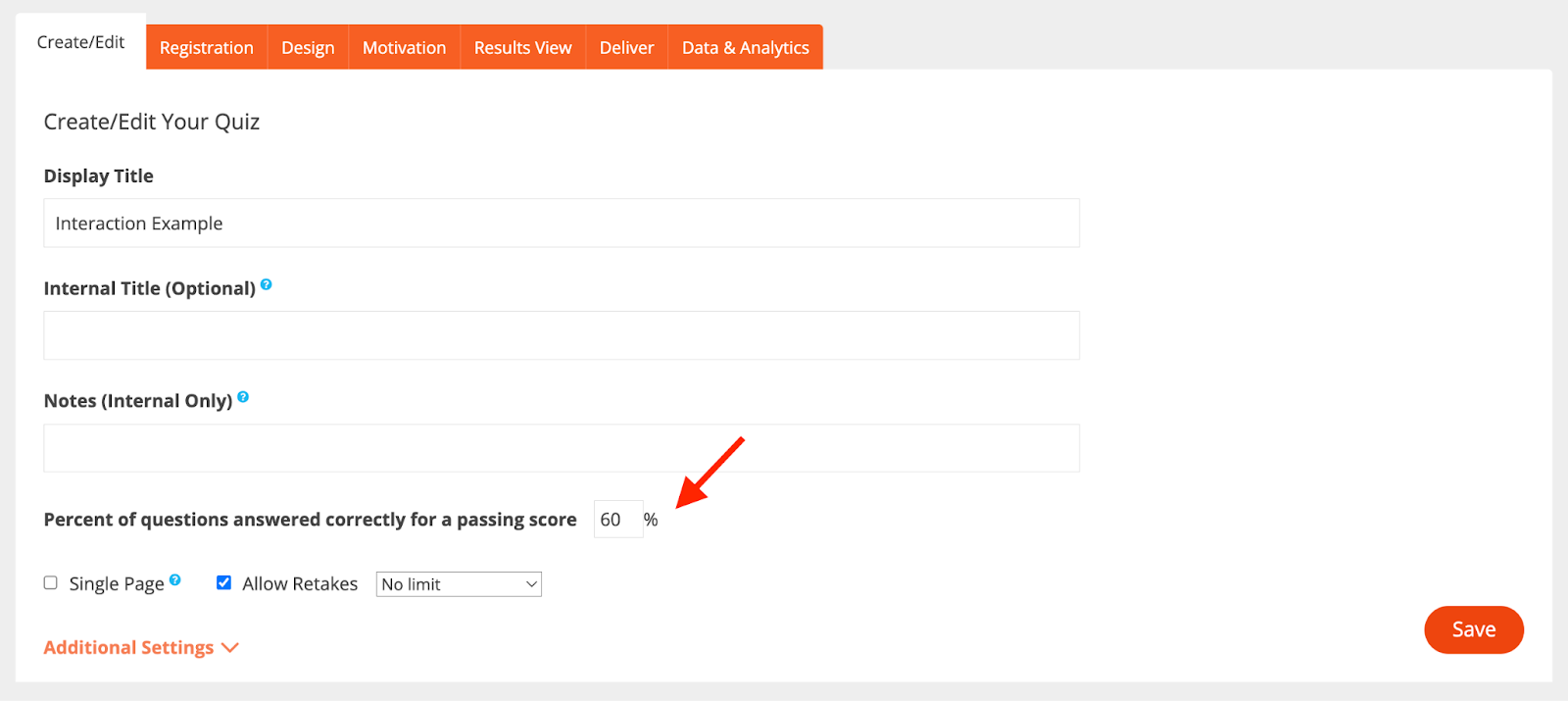
For scored quizzes, the Recognition is awarded only to participants who meet the criteria set for passing the interaction. Make sure the passing threshold in the Create/Edit tab is set correctly, whether it is based on percentage or points, for example 50% or 60 points.
This is where you set the passing score in Edit Tab:
Assigning a Recognition to Score Ranges in a Scored Quiz
To assign a Recognition to a score range, you first need to create the score ranges in the Results View. More information about score ranges is available in the related Knowledge Base article.
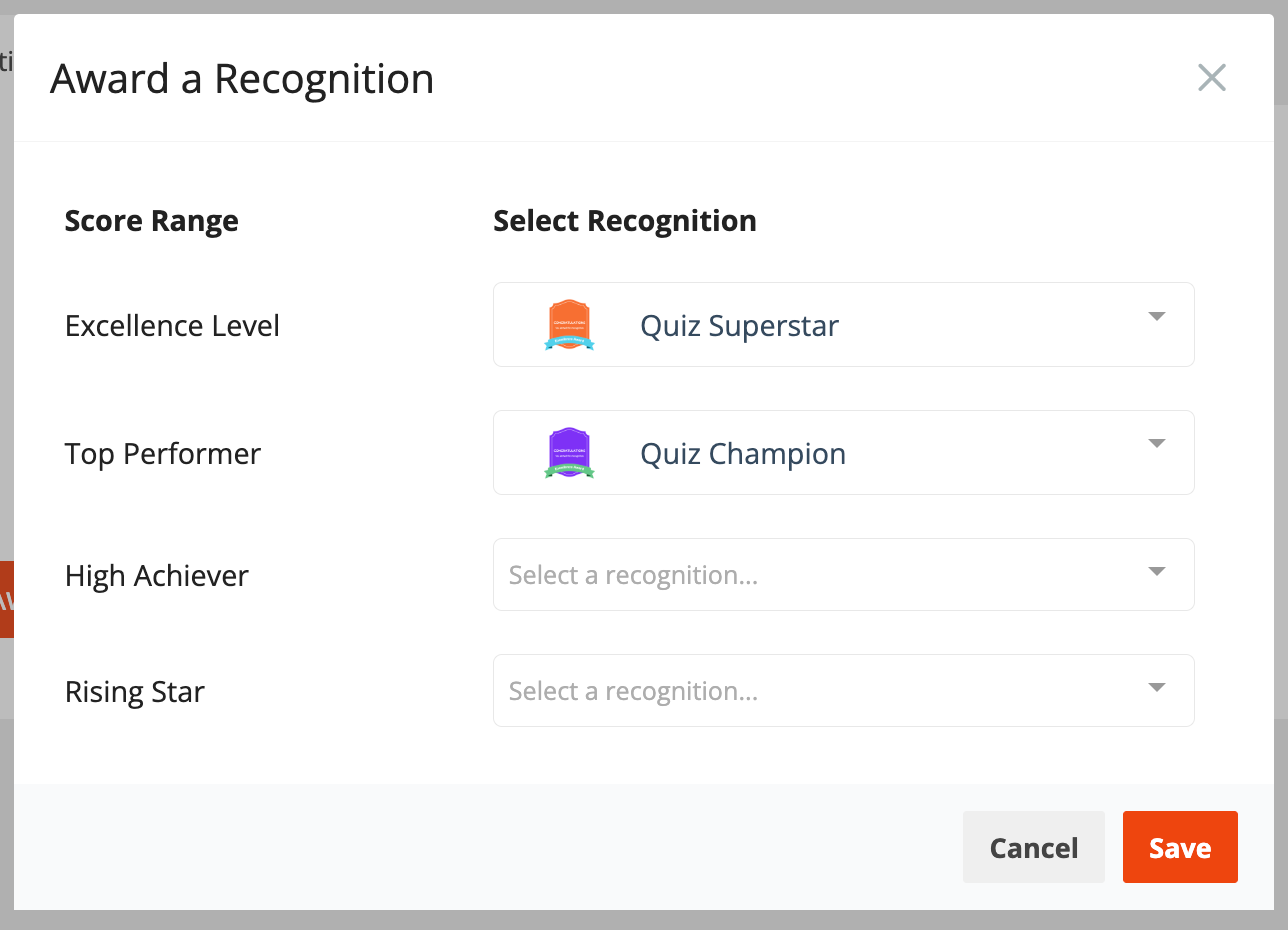
Once score ranges have been created, the Motivation tab will display the option to add a Recognition to each score range. This allows you to use multiple Recognitions within a single interaction. You do not need to assign a Recognition to every score range.
Assigning a Recognition to Live Mode
For Live Mode, follow the same steps as for a regular scored quiz.
Assigning a Recognition to an Outcome Quiz
Before assigning a Recognition, make sure Outcomes have been created for the interaction. More information about outcomes is available in the related Knowledge Base article.
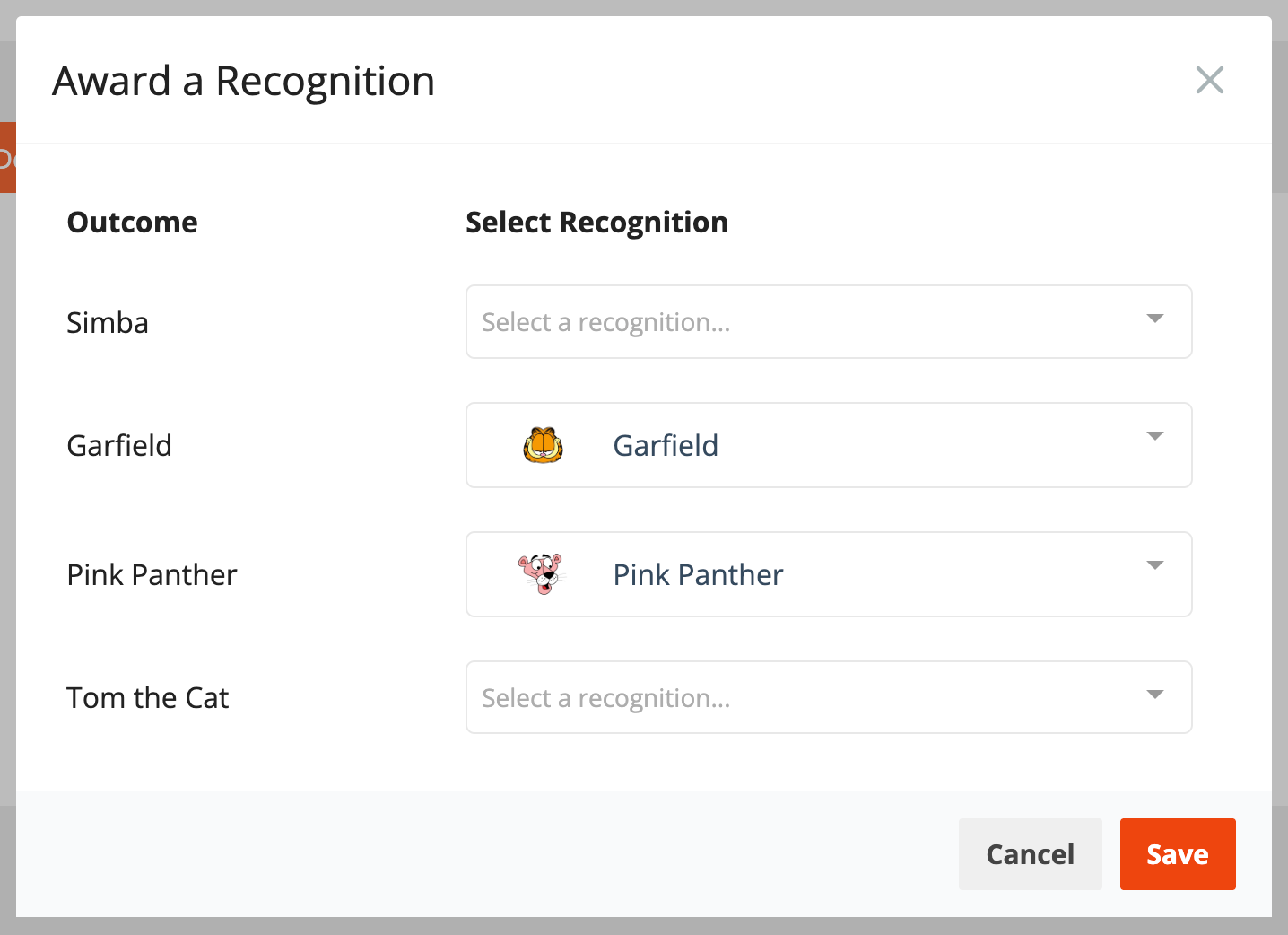
Then, in the Motivation tab, click Award a Recognition. In the modal that opens, you will be able to assign a Recognition to each outcome. It is not required to add a Recognition to every outcome.
Recognitions in the Results View
The Results View is where participants will see whether they have received a Recognition.
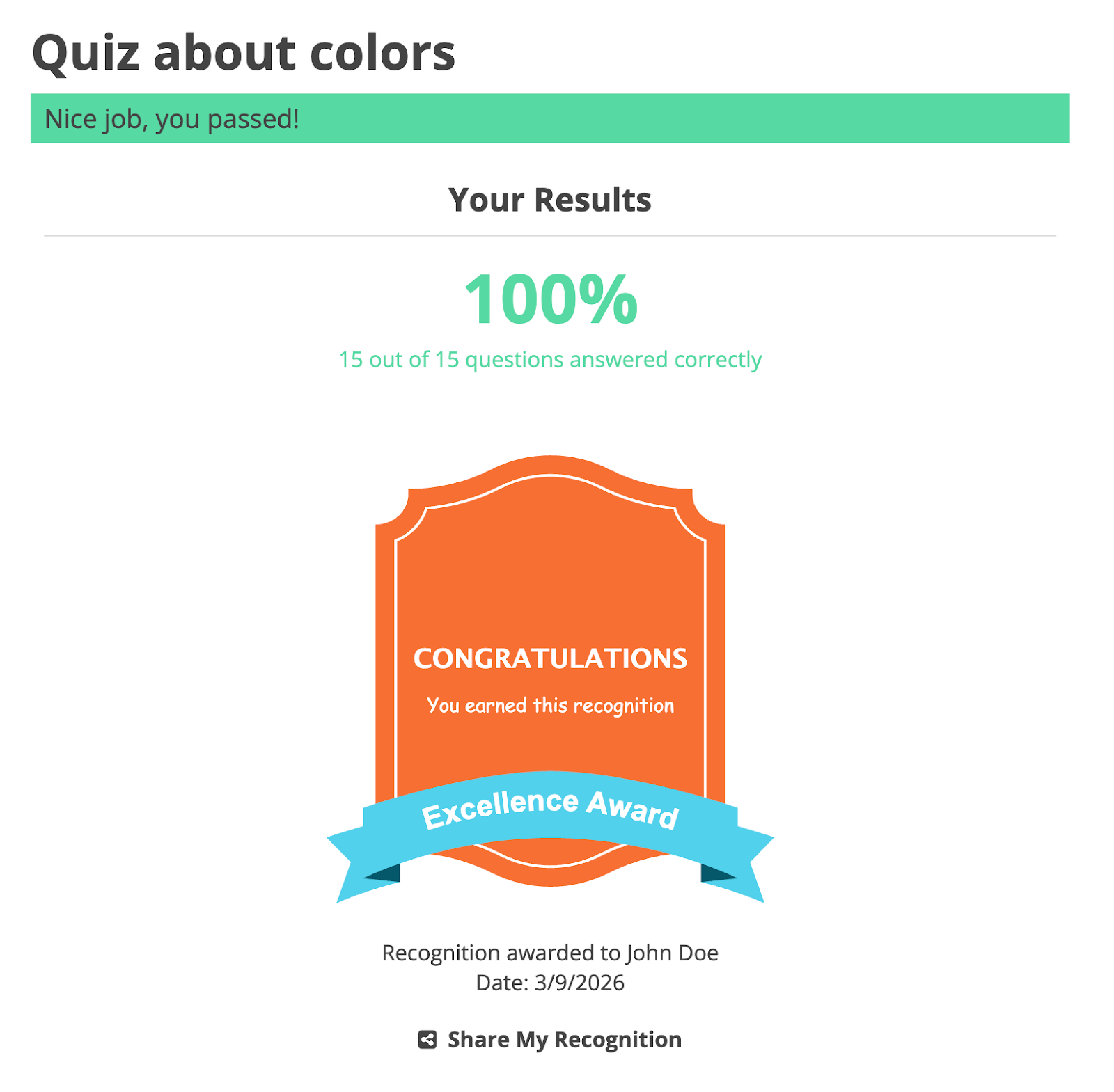
Therefore, if a Recognition has been assigned to an interaction, you will also be able to preview it in the Results View tab and manage additional settings for how it is displayed.
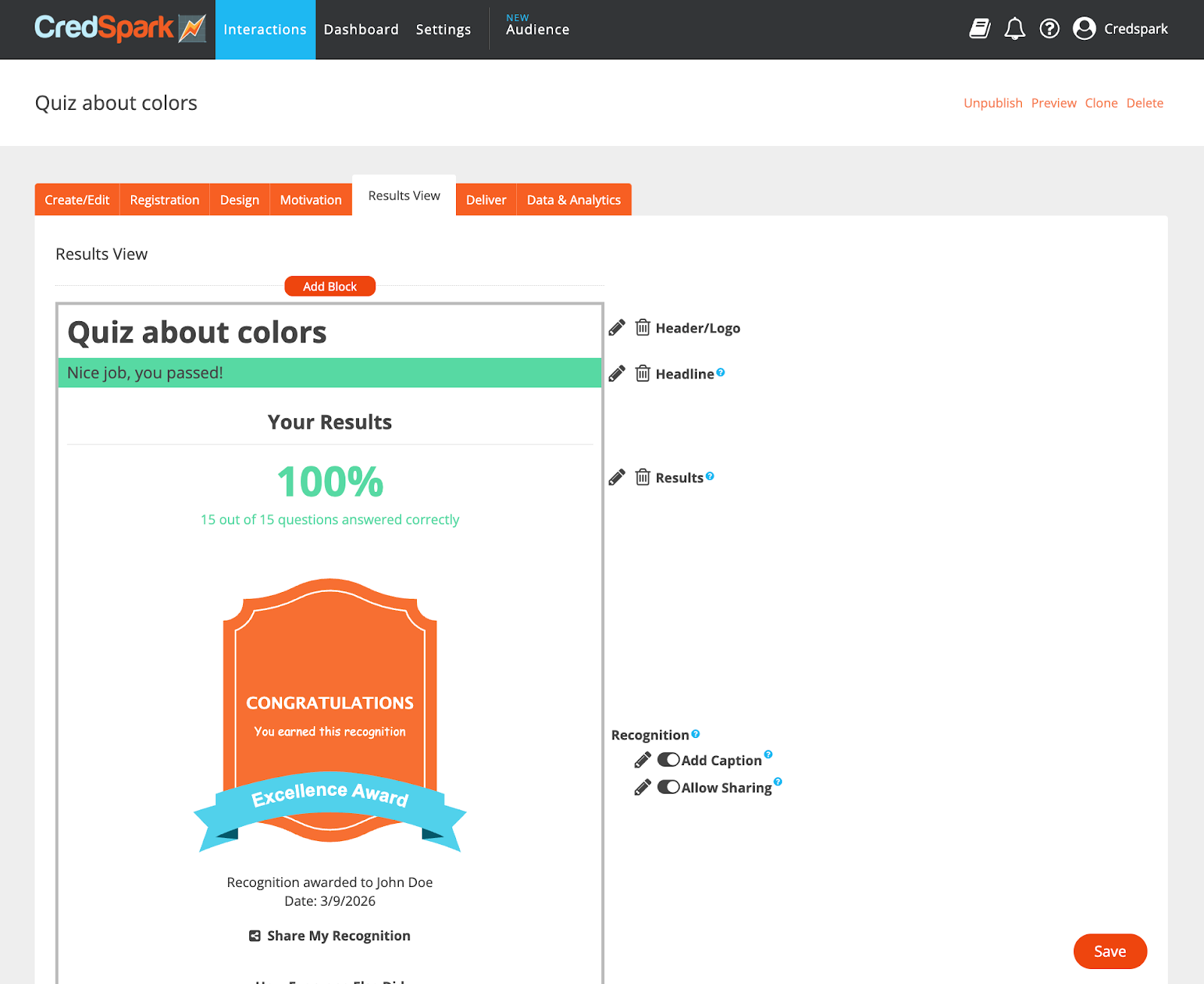
Please note that only one Recognition will be displayed in the Results View editing tab. This matches the participant experience in the actual Results View, where each participant will see only the one Recognition they have earned based on their response, not all Recognitions assigned to the interaction.
An interaction can have multiple Recognitions assigned in the following cases:
- Outcome quizzes, where each outcome can have its own Recognition assigned
- Scored quizzes with score ranges, where each score range can have its own Recognition assigned
For outcome quizzes, the Results View editing tab displays only the Recognition assigned to the first outcome. For score ranges, it displays only the Recognition assigned to the highest score range.
If you want to see how each Recognition looks in the Results View, use Direct Link and submit different responses.
In the Results View, there are additional settings available under the Recognition:
- Add Caption
- Allow Sharing
Add Caption
The Add Caption setting works in a similar way to Custom Message blocks. You can use it to add extra information and include piped variables if needed. By default, the caption includes the global fields First Name, Last Name, and Completion Date. If you want to keep this default caption, make sure this participant information is known to CredSpark or collected in your interaction by including registration questions such as First Name and Last Name. You can also choose not to display the caption by disabling this setting.
Allow Sharing
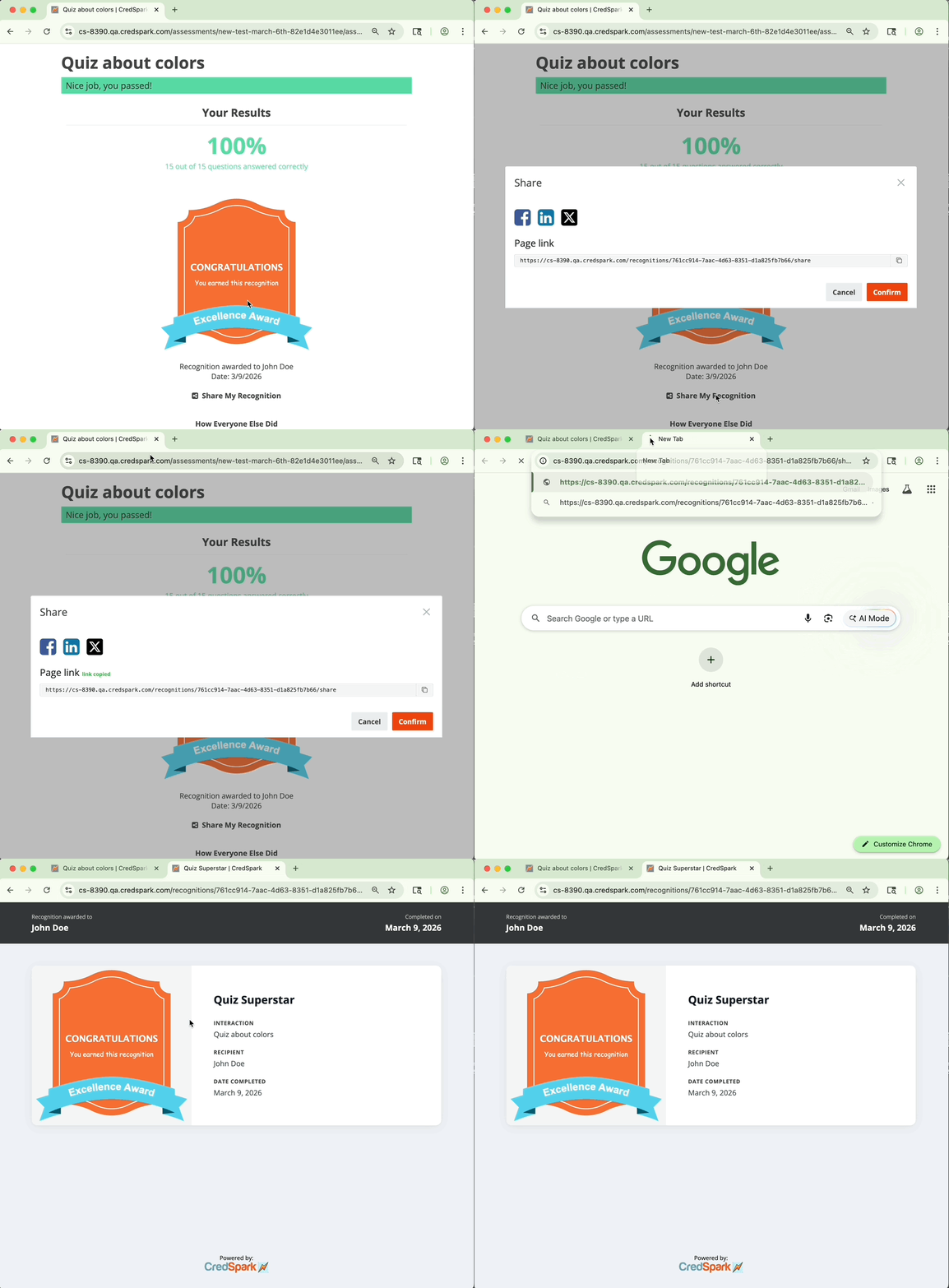
When Allow Sharing is enabled, participants will be able to share their Recognition on social media or copy the link to the awarded Recognition’s Share Page. When shared on social media, the post will include the link to that link to that Share Page.
Share Page
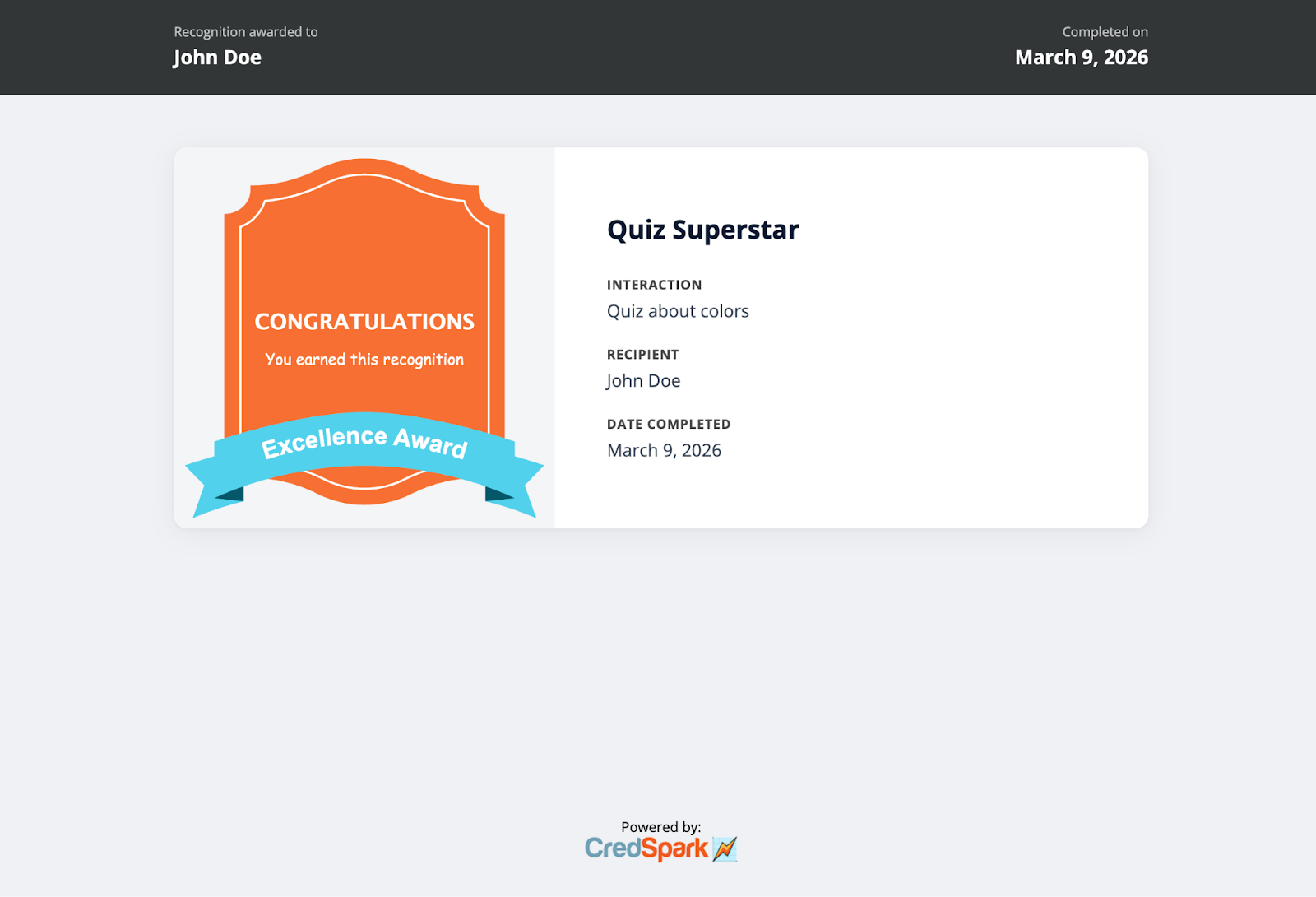
Each awarded Recognition has its own dedicated Share Page. Participants access it through their Results View, while you can copy the link for any participant from the "Share Page" column shown in the participants table within a specific Recognition. By default, this page contains the following information:
- Recognition image
- Recognition title
- Completion date
- Name of the interaction for which the Recognition was awarded
You also have the option to customize various elements of the Share Page, such as colors and displayed fields. Read more in this Knowledge Base Article.
Participant first name and last name
Important: To ensure the Share Page displays properly, make sure you collect the information shown on it. By default, this includes the participant's first and last name - for known users, CredSpark will already have this information, but if not, add First Name and Last Name questions in your interaction. The same applies to any other fields you choose to display.
This is how the dedicated Recognition page will look:
Data & Analytics
Recognition Level Data
In Recognitions, open a specific Recognition to see additional information.
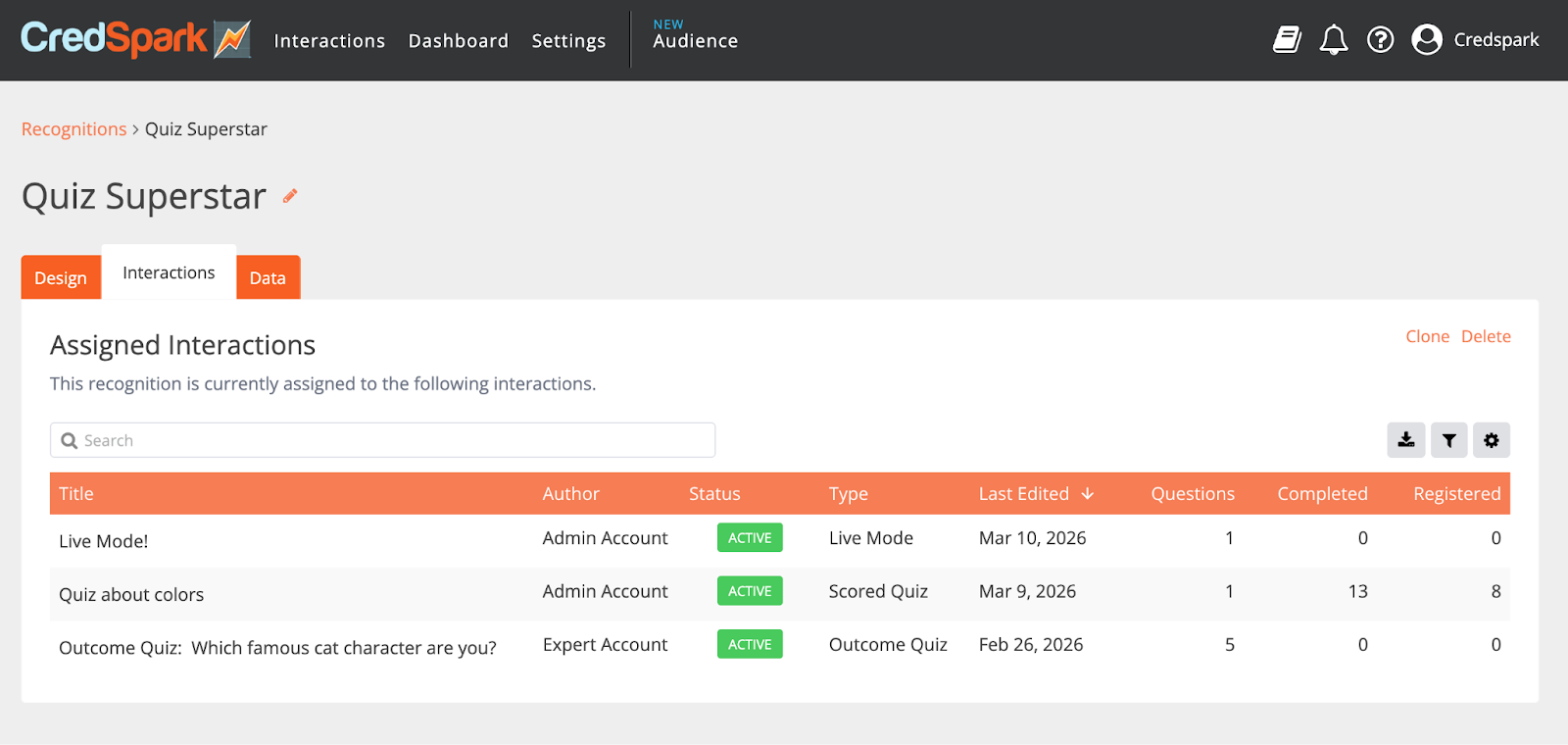
1. In the Interactions tab, you can see all interactions where that Recognition has been assigned.
2. In the Data tab, you can see all participants or recipients who have received that particular Recognition, the date when it was awarded and a direct link to each participant's Share Page.
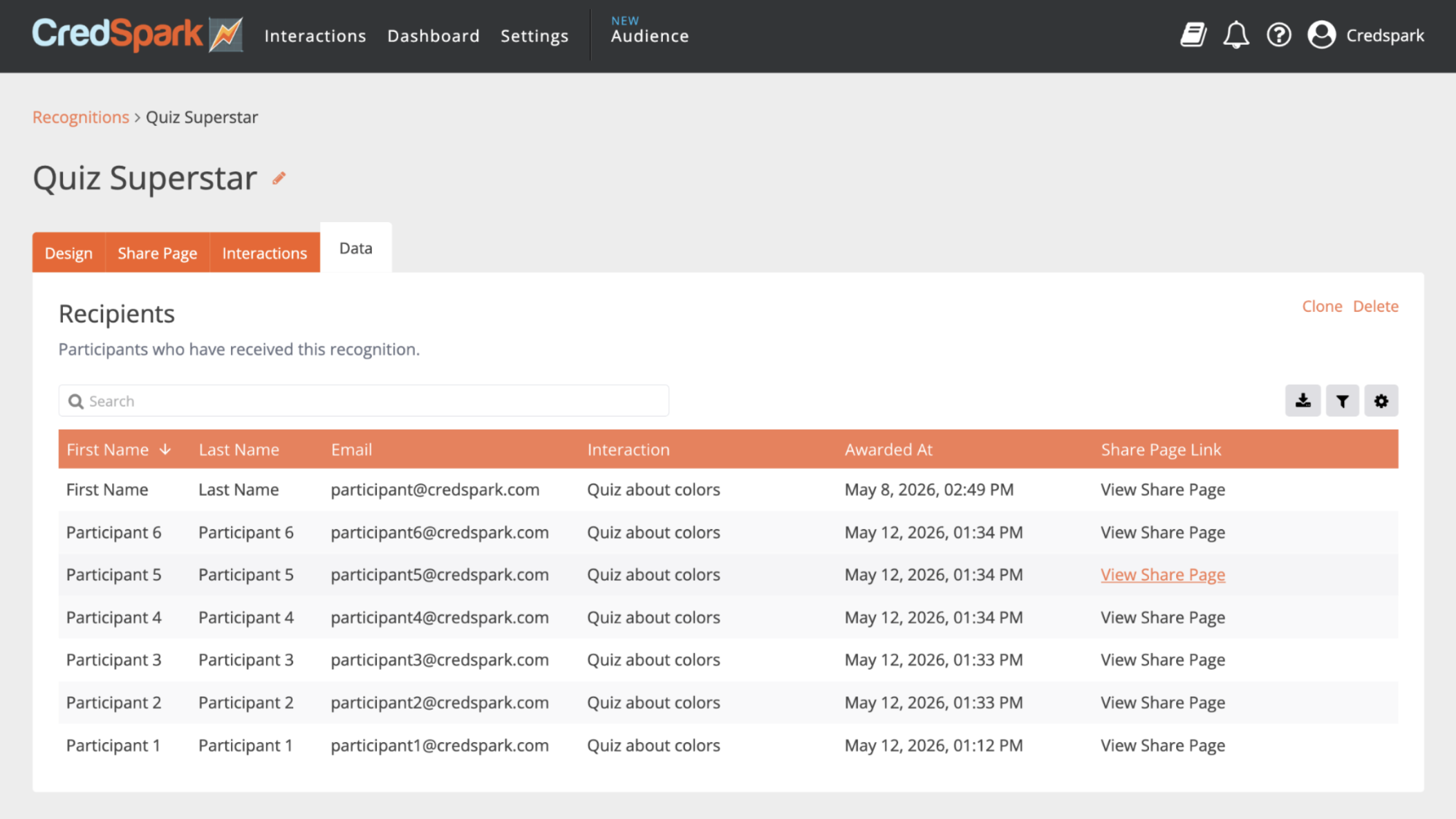
Important: To make sure this data is available and useful, we recommend collecting relevant participant information in your interaction, such as First Name, Last Name, and Email. If this information is already known to CredSpark, no additional setup is needed.
Interaction Level Data
We have added a new "Recognitions" column to the interaction-level data. This column shows which Recognition (if any) the participant received for that interaction. It's especially useful when multiple Recognitions can be assigned within a single interaction - for example, in an outcome quiz or a quiz with score ranges - or simply to check whether a participant received a Recognition at all.