

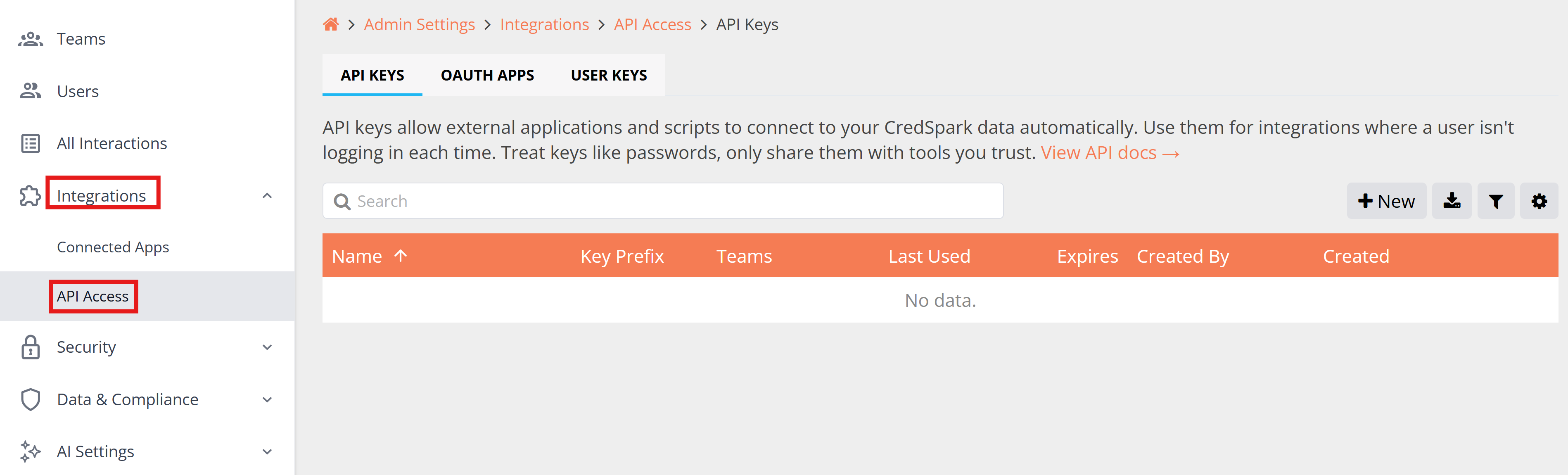
The API Access section lets admins manage how external tools and services connect to your CredSpark data. There are three types of credentials available: API Keys, OAuth Apps, and User Keys (legacy). You can find them by navigating to Admin Settings → Integrations.
API Keys
API keys give external apps and scripts a way to access your CredSpark data–interactions, responses, and more–without a user logging in each time. They are best suited for automated workflows and backend tools.
IMPORTANT NOTE: Treat API keys like passwords. Anyone with a key can access the data that key has been given access to. Only share keys with tools you trust, and revoke them immediately if you think one has been compromised.
Creating an API Key
1. Go to Admin Settings > Integrations.
2. Click the API Keys tab.
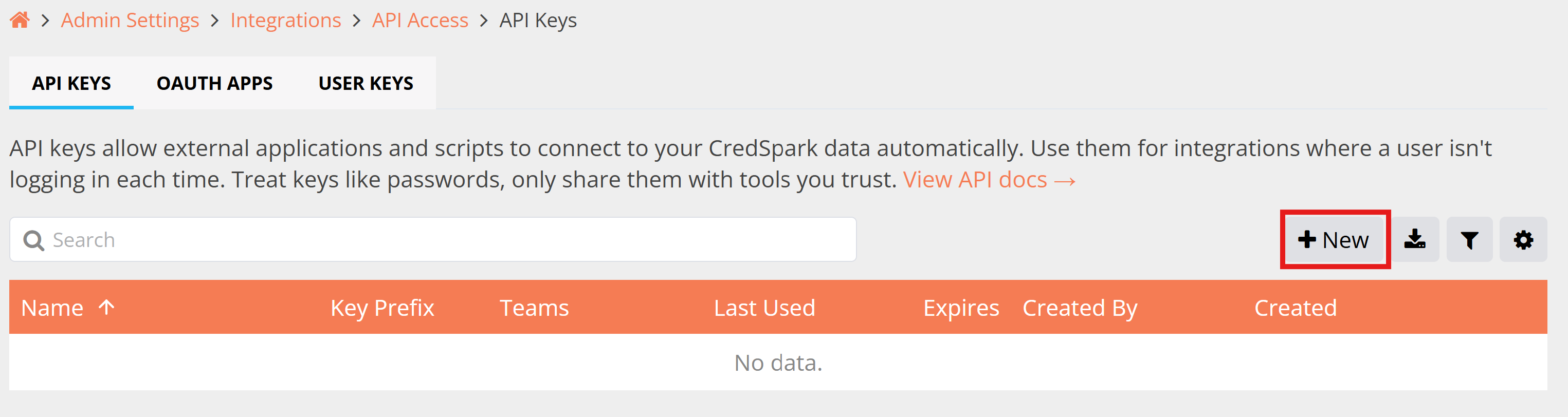
3. Click +New in the top right.
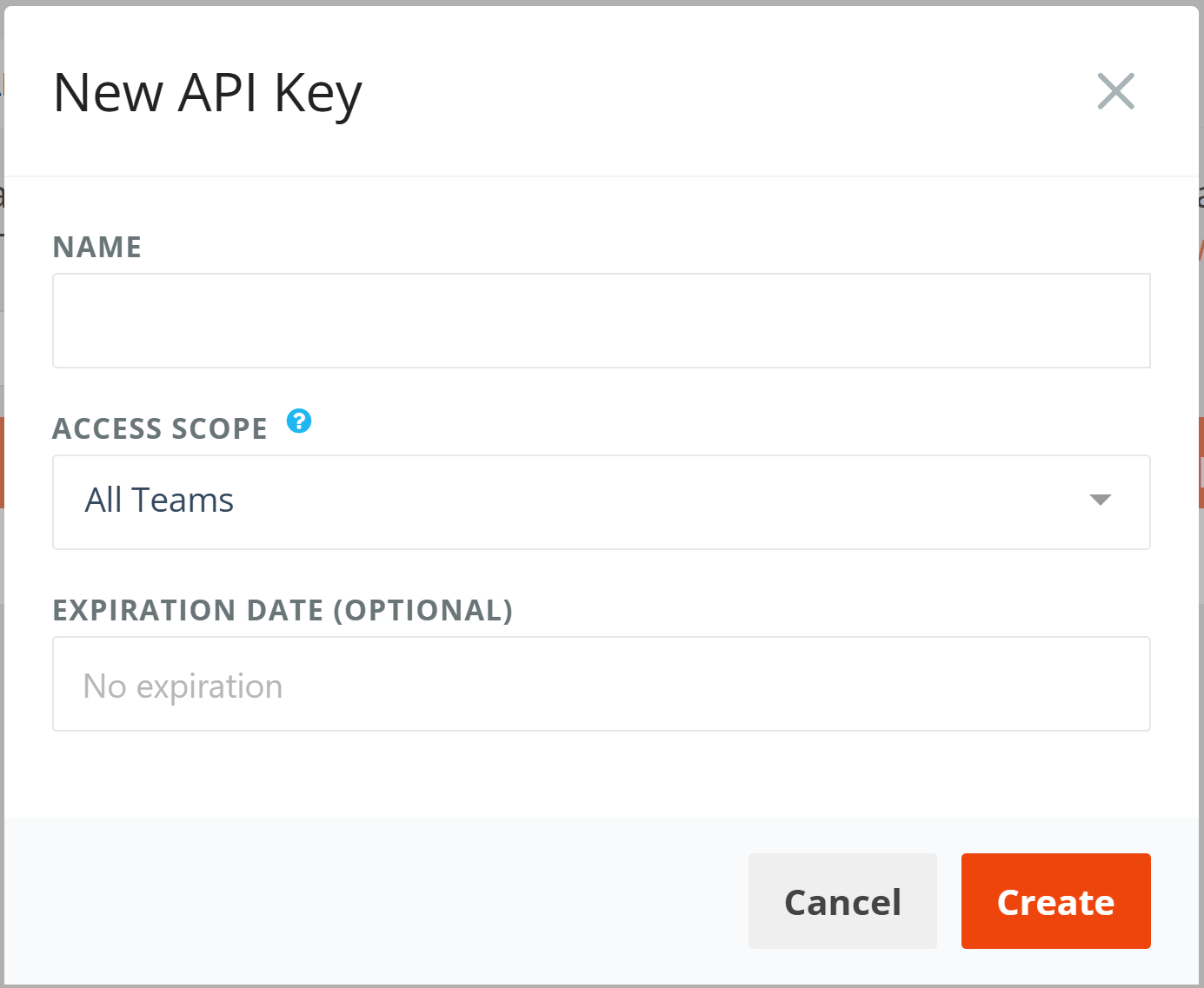
4. Give the key a descriptive name (e.g. "Sync to CRM" or "Internal Dashboard").
5. Set the access scope: choose All Teams to grant access across your entire account, or select a specific team to limit what data the key can reach.
6. Optionally, set an expiration date. Once expired, the key will stop working automatically. This is useful for temporary integrations or contractor access.
7. Copy the key immediately–it will not be shown again.
Managing API Keys
From the API Keys tab you can:
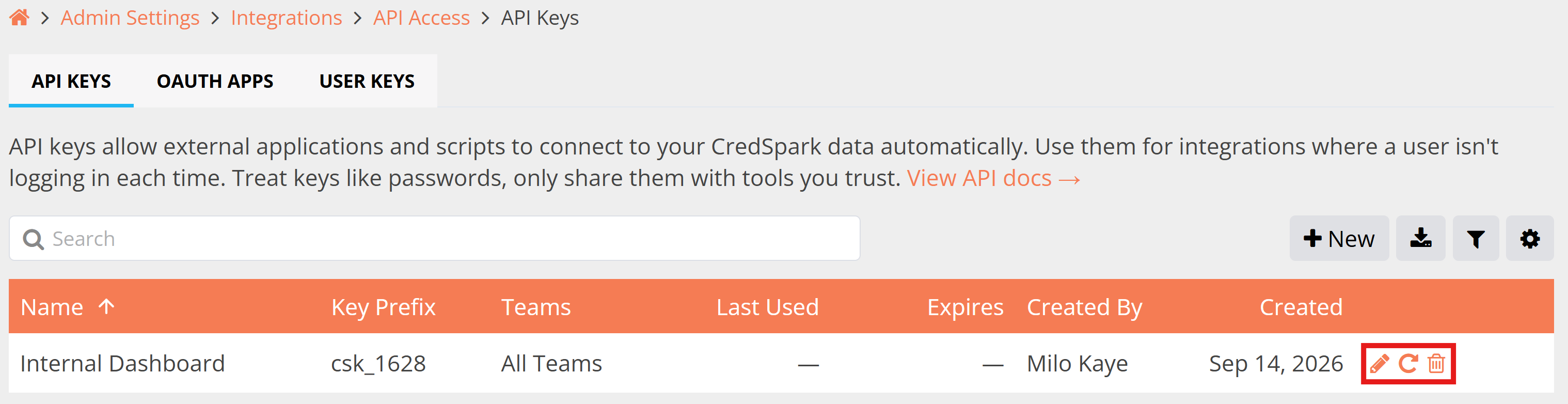
- Edit: rename a key, update its team scope or expiration date.
- Rotate: generate a new key value while keeping the same name and settings. Useful if a key may have been exposed.
- Revoke: permanently delete a key. Any integrations using it will immediately lose access.
Understanding the Key Prefix
Each key is shown with a short prefix (e.g. csk_cc2b) so you can identify which key is being used in logs or error messages without exposing the full key.
Best practice: Give each integration its own key. That way, if you need to revoke access for one tool, you won't affect the others.
OAuth Apps
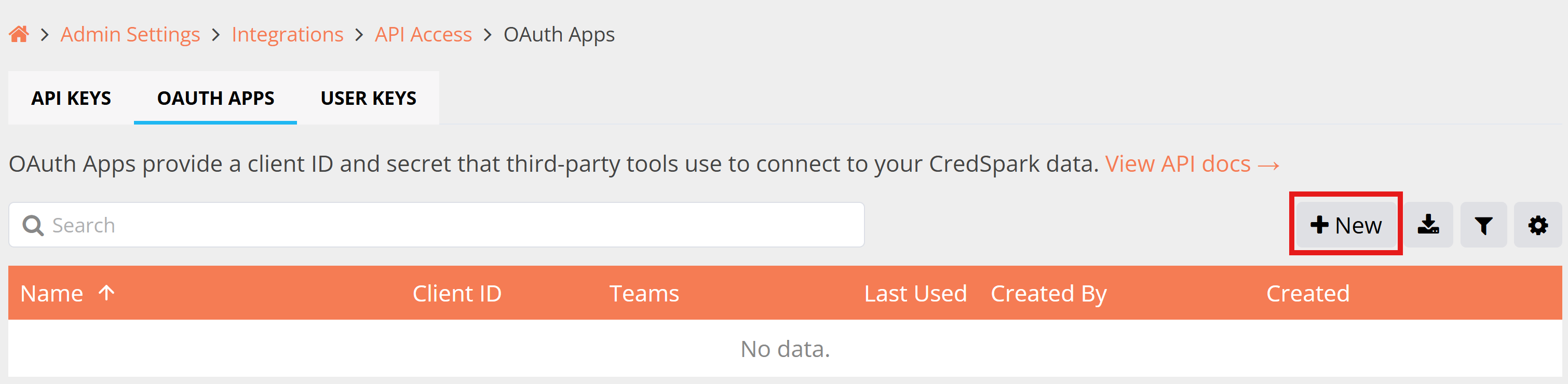
OAuth Apps provide a client ID and secret that third-party tools use to connect to and access your CredSpark data. Use them when the service you are integrating with supports OAuth authentication.
Registering an OAuth App
1. Go to Admin Settings > Integrations.
2. Click the OAuth Apps tab.
3. Click +New in the top right.
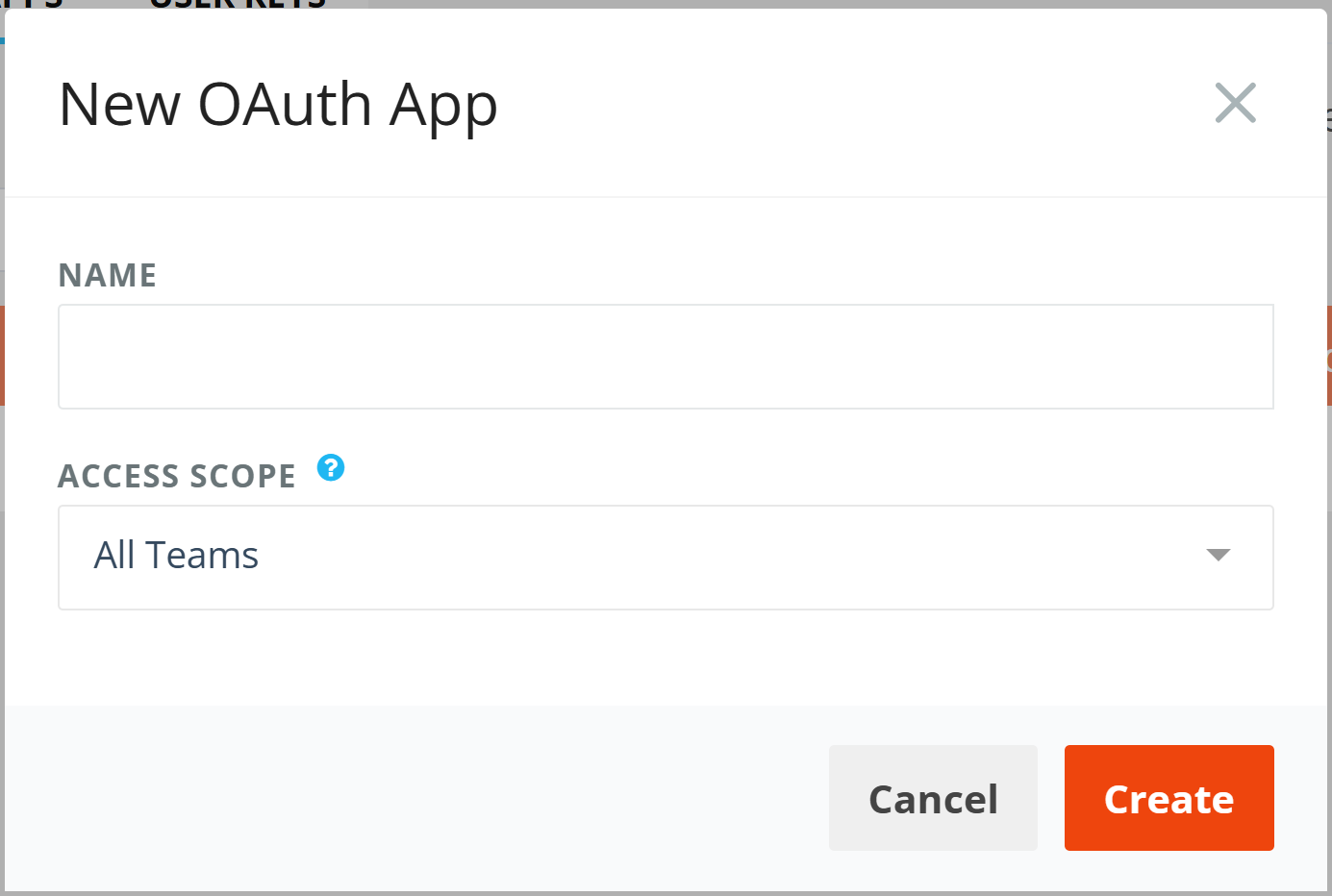
4. Give the app a descriptive name (e.g."CRM Connection" or "Marketing Tool Sync").
5. Set the access scope: choose All Teams to grant access across your entire account, or select a specific team to limit what data the key can reach.
6. Copy the generated client ID and secret and add them to your third-party tool's settings–they will not be shown again.
User Keys
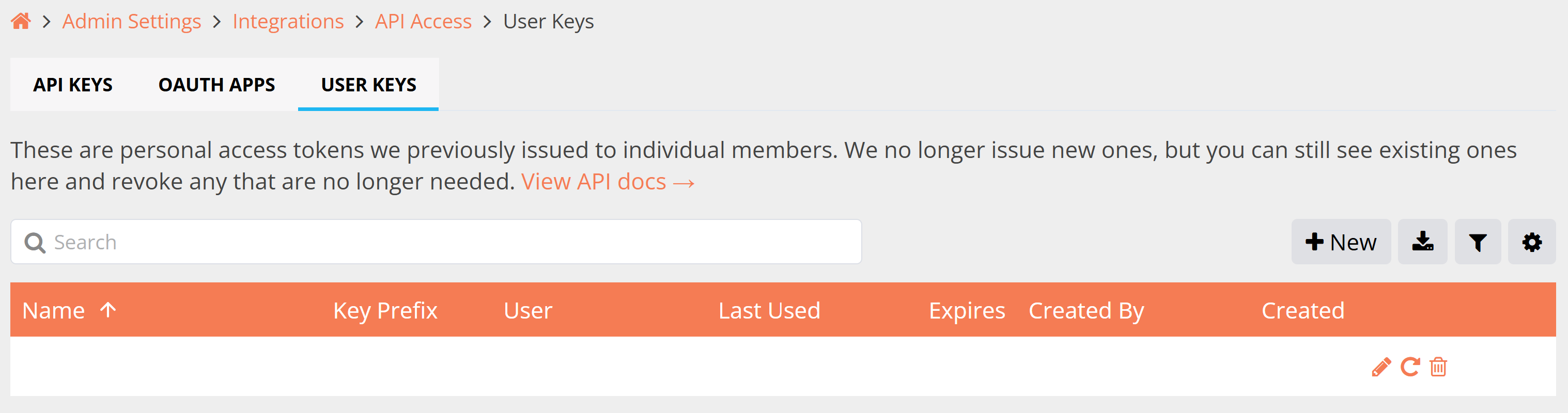
These are personal access tokens that were previously issued to individual members to access CredSpark data. We no longer issue new ones, but you can still see existing ones here and revoke any that are no longer needed.
What you can do
• View all active user keys across the organization.
• See who a key belongs to and when it was created.
• Revoke any key that is no longer needed or may have been compromised.
Before revoking a User Key make sure the integration using it has been switched to an API Key. Any integration set up before March 2026–when API Keys were introduced–is likely still using a User Key. Revoking it without replacing it first will break that integration.