

Explanations allow you to provide helpful information about an answer after a participant responds to a question.
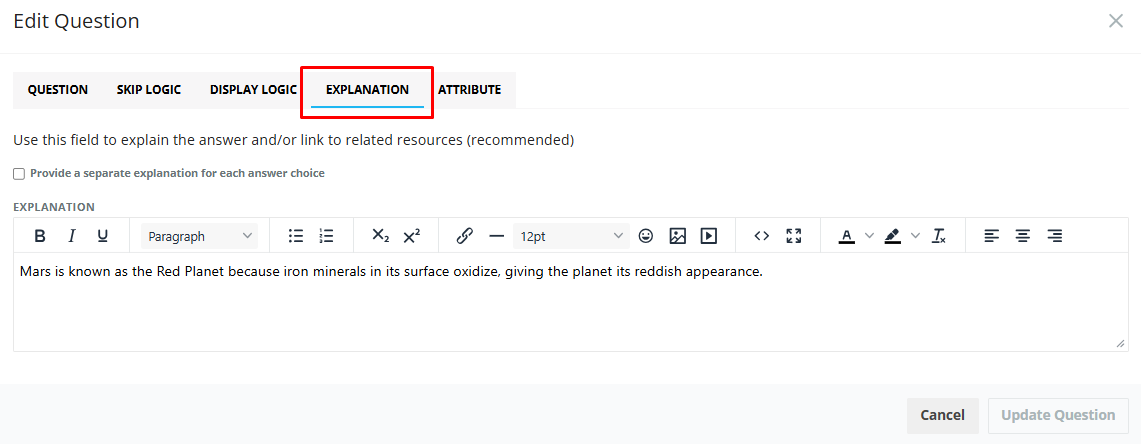
For most question types, you can add an explanation from the Explanations sub-tab within the question modal. Note that explanations can include images, video, hyperlinks, etc.
Types of explanations
You can configure explanations in two ways:
Overall explanation
Use an overall explanation when you want to display the same information regardless of the answer the participant selects.
For example, you might use it to:
Explain the correct answer
Provide additional context about the topic
Reinforce an important learning point
Direct participants to another resource
Explanation for each answer choice
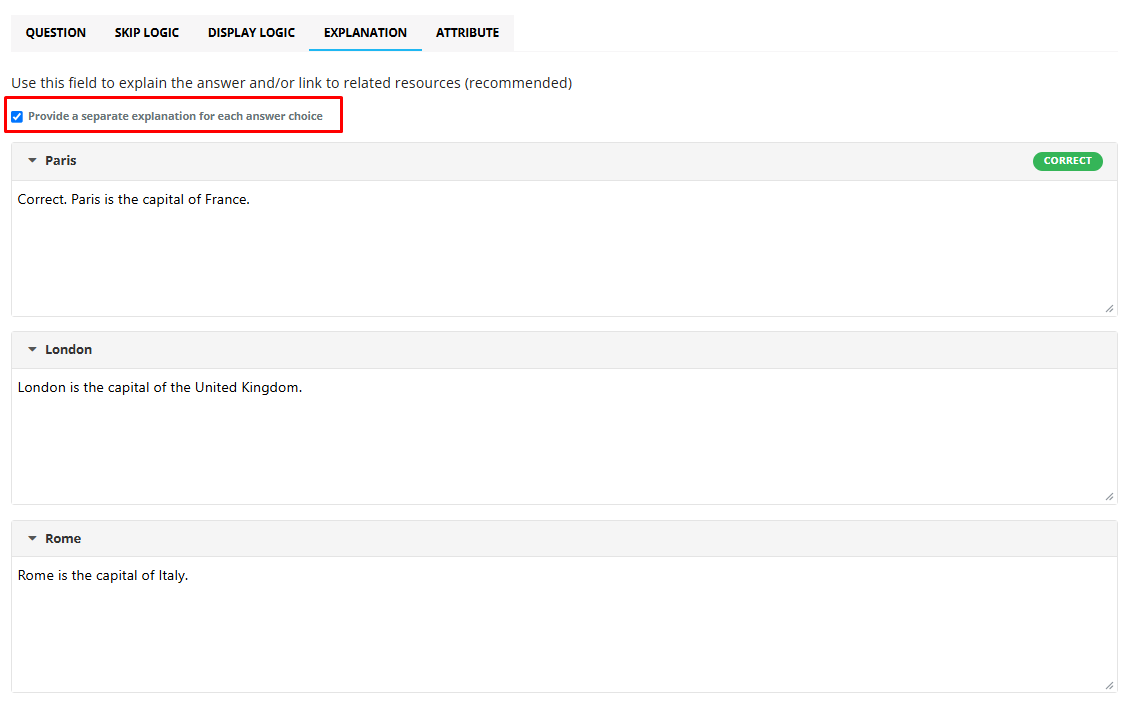
For questions with multiple answer choices, you can provide a different explanation for each answer choice.
To enable this option, select Provide a separate explanation for each answer choice.
This option is supported for:
Multiple Choice
Dropdown
Image Select
Hotspot
Each explanation is connected to a specific answer choice. Use this option to provide targeted feedback, such as explaining why an answer is correct or incorrect.
Adding Explanations When Pasting Questions
When using Paste Questions, you can include either one general explanation or separate explanations for individual answer choices.
To add a general explanation, place one line beginning with ? after the final answer choice.
Which planet is third from the Sun?
Moon
+Earth
Mars
?The Moon is not a planet; Mars is the fourth planet from the Sun.
To add answer-specific explanations, place a line beginning with ? directly after each answer choice it applies to.
What is the capital of France?
+Paris
?Correct. Paris is the capital of France.
London
?London is the capital of the United Kingdom.
Rome
?Rome is the capital of Italy.
Displaying explanations with Instant Answers
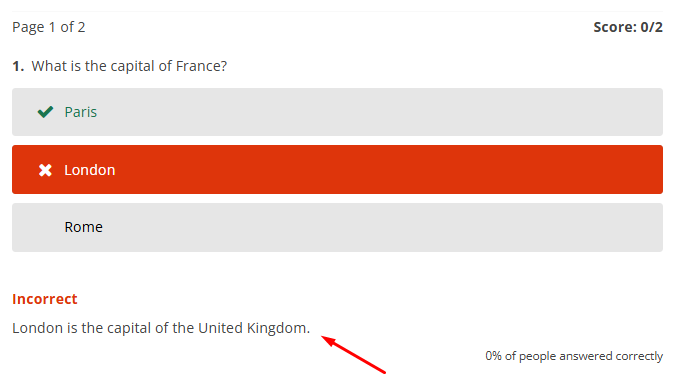
When Instant Answers are enabled, the explanation appears on the screen immediately after the participant submits their answer.
This can be particularly useful for learning experiences where participants should receive feedback before continuing to the next question.
Displaying explanations in the Results View
In the Results View, you can control how explanations are displayed to participants.
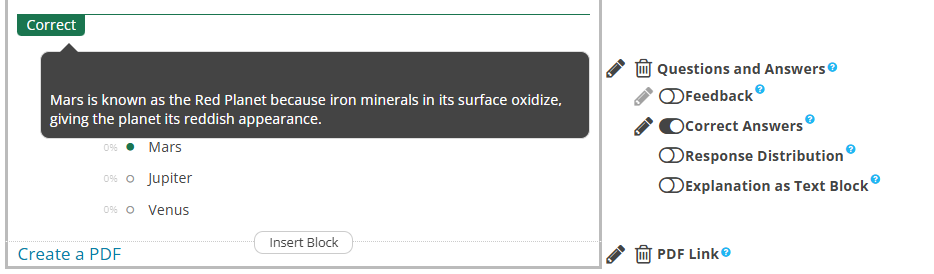
Tooltip
The explanation is hidden until the participant selects the tooltip icon.
Example:
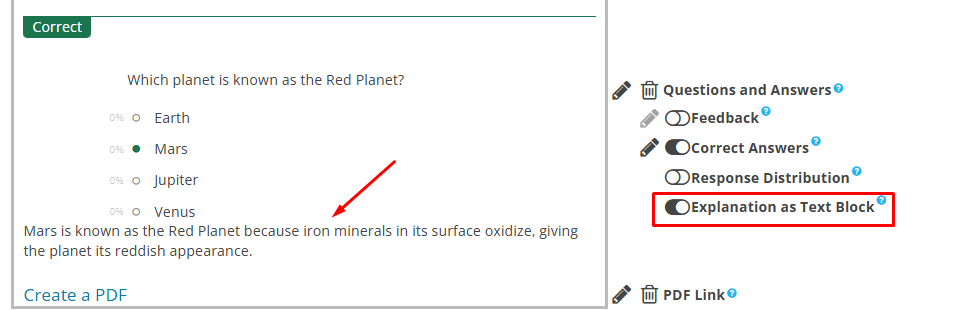
Block
The explanation is displayed directly beneath the question and answer information.
Example:
Choose the format that works best for the length and importance of the explanation.