

The Slider List question type lets participants respond to multiple sliders within a single question, each with its own label. It builds on the Slider question type - all sliders share the same scale - so it works well when you want participants to rate or score several items on the same scale without creating a separate question for each one.
Note: This question type is not scored.
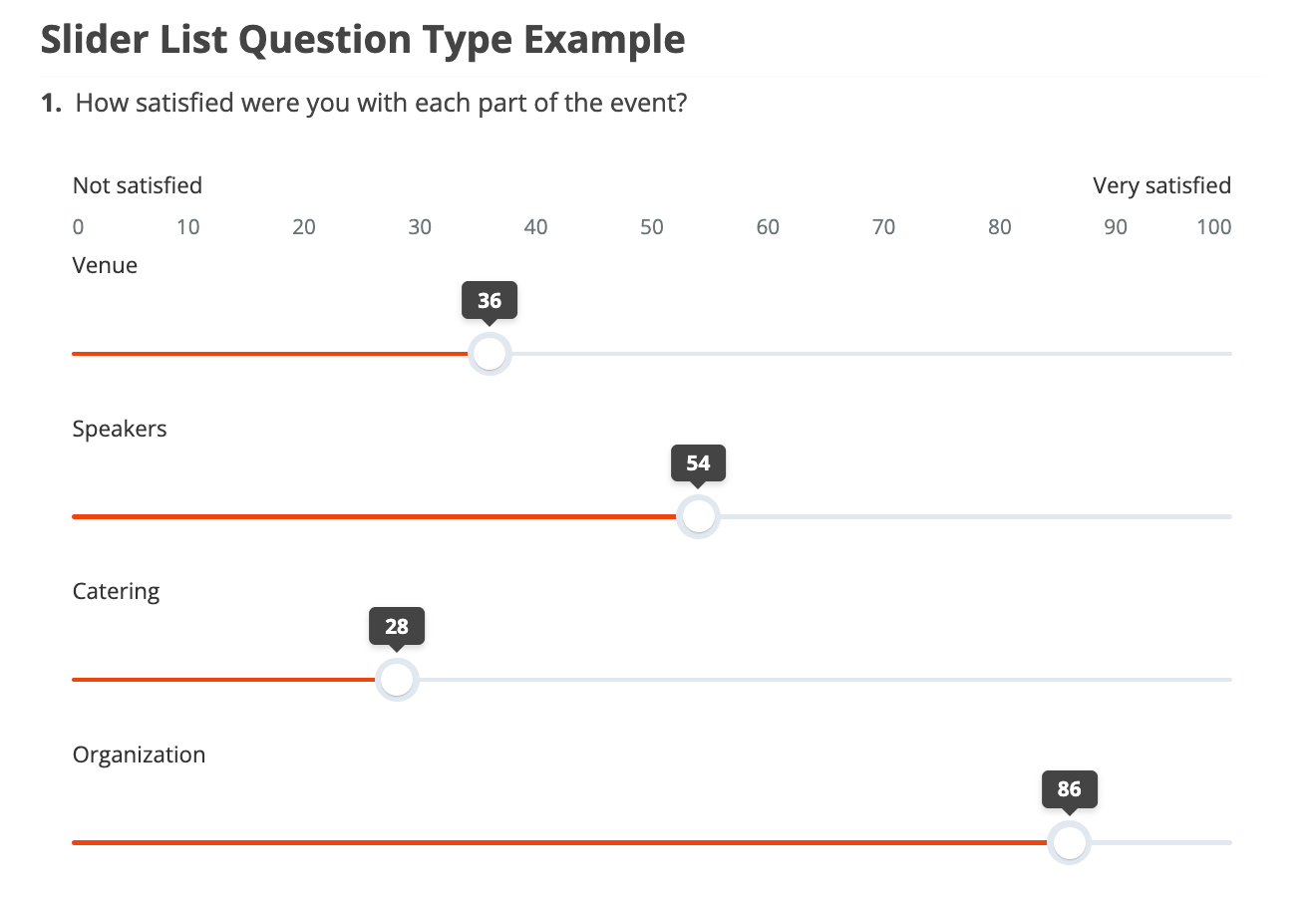
How to Create a Slider List Question
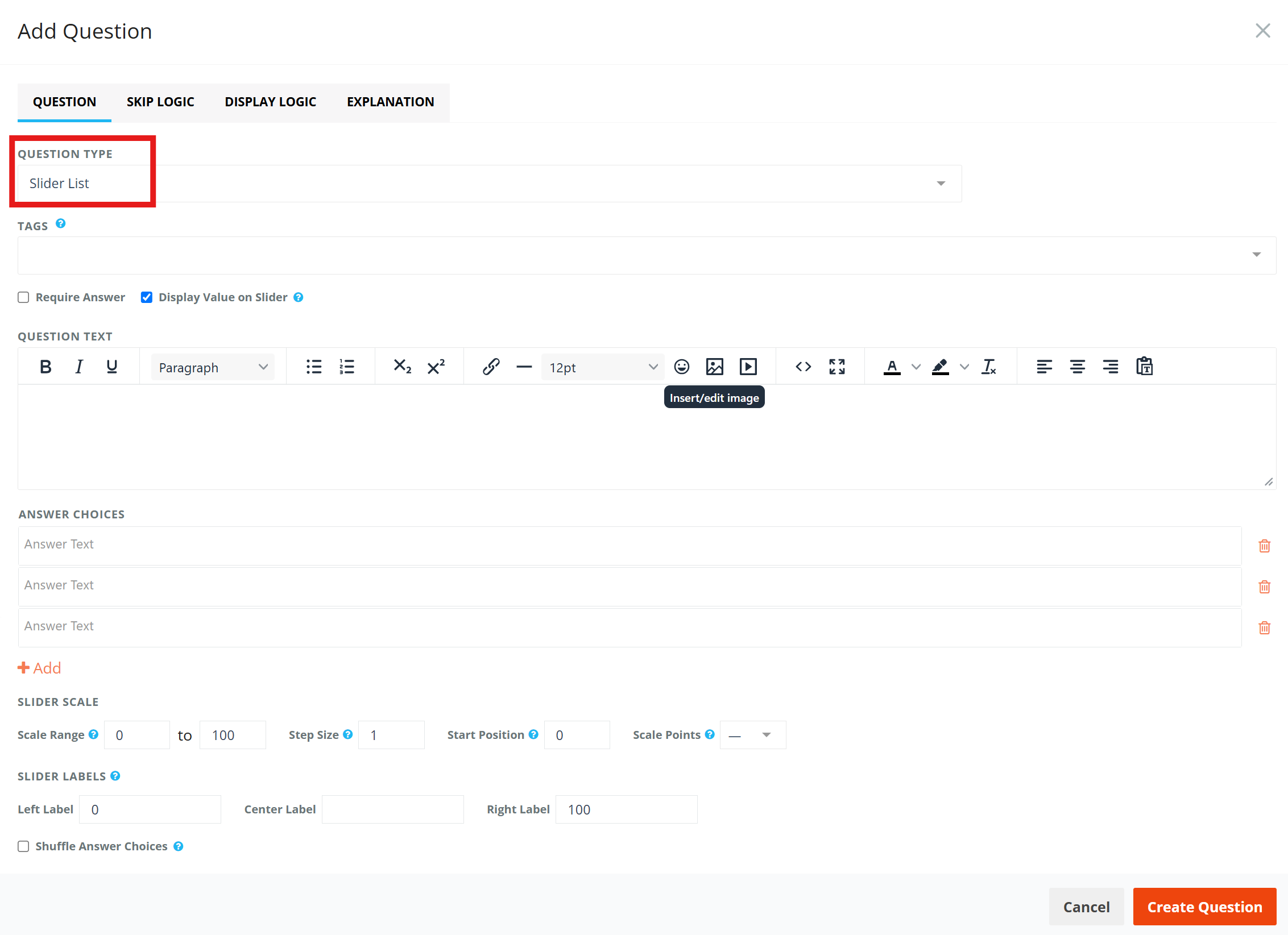
1. To create a Slider List question, navigate to the question modal and select Slider List from the menu.
2. Enter your question text.
3. Under Answer Choices, add a label for each slider you want to include. Use + Add to add more.
4. Configure the slider scale and labels as needed (more details below).
Settings
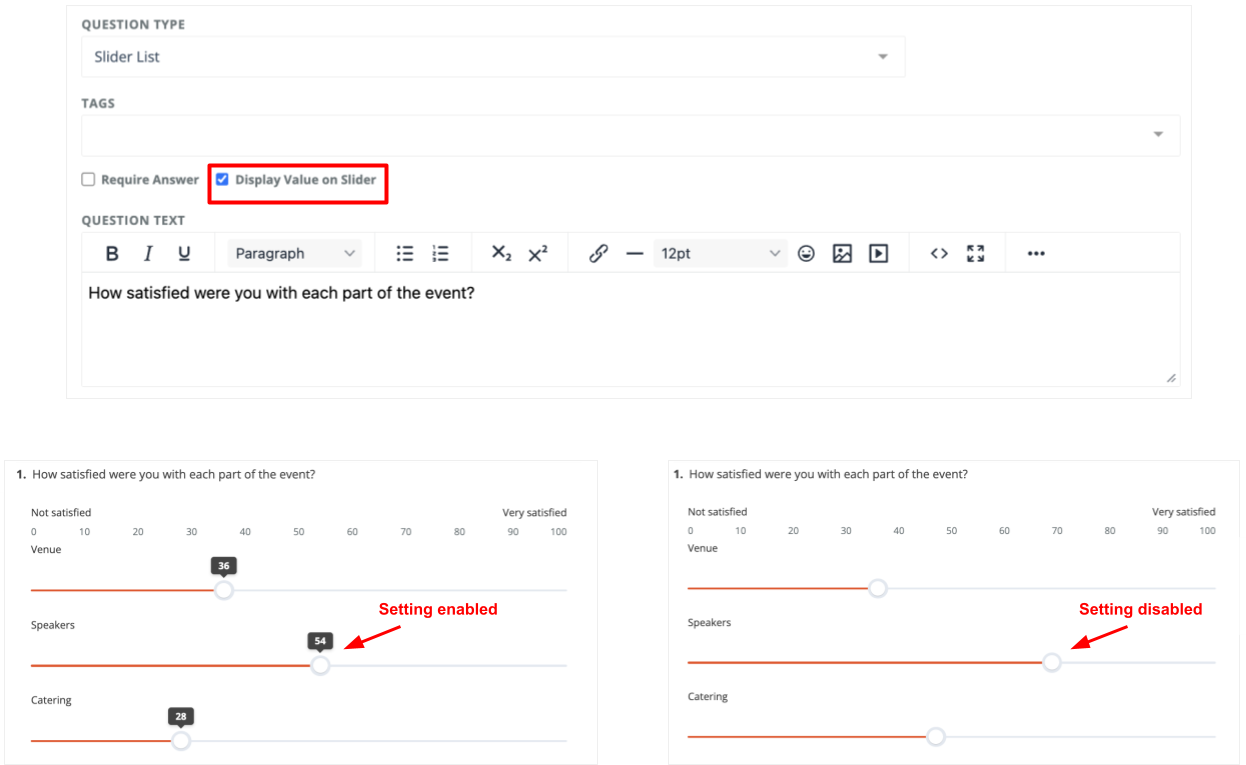
Display Value on Slider
This controls whether the currently selected value is displayed on each slider. This setting is enabled by default and can be turned off if you prefer not to show the value while the participant is responding.
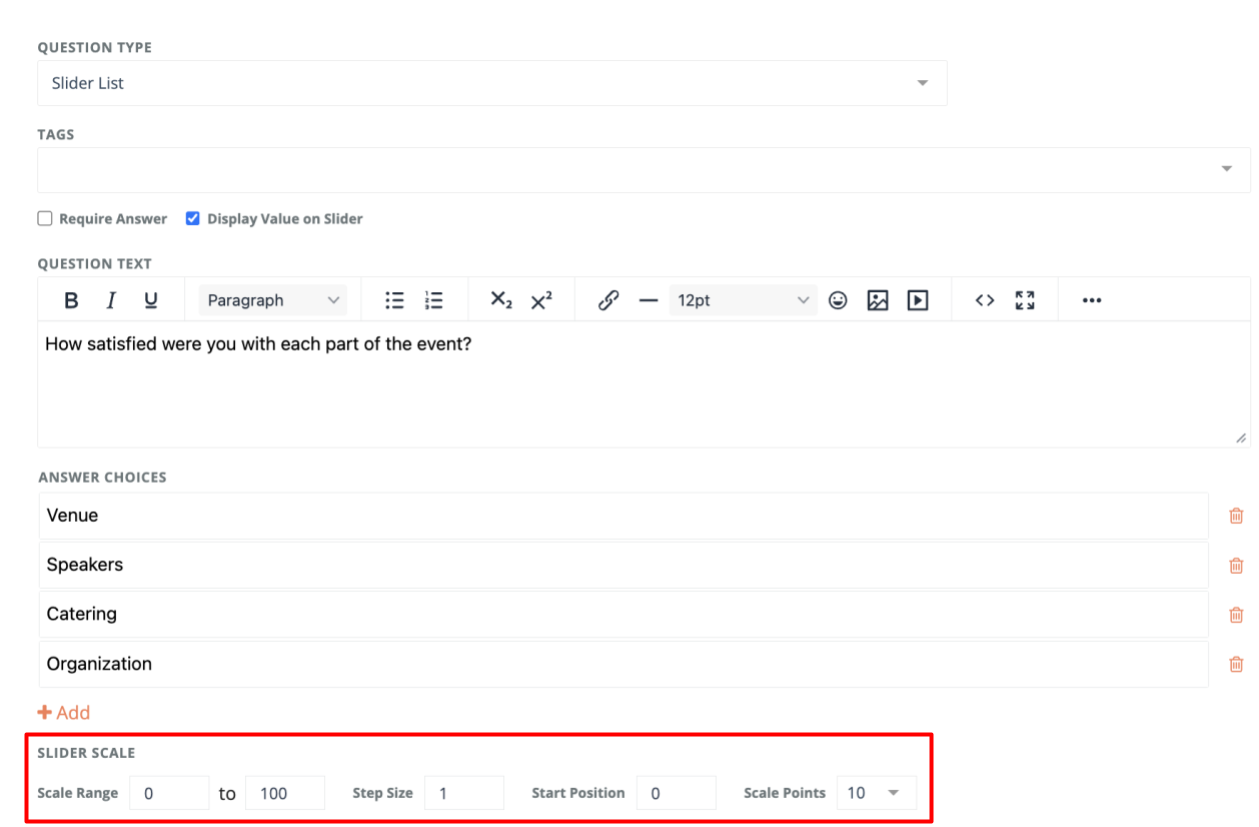
Slider Scale
The scale settings apply to all sliders in the list.
Scale Range
This controls the lowest and highest values available on the sliders. You can change this to any range that fits your question - for example, 1 to 10, or 0 to 500.
Both minimum and maximum values are required
The maximum value cannot be lower than minimum value
Step Size
Defines how much the slider value increases or decreases with each movement. A step size of 1 means the slider moves in increments of 1 (e.g., 0, 1, 2, 3...). A step size of 10 would move in increments of 10 (e.g., 0, 10, 20...).
Start Position
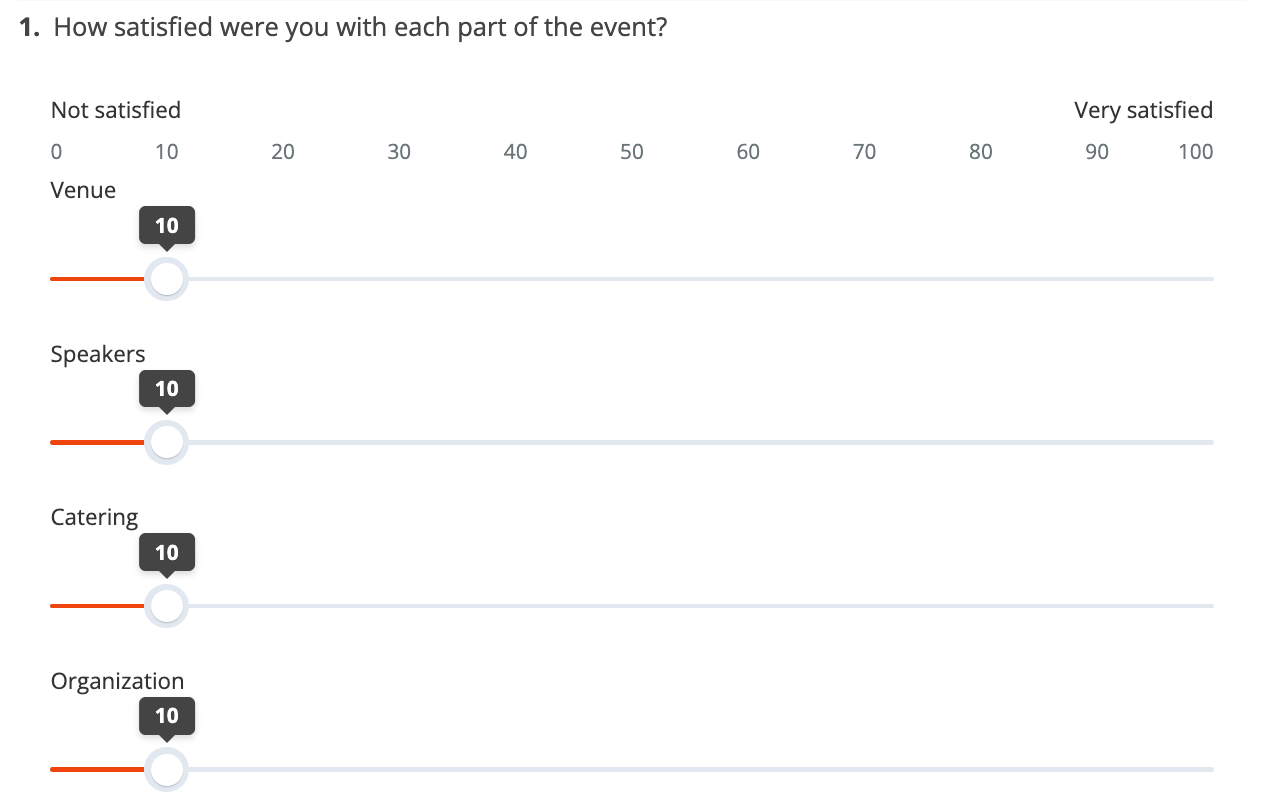
Defines the initial value shown on each slider before the participant interacts with it. The start position must fall within the selected scale range.
Example - Start position is set to 10
Scale Points
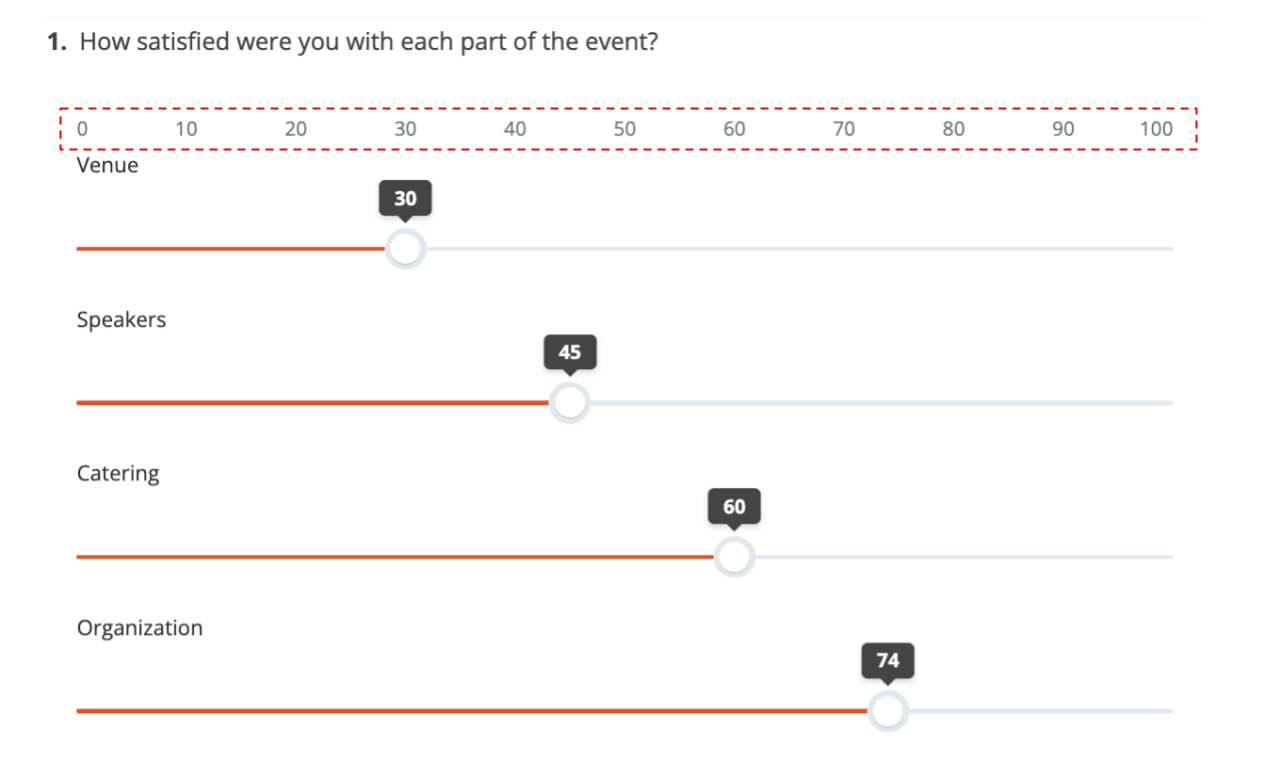
Sets how many reference points appear along the slider. Choose a value between 2 and 10, or leave it empty to show no reference points. When a value is selected, the points are distributed evenly along the slider track based on your scale range - for example, with a range of 0 to 10 and Scale Points set to 10, the points fall at 0, 10, 20, 30, 40, 50, 60, 70, 80, 90, 100.
Slider Labels
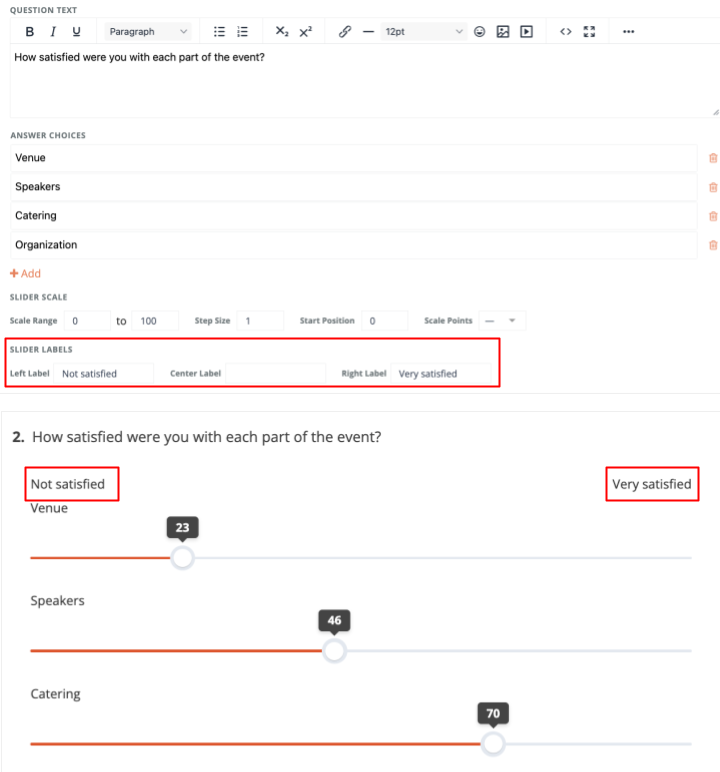
You can add labels at the left, center, and right of the scale to give participants context. In a Slider List, these labels display once at the top of the list and apply to all sliders - they are not shown for each individual slider.
By default, the left and right labels display the scale range values and update automatically if the scale range changes. Once you manually edit a label, it will no longer update automatically - so if you later change the scale range, make sure to review and update the labels as needed.
Labels can also be left empty. Labels are for display only and do not affect the slider range or how responses are recorded.
How Responses Are Recorded
A response is recorded once the participant interacts with at least one slider in the question.
Until then, the sliders display their start position, but no value is counted as an answer.
To make this clear, participants will see a prompt below the sliders:
"Interact with the slider for your response to be recorded"
Once the participant interacts with at least one slider, the prompt disappears and their response is recorded - even if the value they select matches the default start position.
Data, Reports & Logic
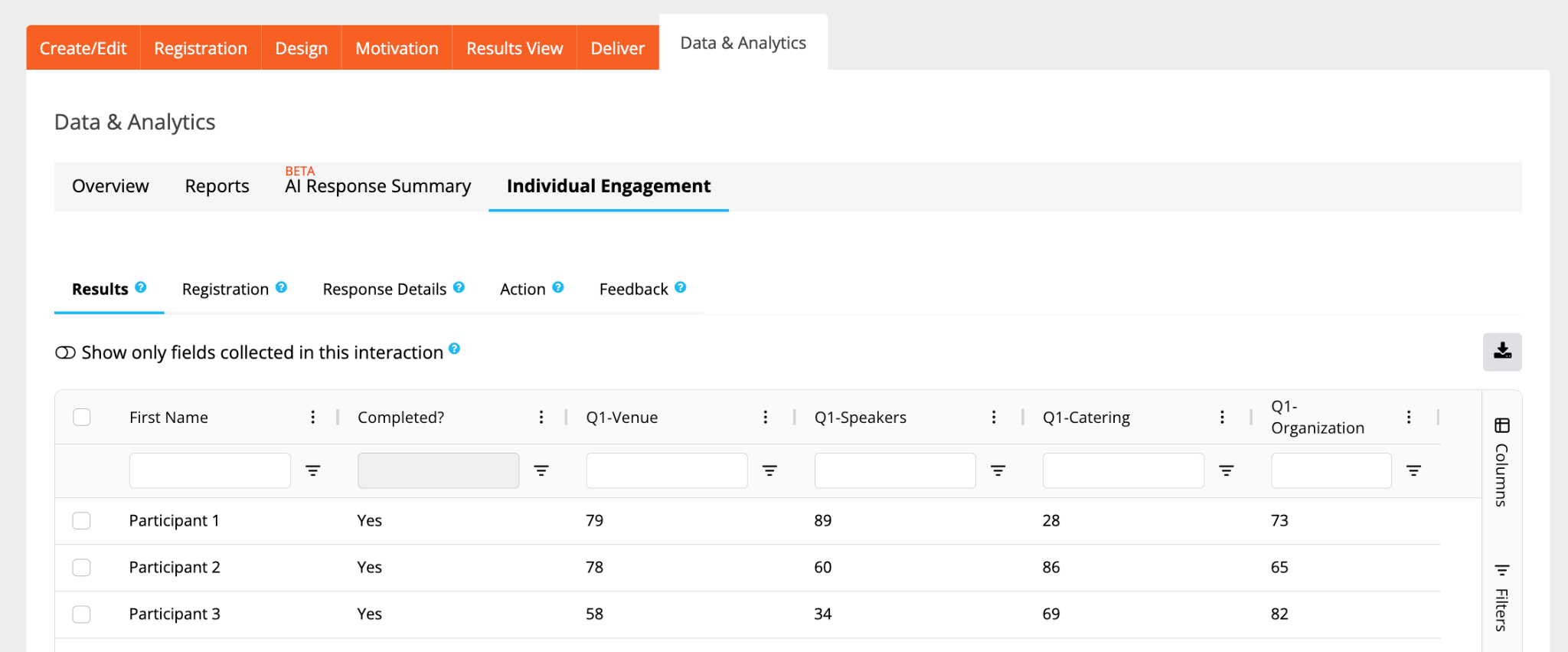
You can view individual participant responses for Slider List questions in the Data Tables:
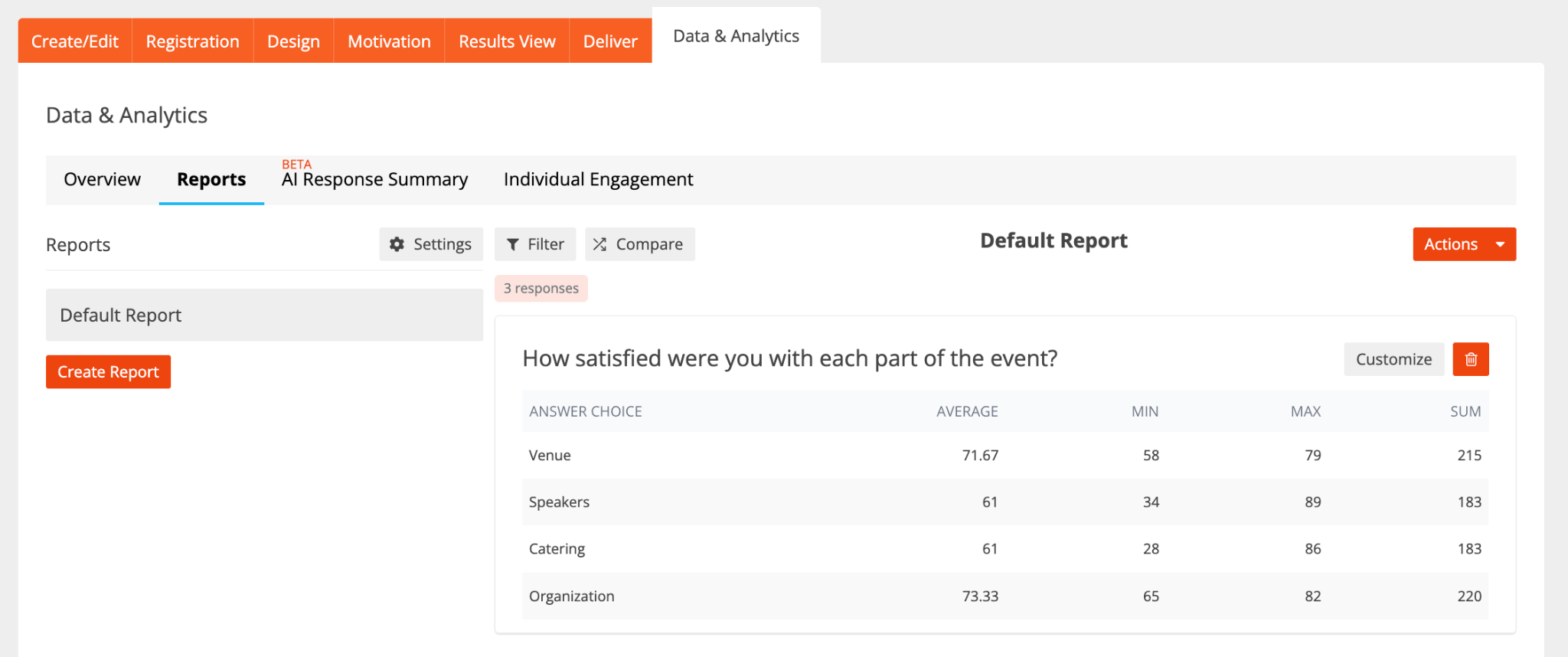
This question type is also supported in Reports, where each answer choice is summarized with its average, minimum, maximum, and sum:
Note: Slider List does not support Display Logic or Skip Logic.