

SAML SSO lets your organization members sign in to CredSpark using your existing Identity Provider (IdP) such as Okta, Microsoft Entra ID (Azure AD), or Google Workspace, instead of a separate username and password.
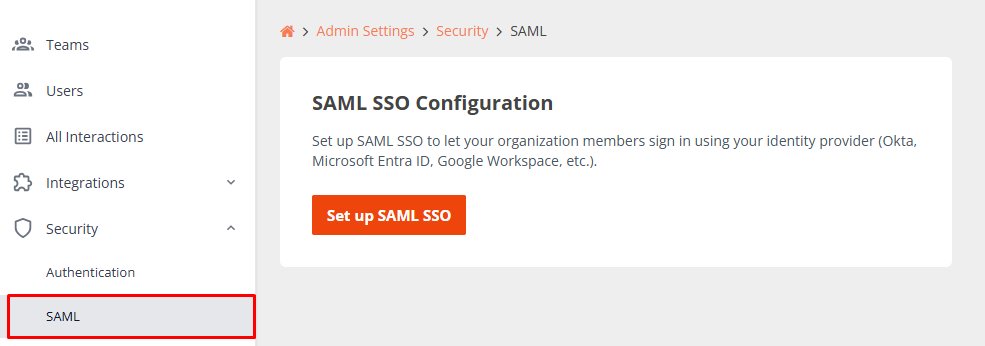
This guide walks you through the full setup process in the CredSpark Admin Settings > Security > SAML SSO Configuration page.
Prerequisites
- You must be an Organization Admin in CredSpark.
- You need admin access to your Identity Provider to create a new SAML application.
Step 1: Initialize the SAML Configuration
- Navigate to Admin Settings > Security > SAML SSO Configuration.
- Click Set up SAML SSO.
This creates the SAML integration and generates your Service Provider (SP) URLs, which you will need in the next step.
Step 2: Register CredSpark in Your Identity Provider
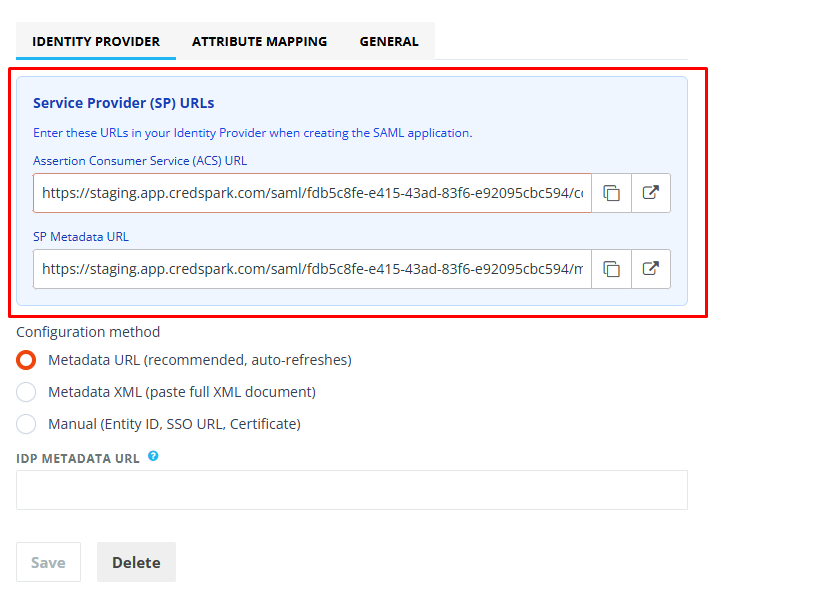
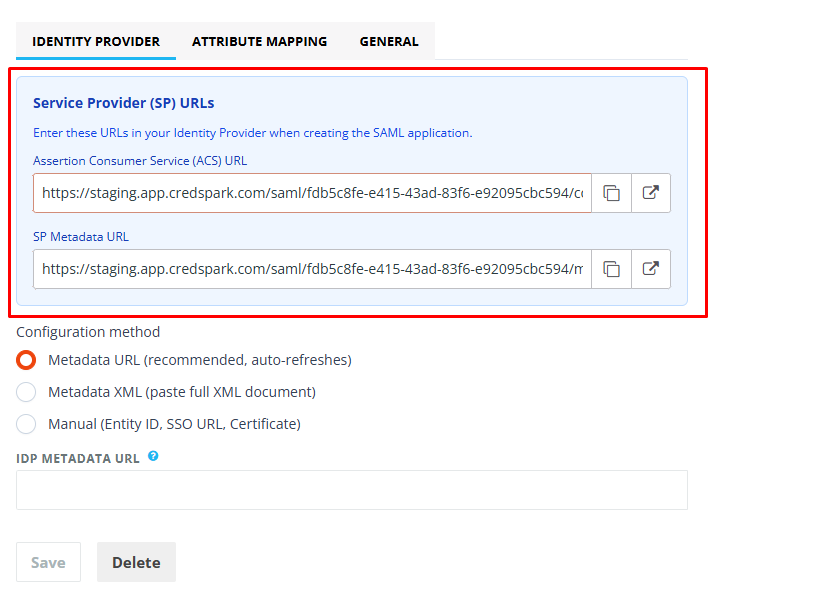
After the SAML configuration is created, the Identity Provider tab displays a blue callout box with two SP URLs. You will need to enter these in your IdP when creating the SAML application:
| Field | Description |
Assertion Consumer Service (ACS) URL | The URL where your IdP sends the SAML response after authentication. Sometimes called "SSO URL" or "Reply URL". |
SP Metadata URL | The metadata endpoint for CredSpark's SAML configuration. Some IdPs can import this directly. Also used as the Audience URI / SP Entity ID. |
Create the SAML app in your IdP
Use the following settings when creating the app:
| Setting | Value |
Single Sign-On URL (ACS) | (copy from the ACS URL field) |
Audience URI (SP Entity ID) | (copy from the SP Metadata URL field) |
Name ID Format | EmailAdress |
Application Username |
Configure attribute statements
CredSpark can receive user attributes from your IdP. Email is handled automatically via the Name ID and does not need a separate mapping. Add the following attribute statements:
| Name | Name Format | Value (example) |
firstName | Unspecified | user.firstName |
lastName | Unspecified | user.lastName |
userId | Unspecified | user.employeeNumber |
Note: The exact attribute values depend on your IdP. See the Attribute Mapping section below to match these to your IdP's attribute names.
Step 3: Enter Your IdP Information in CredSpark
On the Identity Provider tab, choose one of three configuration methods:
Option A: Metadata URL (Recommended)
Enter your IdP's Federation Metadata URL. CredSpark will automatically import and periodically refresh the IdP configuration.
Where to find it:
- Okta: In the SAML app's Sign On tab, look for the metadata URL.
- Entra ID (Azure AD): The App Federation Metadata URL in the SAML configuration section.
Option B: Metadata XML
If your IdP does not provide a metadata URL, paste the full XML metadata document into the text area. You can usually download this as a file from your IdP's SAML configuration page.
Option C: Manual Configuration
If neither metadata option is available, enter the three fields manually:
| Field | Description | Where to find it |
IdP Entity ID | The unique identifier for your IdP. | Okta: "Identity Provider Issuer". Entra ID: "Identifier (Entity ID)". |
IdP Single Sign-On URL | The URL where CredSpark sends SAML authentication requests. | Okta: "Identity Provider Single Sign-On URL". Entra ID: "Login URL". |
| IdP Signing Certificate (X.509) | The public certificate used to verify SAML responses. Paste the full certificate, including BEGIN CERTIFICATE / END CERTIFICATE lines. | Okta: "X.509 Certificate" under SAML setup. Entra ID: Download from the "SAML Certificates" section. |
Click Save after entering your IdP information.
Note: Steps 2 and 3 can be completed in any order. Both sides (IdP and CredSpark) need to be configured before SSO will work.
Step 4: Configure Attribute Mapping
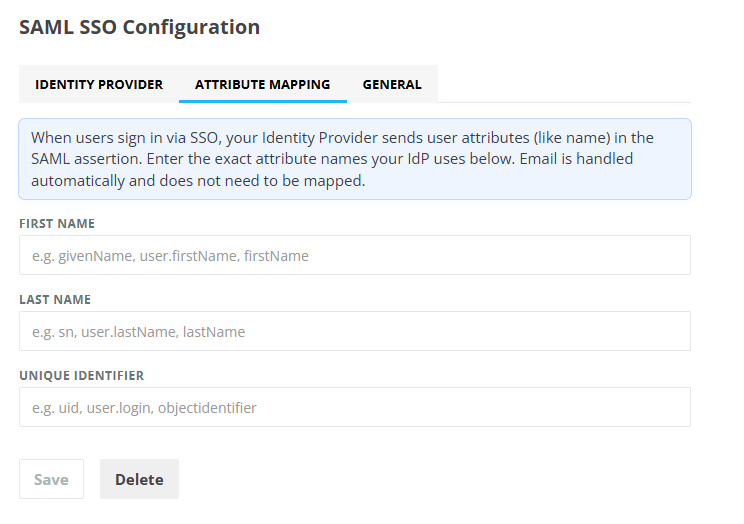
Switch to the Attribute Mapping tab. Enter the exact attribute names your IdP uses in the SAML assertion. These must match what you configured as attribute statement names in your IdP (Step 2).
| CredSpark Field | Description | Common Values |
| First Name | User's first name | givenName user.firstName firstName http://schemas. xmlsoap.org/ws /2005/05/identity /claims/givenname |
| Last Name | User's last name | sn us er.lastName lastName http://schemas. xmlsoap.org/ws/2005 /05/identity/claims /surname |
| Unique Identifier | A stable unique ID for the user | uid user.login objectidentifier user.employeeNumber |
Common attribute names by IdP
CredSpark Field | Okta | Entra ID (Azure AD) | Google Workspace |
| First Name | user.firstName | user.givenname | givenName |
| Last Name | user.lastName | user.surname | familyName |
| Unique Identifier | user.employeeNumber | user.objectid | uid |
Click Save after configuring attribute mappings.
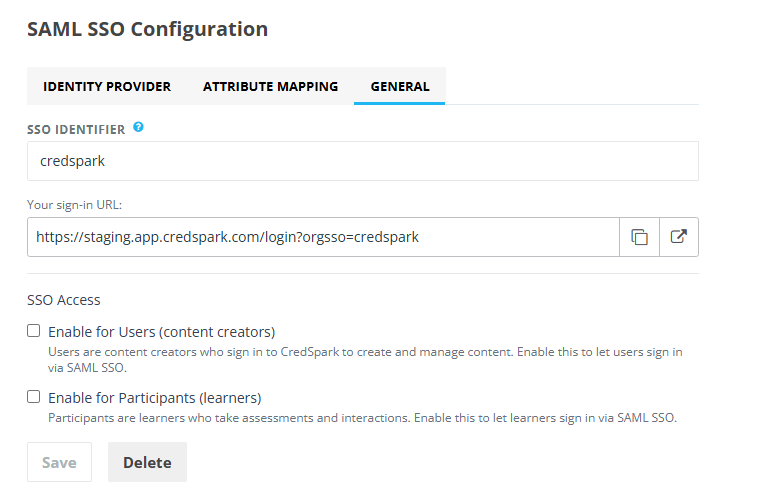
Step 5: Configure General Settings
Switch to the General tab.
SSO Identifier
The SSO Identifier is a short slug (e.g. acme) that appears in the sign-in URL. This is auto-generated from your organization name but can be customized. The resulting sign-in URL is displayed below the field, e.g.:
https://app.credspark.com/login?orgsso=acme
Share this URL with users who should sign in via SSO.
SSO Access
Enable SSO for the appropriate user types:
| Option | Description |
Enable for Users (content creators) | Allows organization members who create and manage content to sign in via SAML SSO. |
| Enable for Participants (learners) | Allows learners who take assessments and interactions to sign in via SAML SSO. |
Click Save after updating these settings.
Step 6: Test the Integration
There are two ways to verify that SSO is working:
SP-Initiated SSO (user starts from CredSpark)
- Sign out of CredSpark if you are currently signed in.
- Go to your sign-in URL (from the General tab), e.g. https://app.credspark.com/login?orgsso=acme, or go to https://app.credspark.com/login and enter your email address.
- You should see an option to sign in using SSO.
- After authenticating with your IdP, you should be redirected to the CredSpark dashboard.
IdP-Initiated SSO (user starts from the IdP)
- In your IdP portal (e.g. Okta dashboard, Azure My Apps), click the CredSpark application tile.
- You should be redirected directly to the CredSpark dashboard without entering additional credentials.
Step 7: Restrict Authentication Methods (Optional)
Once you have confirmed that SSO is working, you may want to disable other sign-in methods.
- Navigate to Admin Settings > Security > Authentication.
- Disable Password and/or Google sign-in as needed.
Warning: Make sure SSO is fully working and tested before disabling other authentication methods. If SSO is misconfigured and other methods are disabled, users may be locked out.
Troubleshooting
| Issue | Possible Cause | Solution |
| User does not see SSO option at login | SSO not enabled for their user type | Go to the General tab and enable SSO for Users and/or Participants. |
| "Invalid SAML response" error | IdP metadata or certificate is incorrect | Double-check the IdP configuration (Entity ID, SSO URL, Certificate). If using a Metadata URL, verify it is reachable. |
| User is authenticated but name is missing | Attribute mapping mismatch | Verify the attribute names in the Attribute Mapping tab match exactly what your IdP sends. |
| "Audience mismatch" error | Wrong Audience URI in IdP | Ensure the Audience URI / SP Entity ID in your IdP matches the SP Metadata URL from CredSpark. |
| SP Metadata URL or ACS URL not showing | Configuration not yet saved | Click Save at least once to generate the SP URLs. |
Deleting the SAML Configuration
If you need to remove the SAML integration entirely:
- Go to Organization Settings > Security > SAML SSO Configuration.
- Click Delete at the bottom of the form.
- Confirm the deletion.
This will remove the SAML configuration and disable SSO. Users will need to use other authentication methods (password, Google) to sign in.
Questions? Contact support@credspark.com