Tag scored questions with specific skills or topics so you can provide more detailed information about participant performance with Results by Tag!
Tags are helpful to get more granular information about participants’ knowledge or understanding. Instead of just an overall score, tags allow you (and your end-users) to see what’s driving that overall score–the particular areas in which they are strong or weak.
Start by tagging quiz questions with a specific skill or topic:

Then, move to the “Results View” tab and enable the “Results by Tag” block (simply click on the eye icon):

This block is customizable. You can choose which tags you want to display and change the color of the bars. By default, questions not tagged will appear in the Results by Tag block as “not tagged.” You can remove those (or any others) from the Results view as shown here:

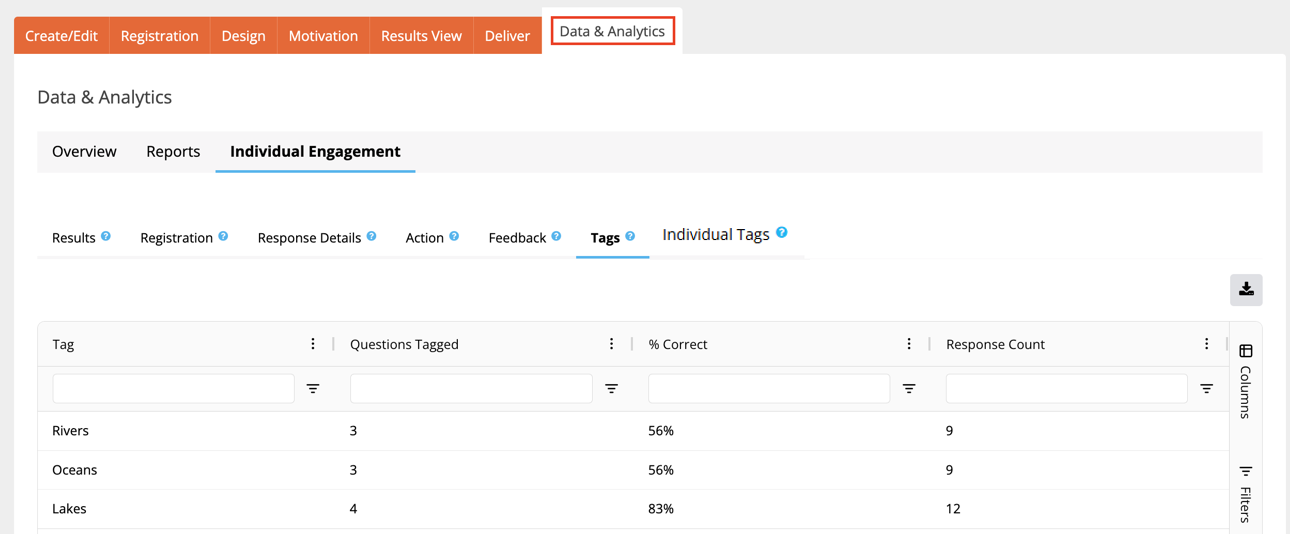
Finally, go to the Data Tab and choose the Tags Report to see more detailed information.
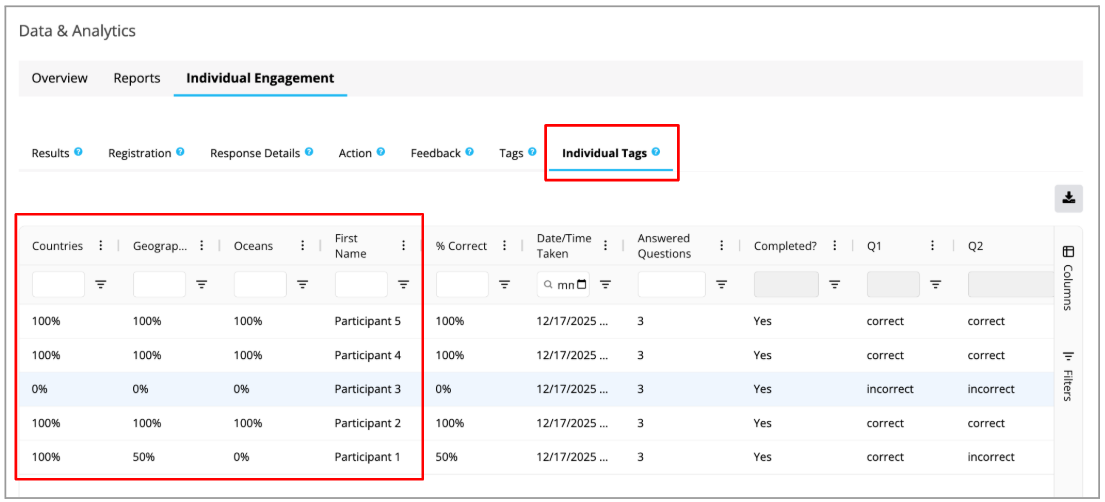
If you’re interested in seeing how question tags relate to individual participants, the Individual Tags Report is the best place to look at. This report shows which question tags are associated with each participant based on the questions they answered. Because tags are applied at the question level, it helps you understand how those tags map to individual participants.