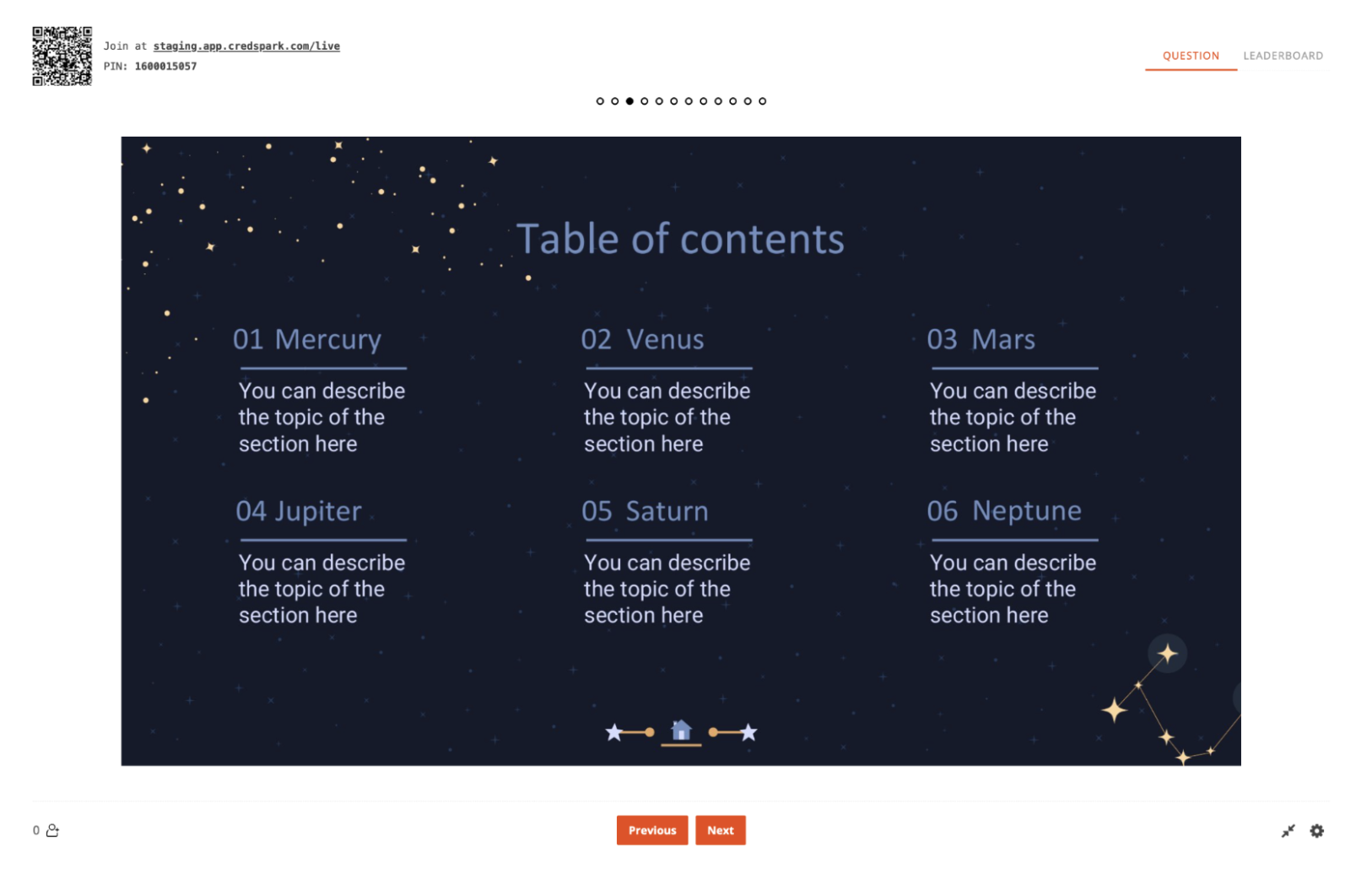
Ready to up your Live Mode game? Try importing an existing PDF or PPT file and then adding questions between your slides.
Before you start
Import works with PDF and PowerPoint files (.pptx, .ppt), up to 25 MB.
How to import a presentation
1. Create or open a Live Mode interaction.
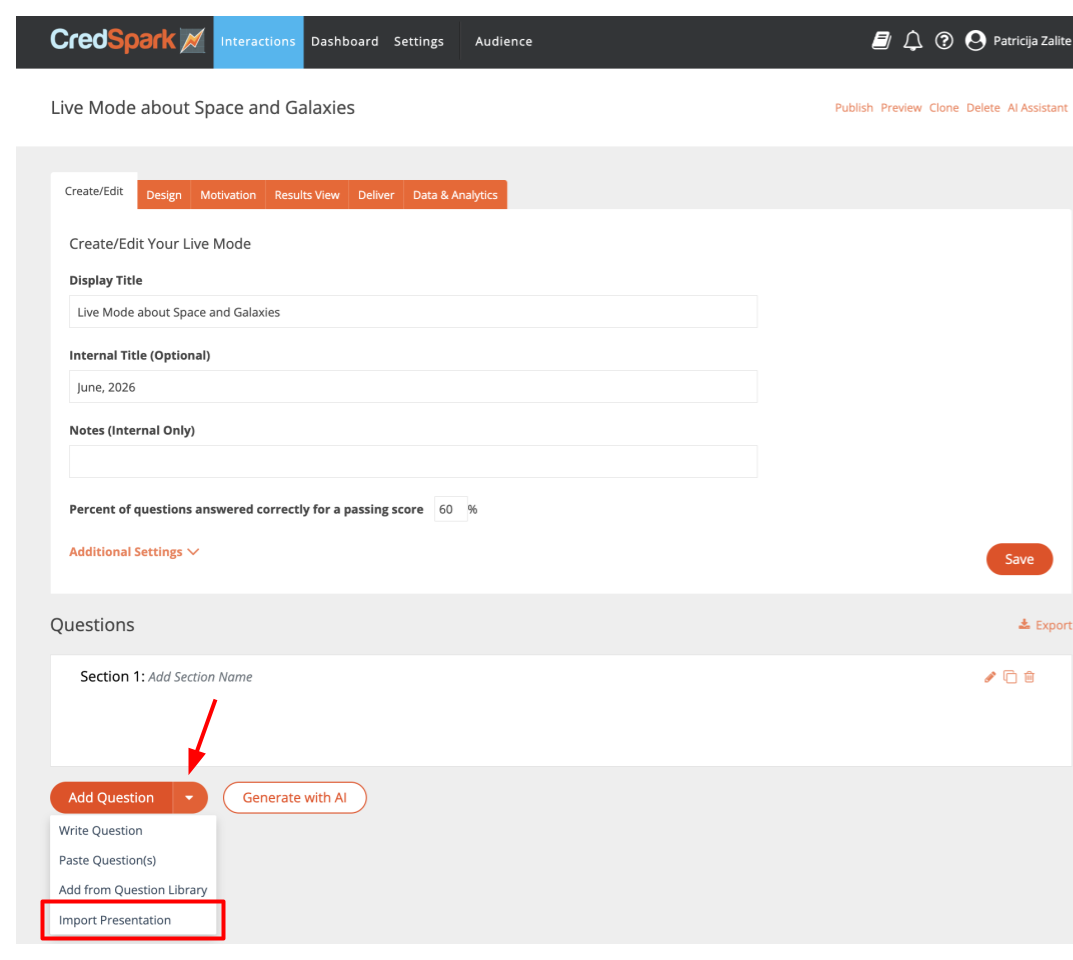
2. On the Add Question button, click the arrow and select Import Presentation.
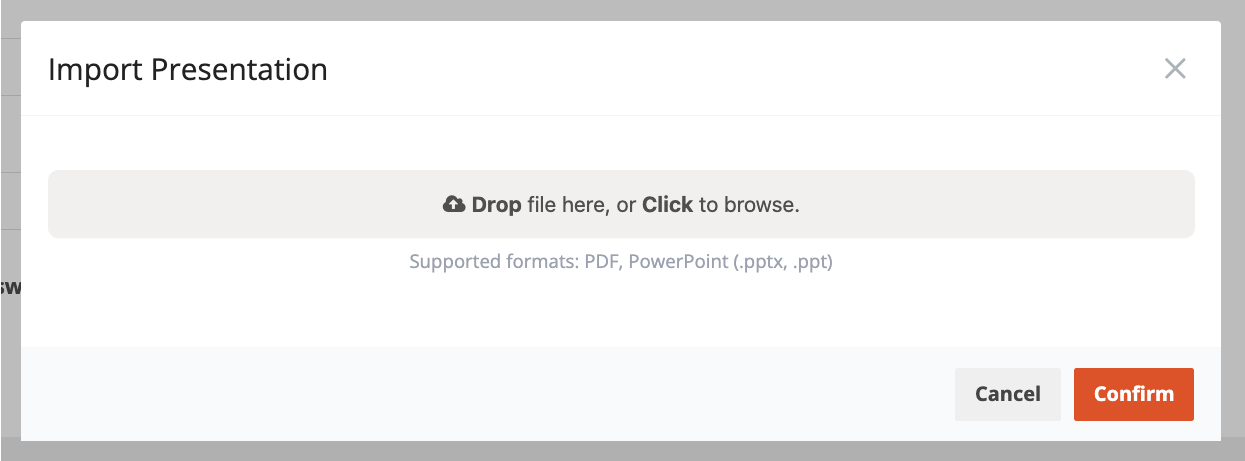
3. In the window that opens, drop your file in or click to browse, then click Confirm.
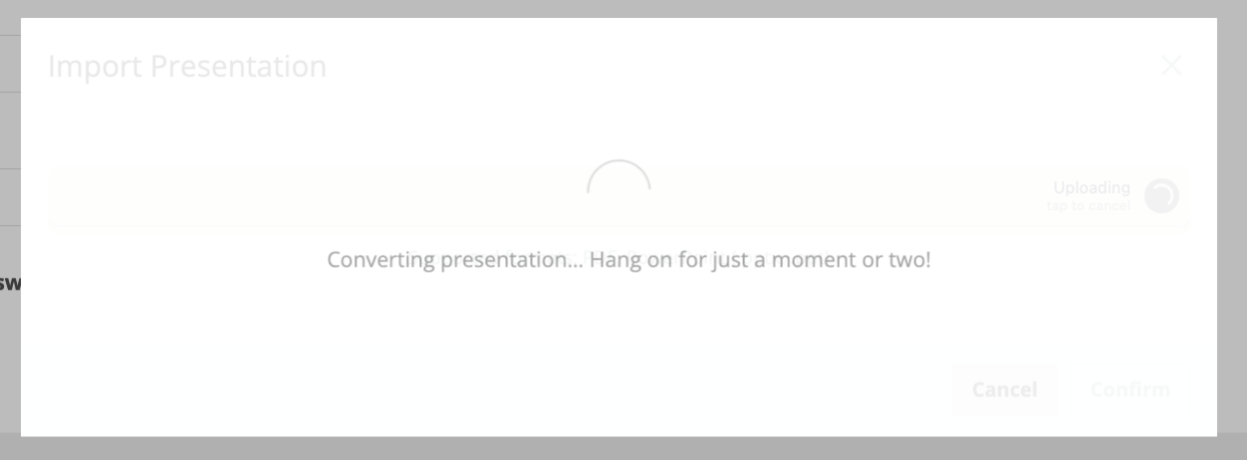
4. Wait for the file to convert. Bigger files take longer, so give it a moment.
5. Once it's done, you'll see all the slides from your file. Leave them all selected, or uncheck any you don't want to include.
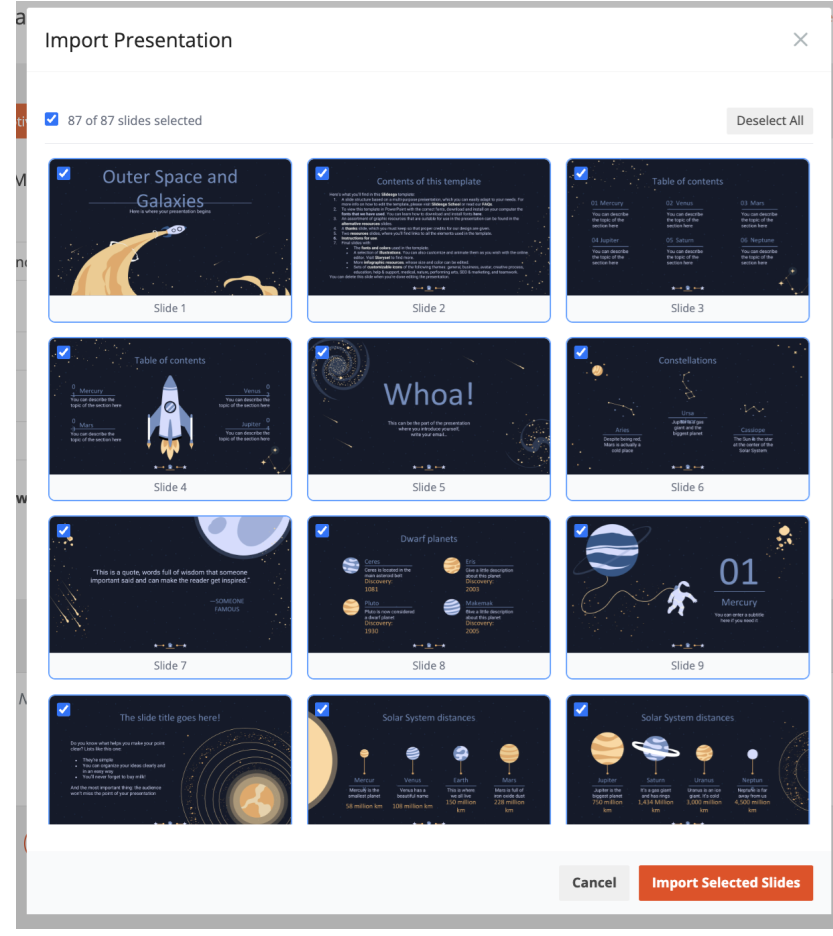
6. Click Import Selected Slides.
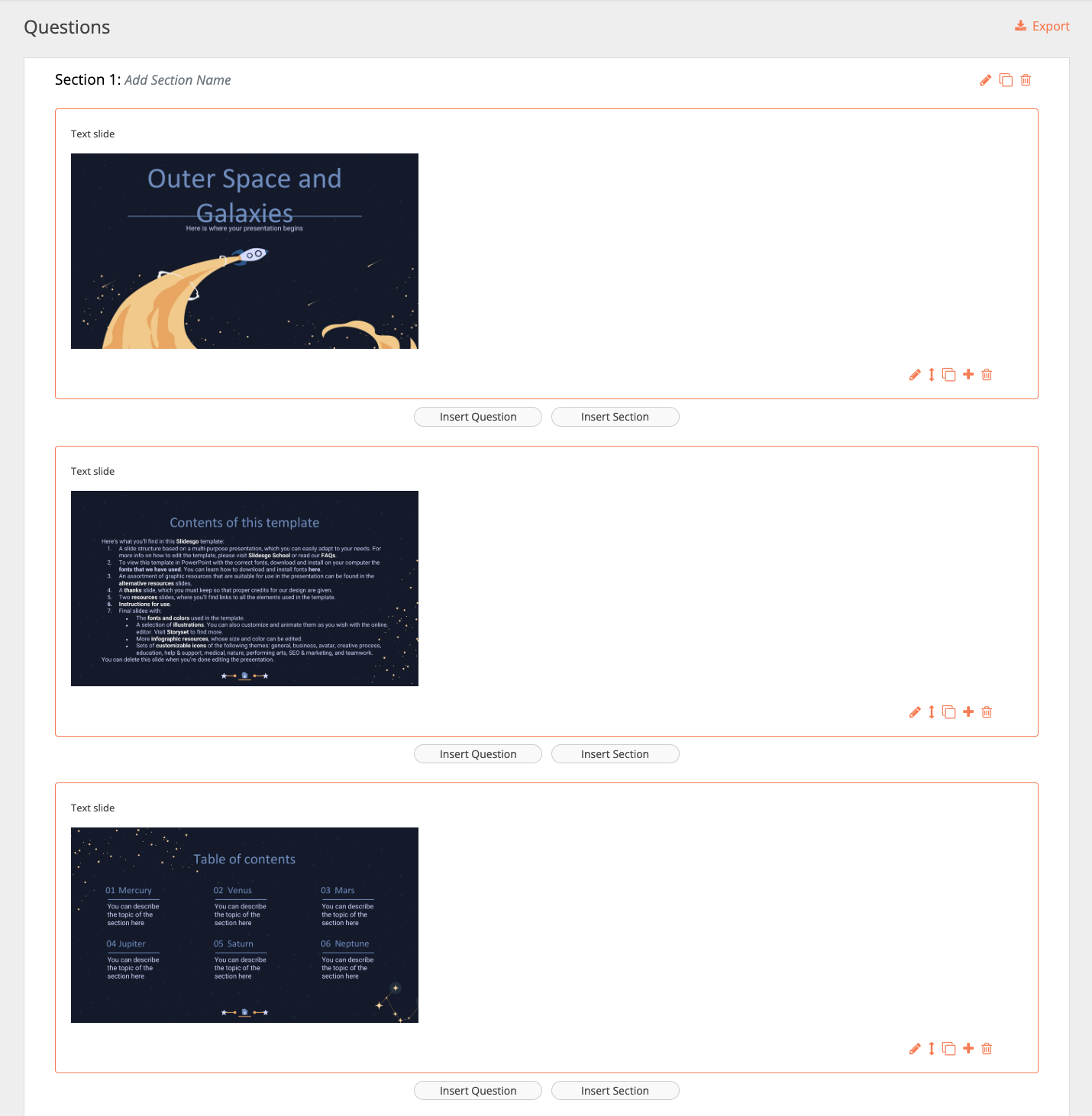
7. That's it - the slides are added to your interaction as Slides. From there you can reorder them, edit them, and insert questions between them however you like.
Present in Full Screen Mode
If your Live Mode interaction contains slides, we recommend presenting it in Full Screen Mode for the best viewing experience.
To enter Full Screen Mode:
1. Open the Facilitator Screen.
2. Click the Full Screen Mode button.
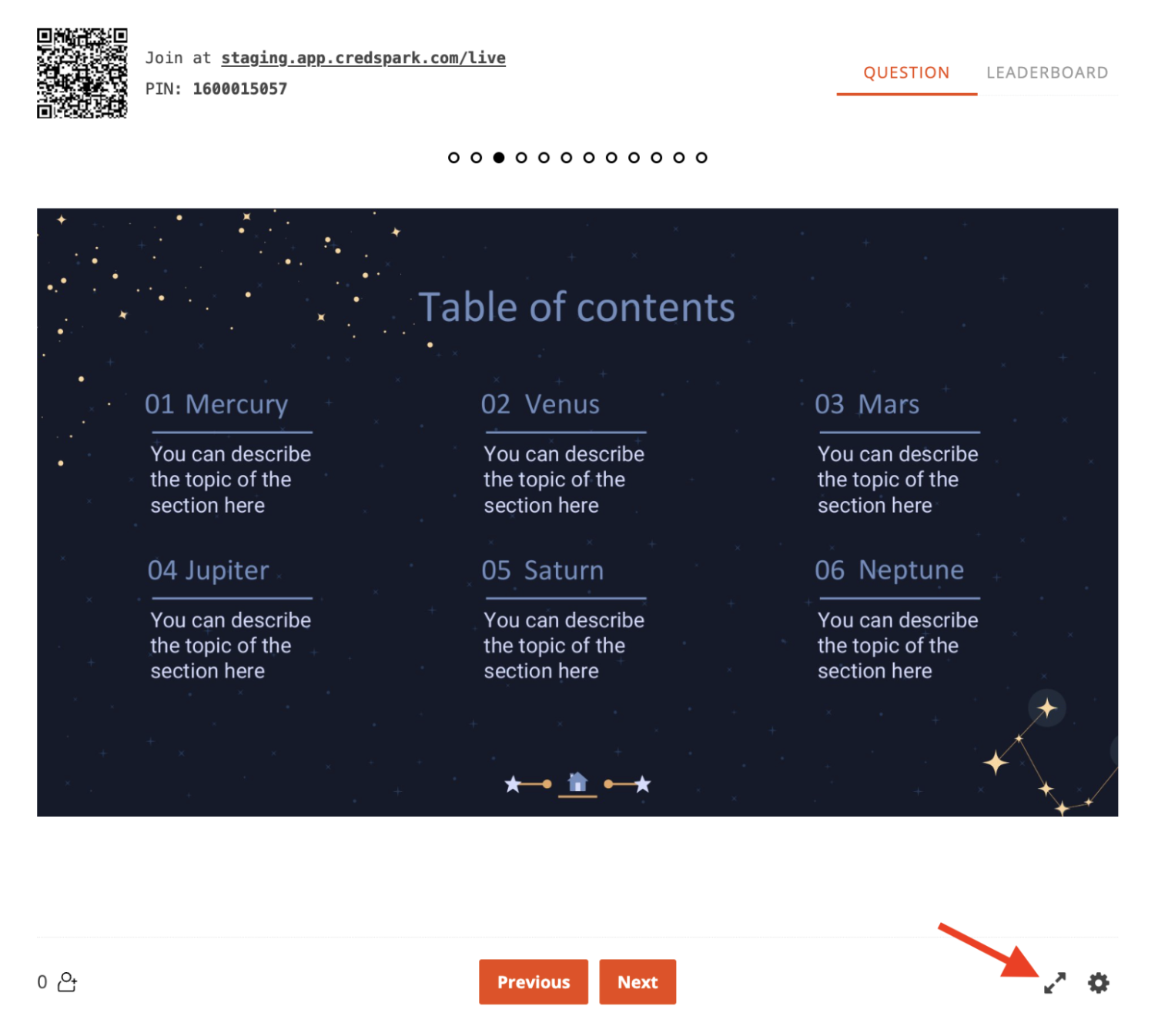
This will expand the screen so your slides are easier for participants to view: